
Search

In this article, we’ll walk through the complete nomination setup and review process.
Nominations allow you to run recognition programs within a defined time window, giving teams a structured way to recommend peers for initiatives such as employee of the month or value champion.
This creates a clear and consistent process where:
Setting up a Nomination
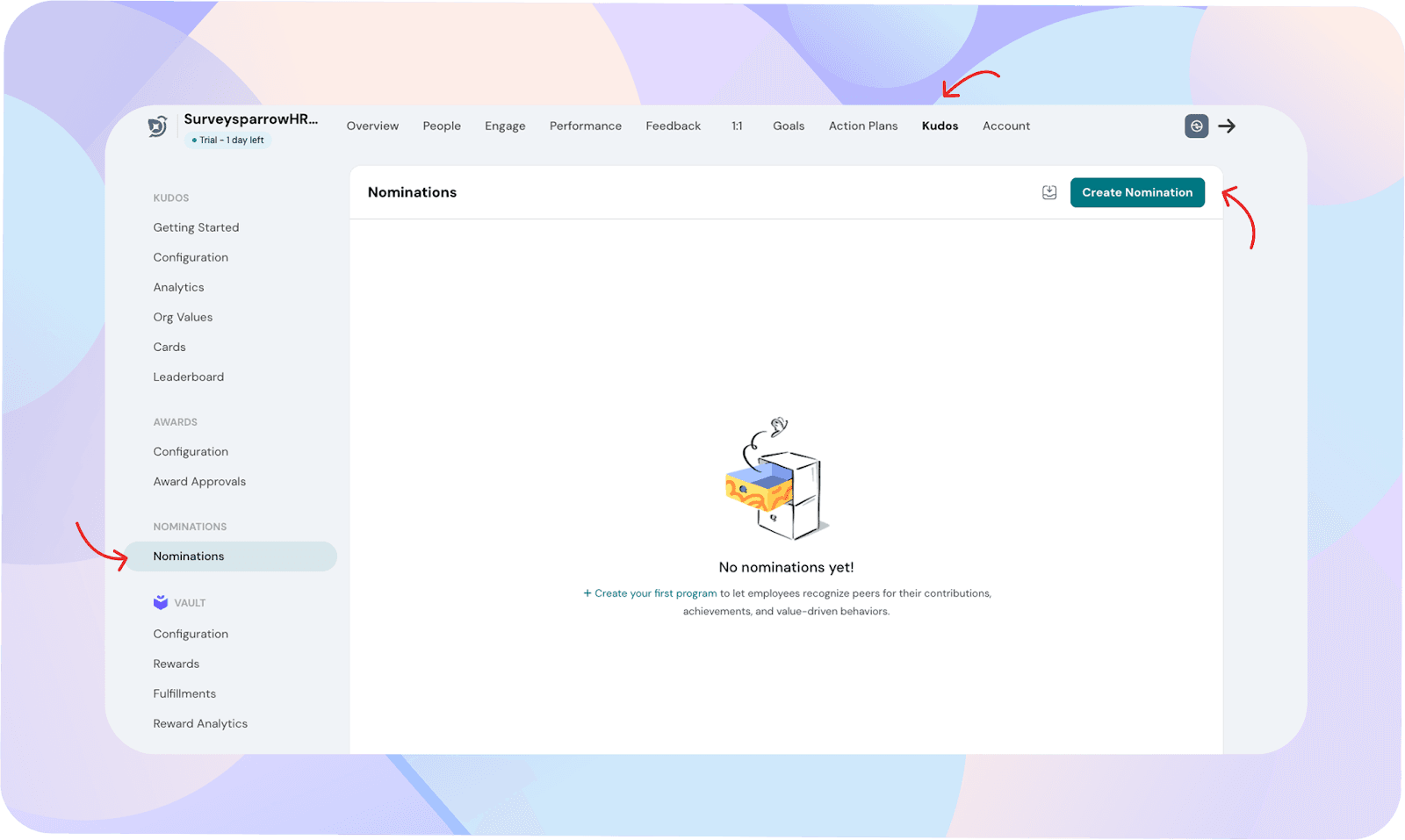
You can create and manage Nominations from Kudos.
Kudos → Nominations → Create Nomination
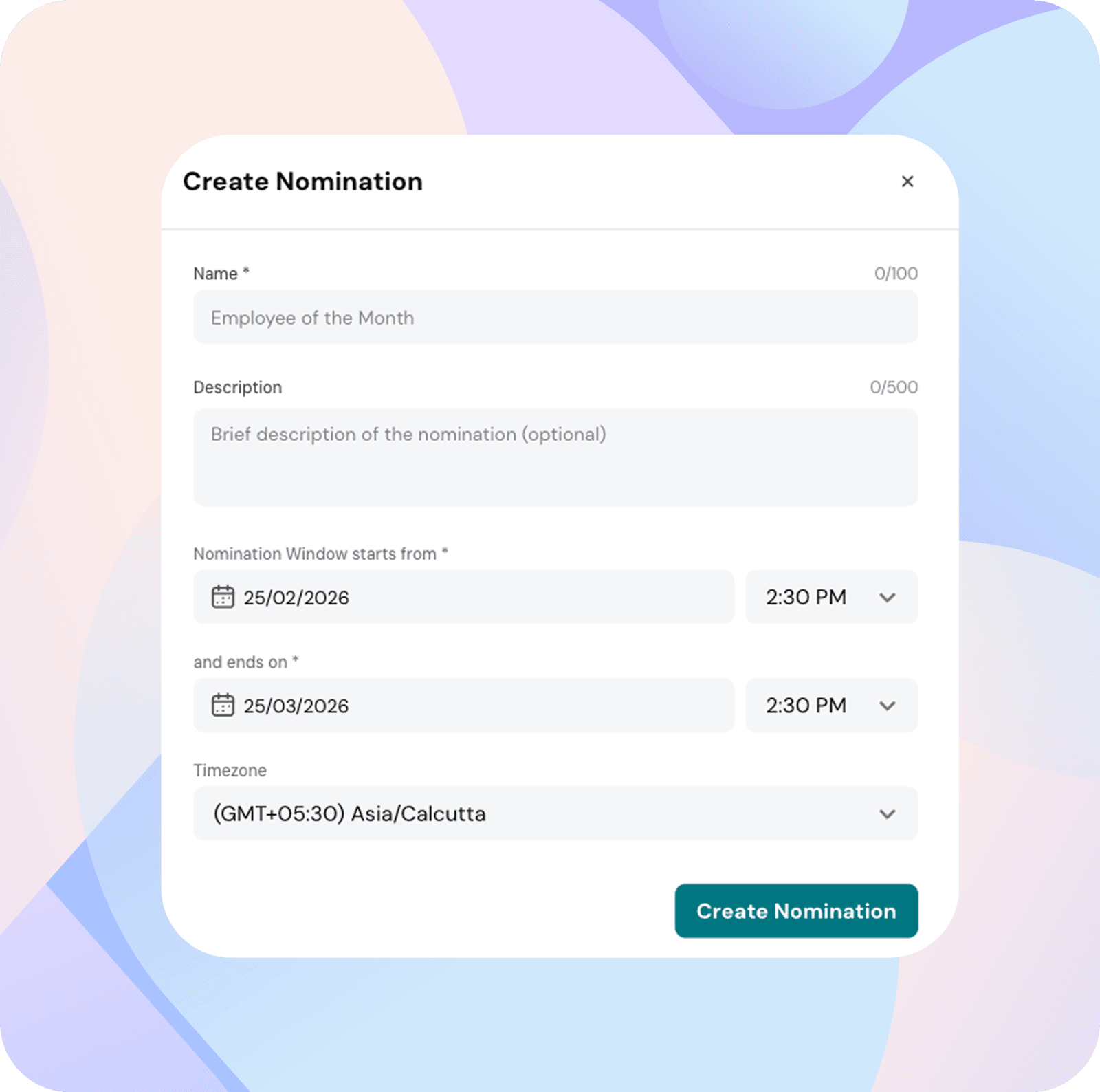
When creating a Nomination, you’ll configure:
Enter a short title (for example, “employee of the month”).
Explain what the Nomination represents. This description is visible to employees who can nominate.
Define when Nominations begin and when they close.
Start date – employees can begin nominating from this date
End date – Nominations close on this date
Based on the selected dates, the Nomination status will automatically appear as: Scheduled, Draft, Open or Closed.
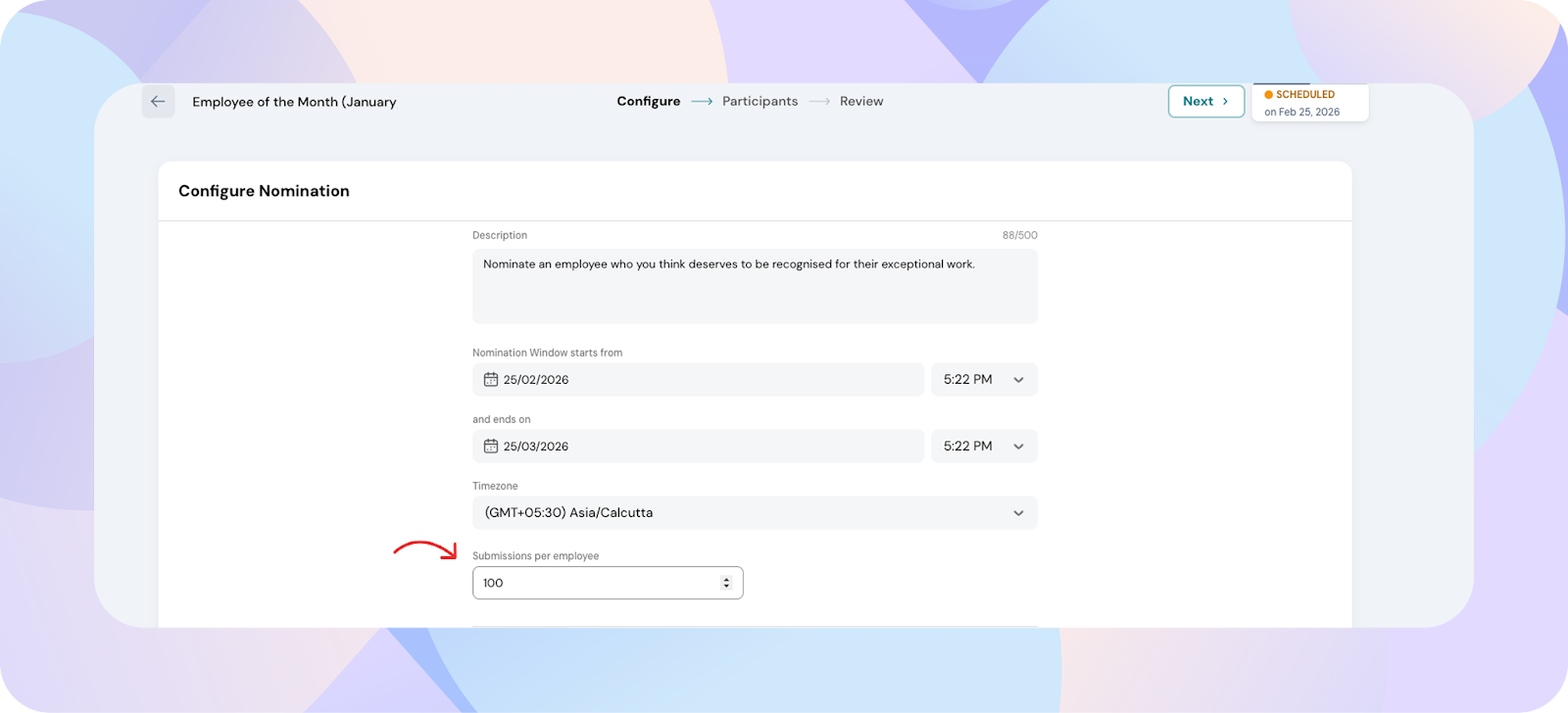
Submission limit
Control how many Nominations an employee can submit during the Nomination window.
This helps maintain balanced participation.
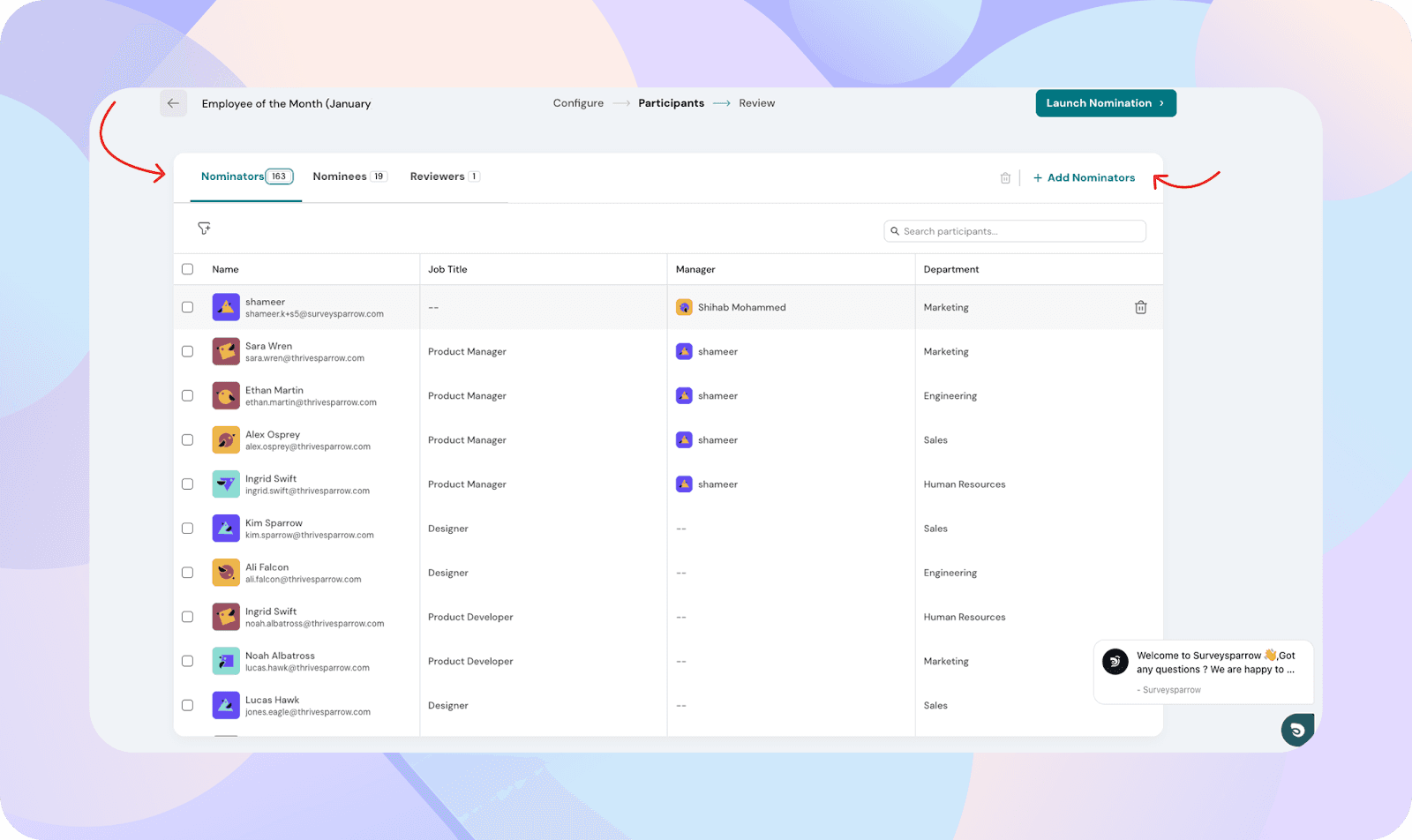
This setting determines who is allowed to submit Nominations.
You can choose from:
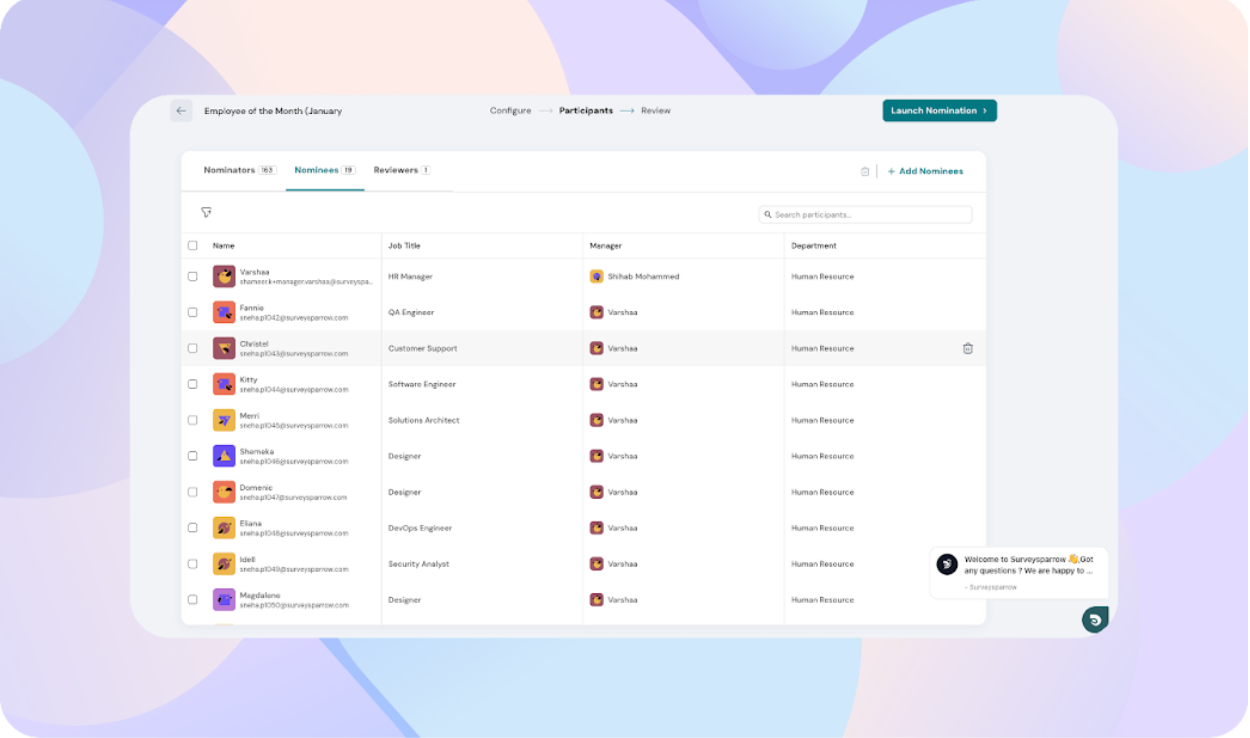
Choose the employees who are eligible to receive Nominations.
You can select from:
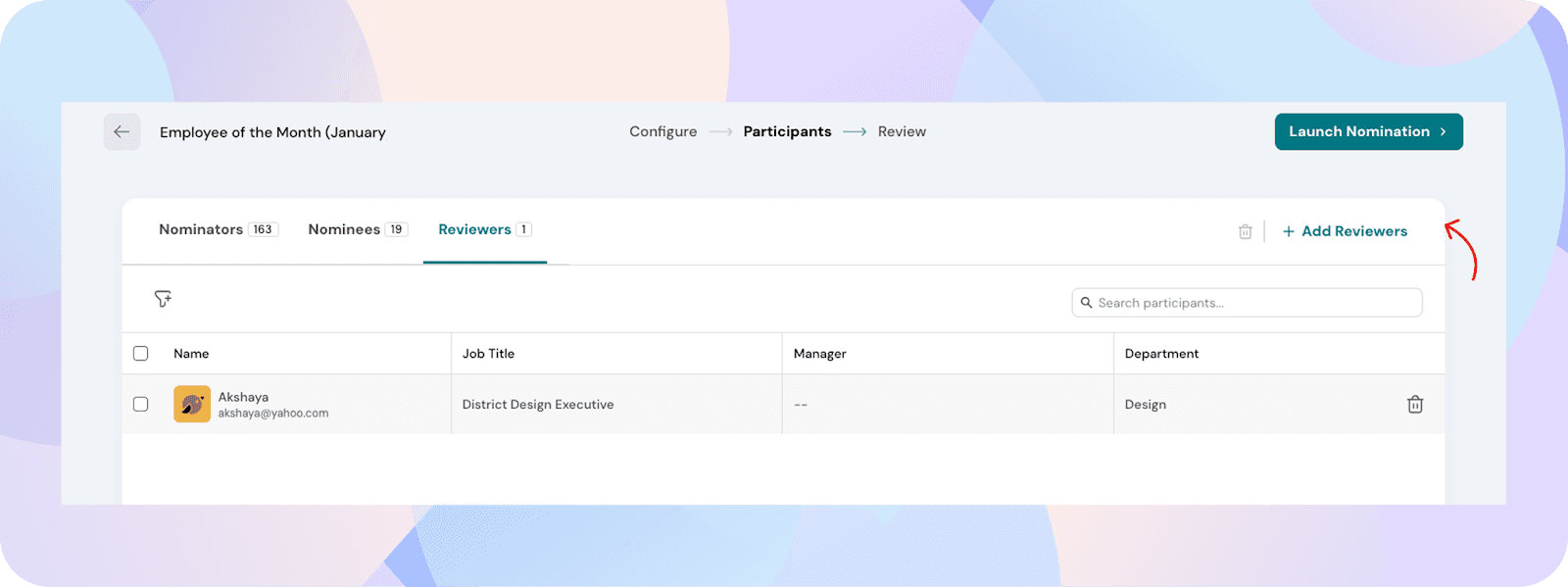
 Add reviewers
Select employees who will review the votes submitted for the Nomination.
Add reviewers
Reviewers will be able to access the Nomination and review votes based on their permissions.
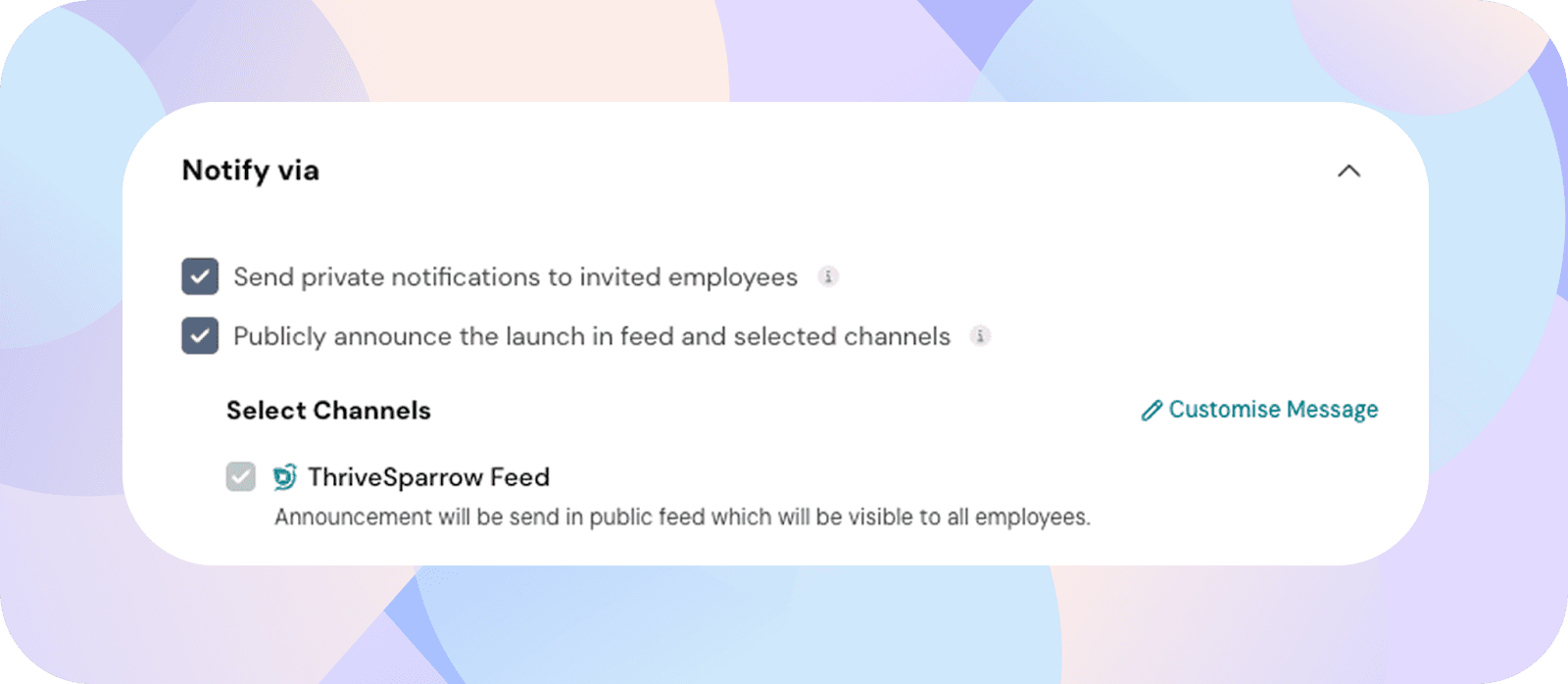
Notification settings
Choose how employees are notified when the Nomination is launched.
You can choose from:
By default, the announcement will be posted in the ThriveSparrow feed, where it is visible to all employees.
You can also customise the message before sending the announcement.
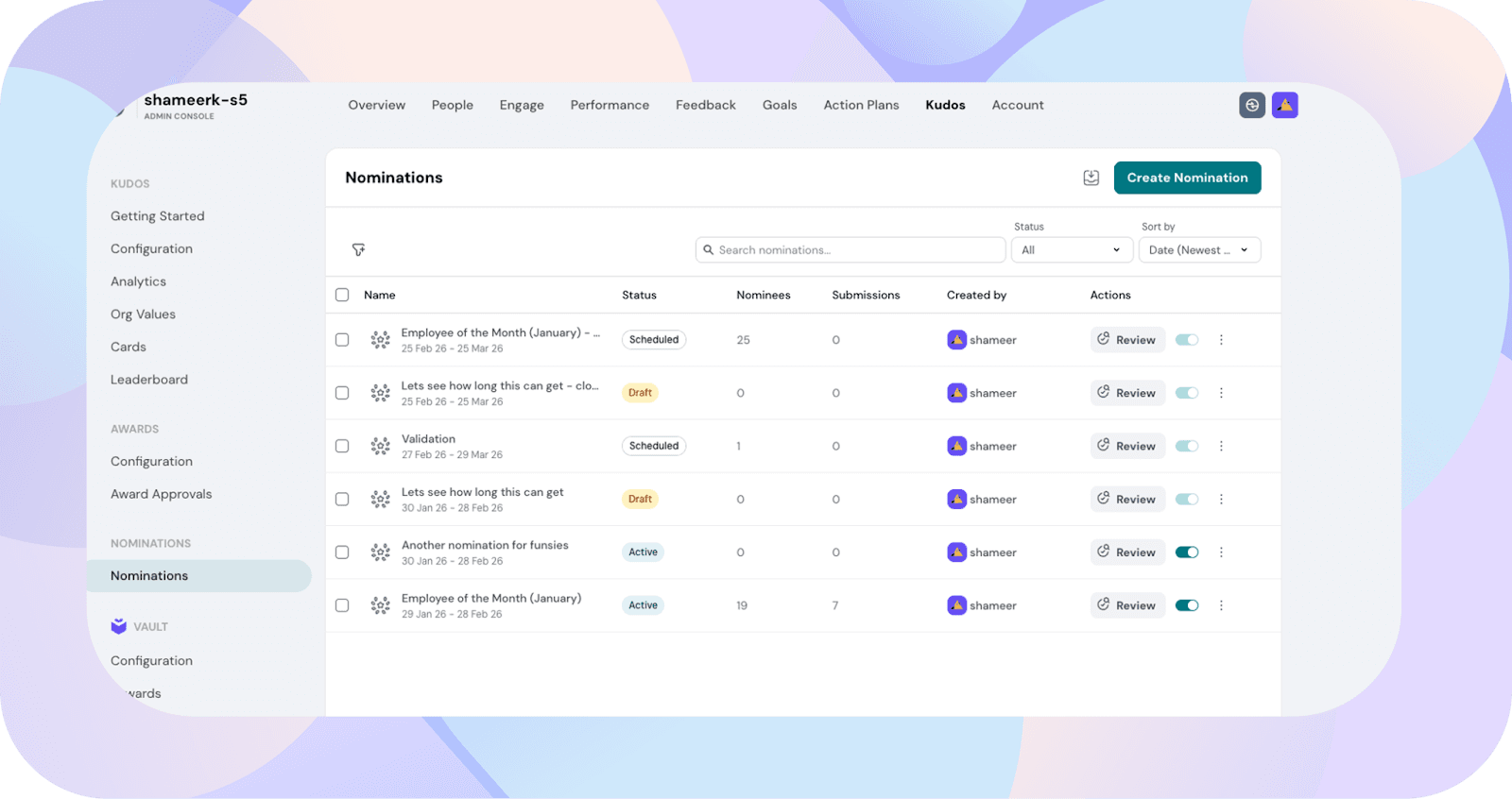
Viewing Nominations
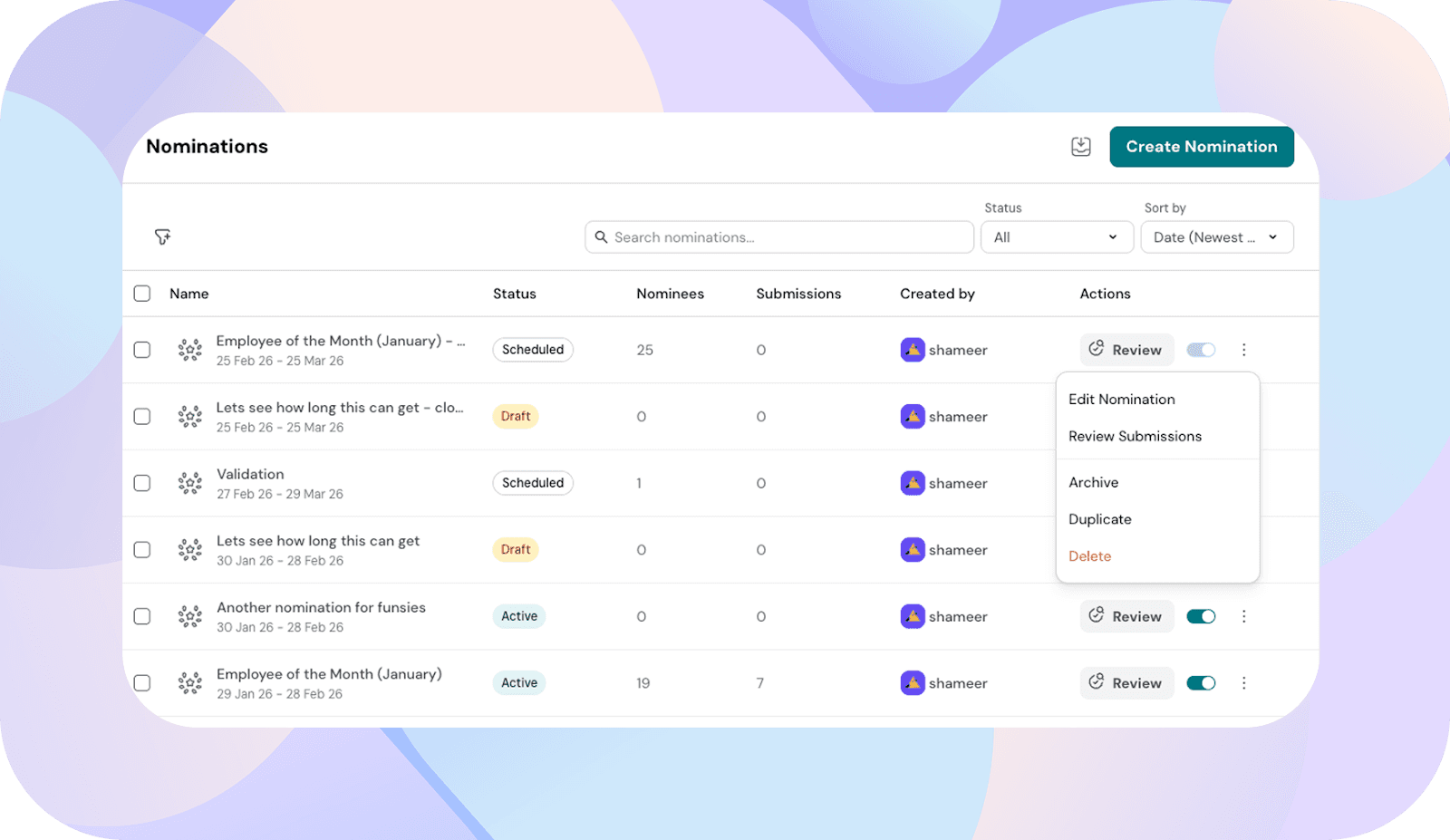
Once created, Nominations are listed under:
Kudos → Nominations
For each Nomination, you’ll see:
From this page, you can edit, review votes, duplicate, disable, or delete a Nomination.
Employees can submit Nominations from the home feed when a Nomination is open.
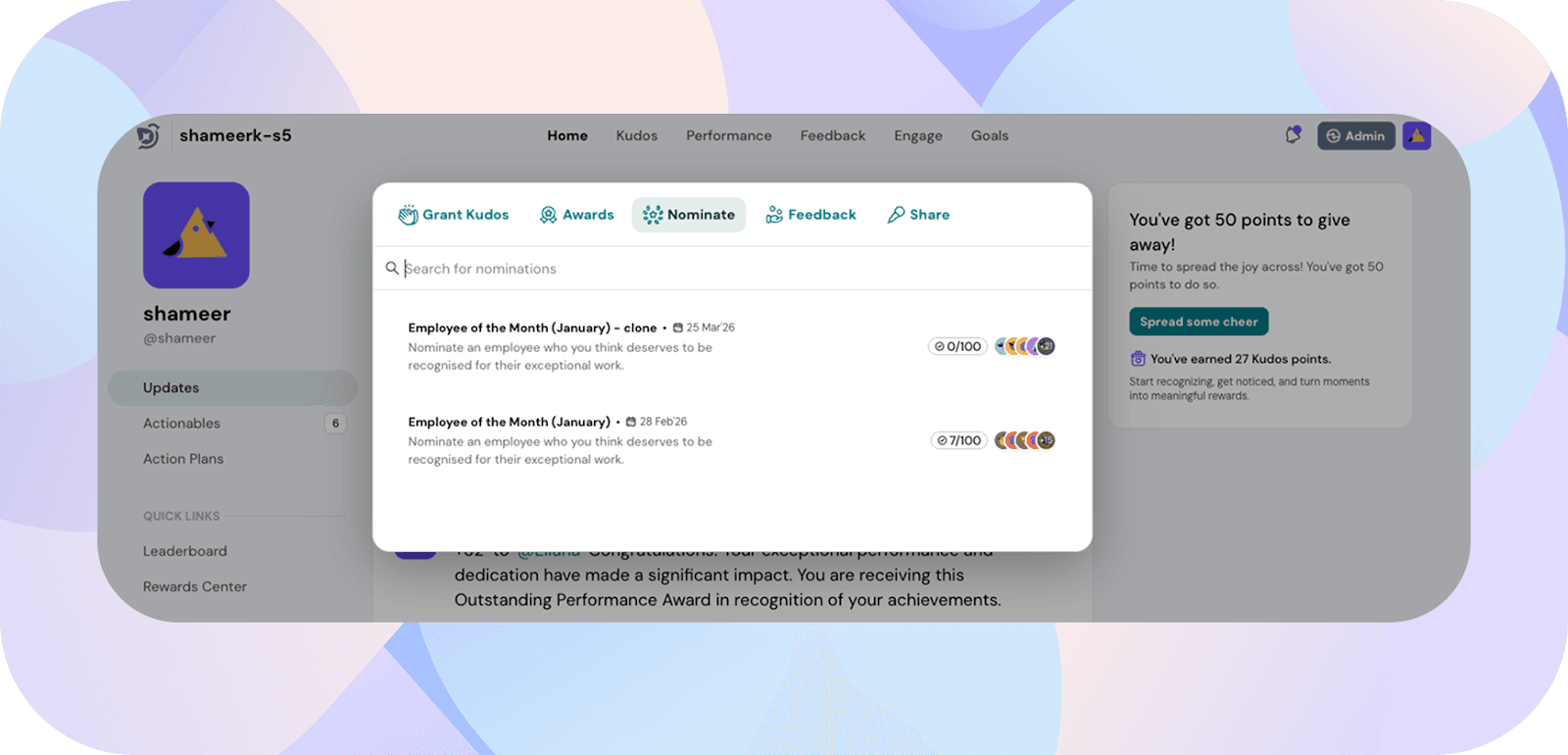
Home → Nominate

Step 1: Choose Nomination
All Nominations visible to the employee will be listed.
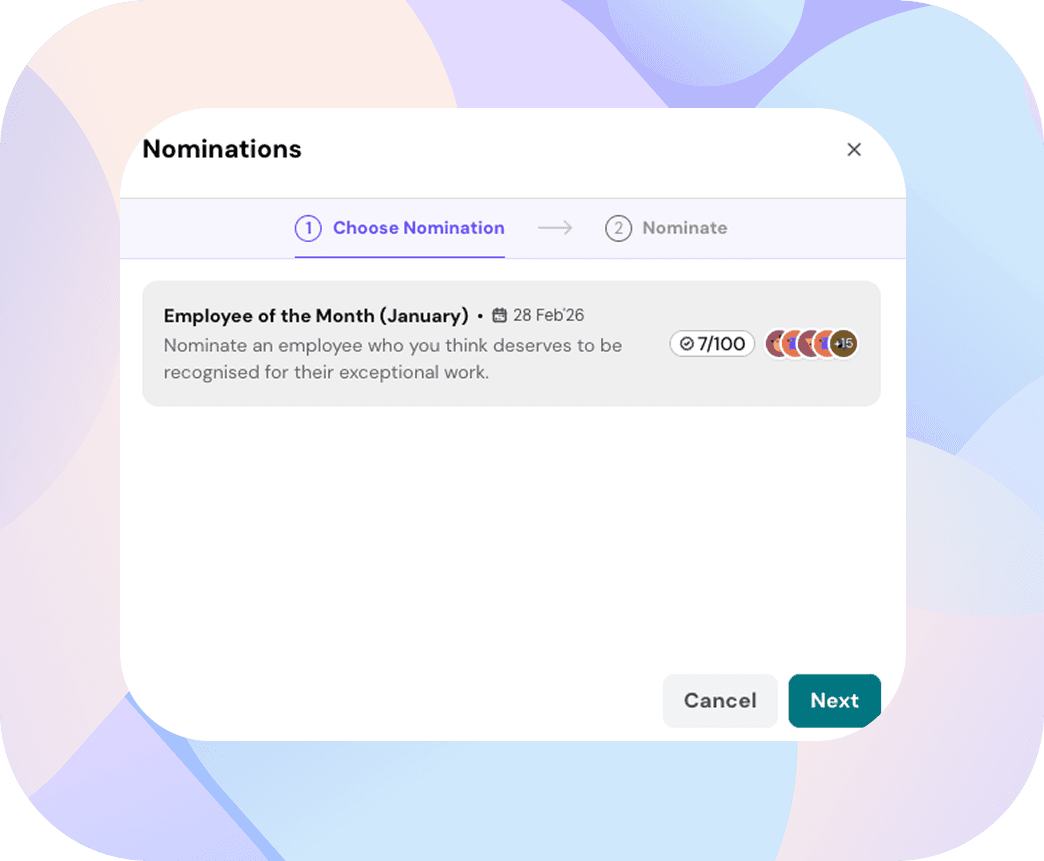
Step 2: Choose employee
Employees can nominate one person per submission.
Step 3: Enter reason
A written justification is required for every Nomination.
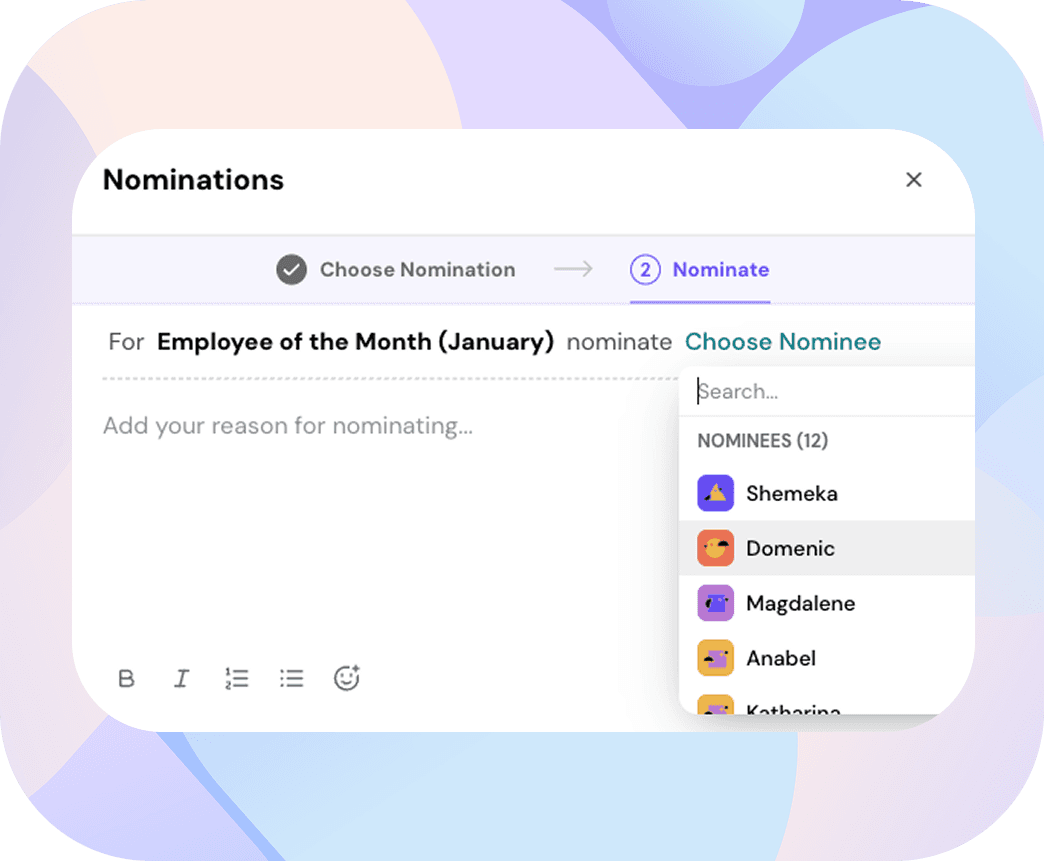
Once submitted, the Nomination is recorded for that nomination cycle.
Employees can view their past votes from the nomination history section on the home page.
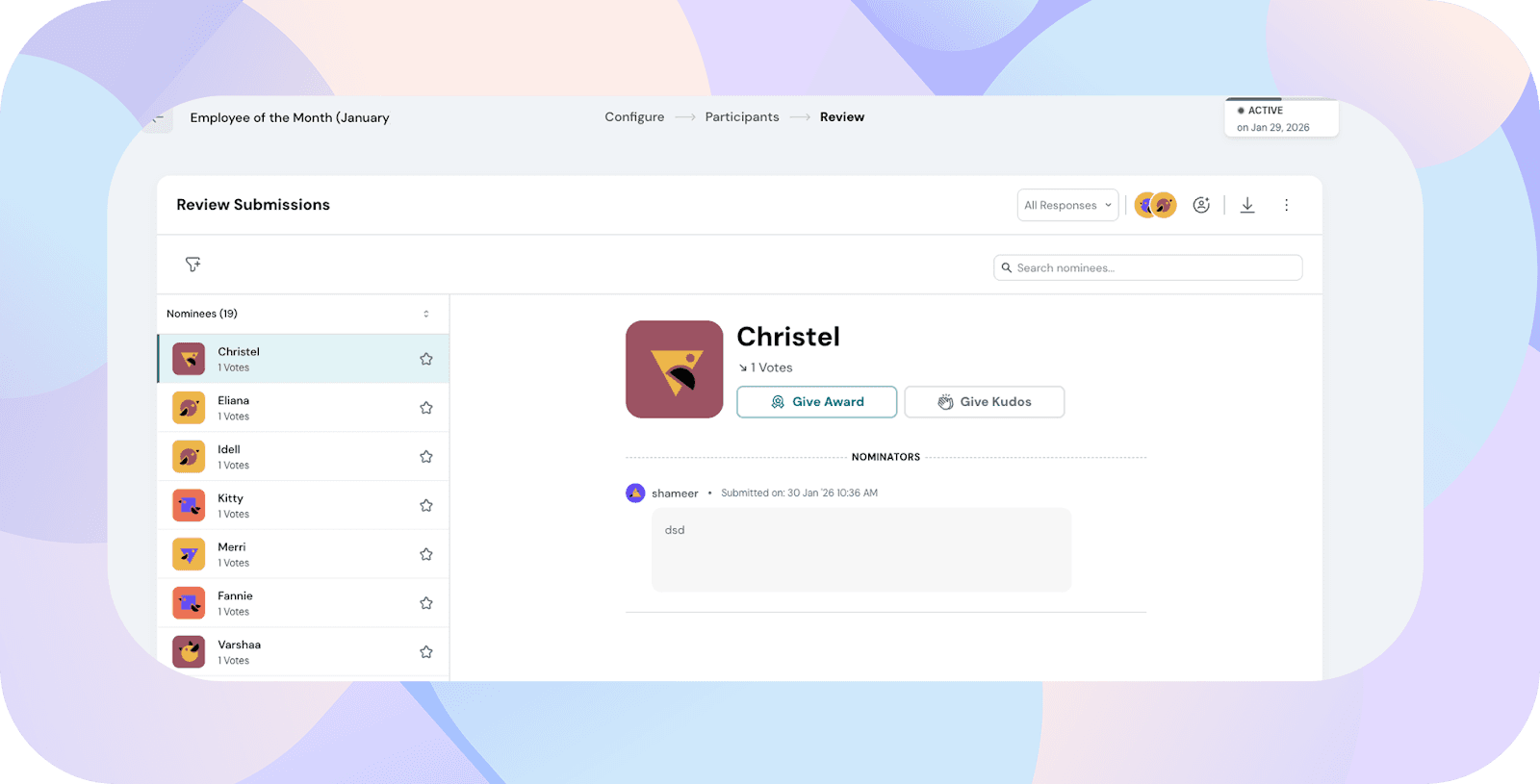
Admins and reviewers can review votes from within the Nomination.
Admin View: Kudos → Nominations → Review votes
Employee View: Kudos → You → Review votes
The review page displays nominees ranked from highest votes to lowest. Reviewers can review the votes both during the nomination window and after the nomination window has closed.
From this view, you can:
Note:
Nominations can be edited after they are created.
Kudos → Nominations → Edit
You can update:
If a nominator or nominee is removed from an active Nomination, the system will display a confirmation prompt before applying the change.
If you remove a nominee after votes have already been submitted for them, all votes received for that nominee will be deleted.
Similarly, if you remove a nominator, all votes submitted by that nominator for that Nomination will be deleted.
Nominations provide a structured way to collect consensus before granting company recognition within a defined time frame.
By controlling eligibility, submission limits, and review workflows, Nominations make recognition programs easier to manage, evaluate, and repeat.
If you need help setting up or managing Nominations, feel free to reach out to us!
Powered By SparrowDesk