
Understanding Nominations in Kudos

In this article, we’ll walk through the complete nomination setup and review process.
How to set up Nominations in Kudos (admin)
Nominations allow you to run recognition programs within a defined time window, giving teams a structured way to recommend peers for initiatives such as employee of the month or value champion.
This creates a clear and consistent process where:
- Nominations are submitted within a specific period
- Only selected employees can nominate
- Only selected employees can be nominated
- Each vote includes a written reason for context
- All nominees can be reviewed and compared in one place
- Recognition is granted based on collected vote data
Setting up a Nomination
You can create and manage Nominations from Kudos.
Kudos → Nominations → Create Nomination
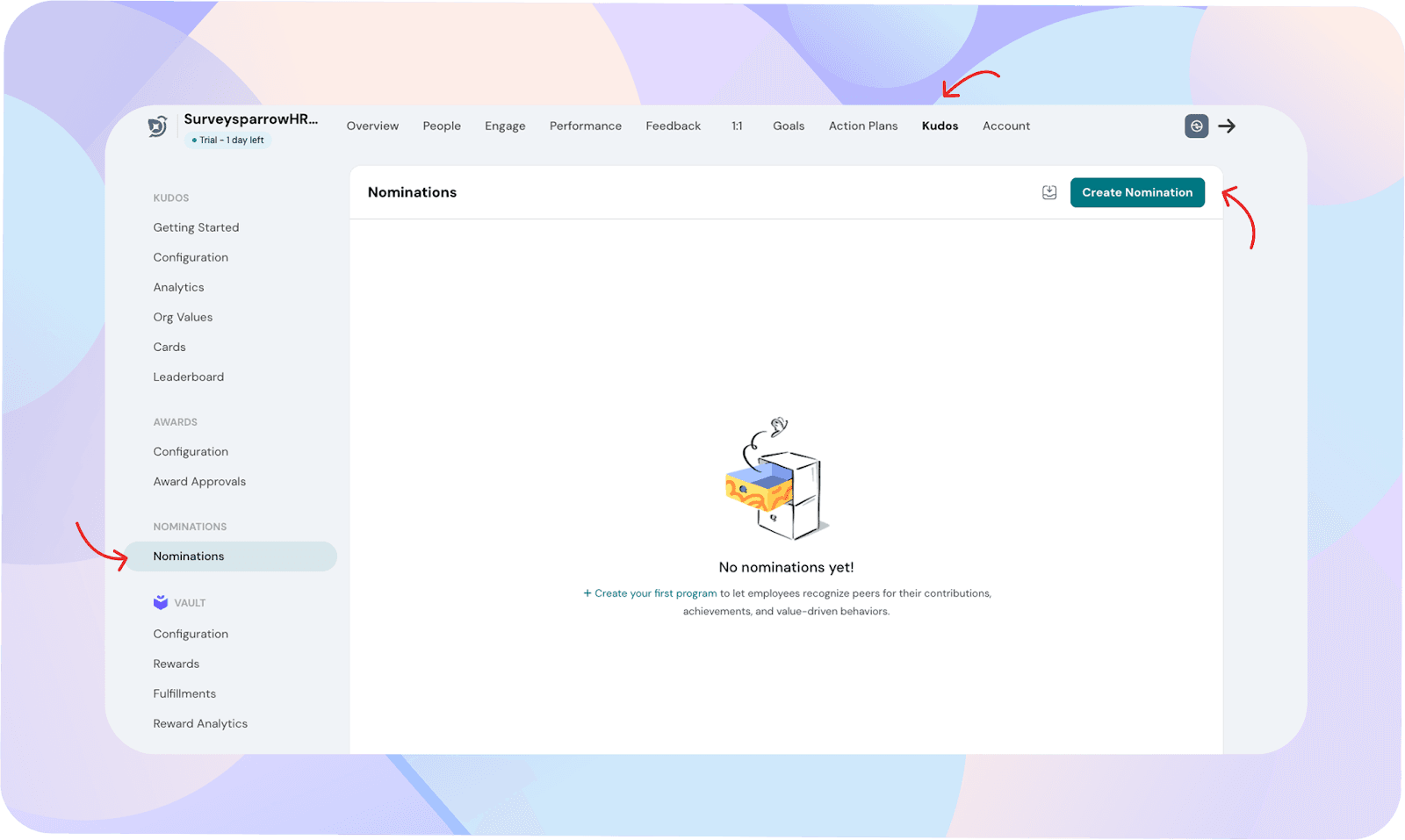
When creating a Nomination, you’ll configure:
Nomination details:
- Nomination name
Enter a short title (for example, “employee of the month”).
- Description
Explain what the Nomination represents. This description is visible to employees who can nominate.
- Nomination Window
Define when Nominations begin and when they close.
Start date – employees can begin nominating from this date
End date – Nominations close on this date
Based on the selected dates, the Nomination status will automatically appear as: Scheduled, Draft, Open or Closed.
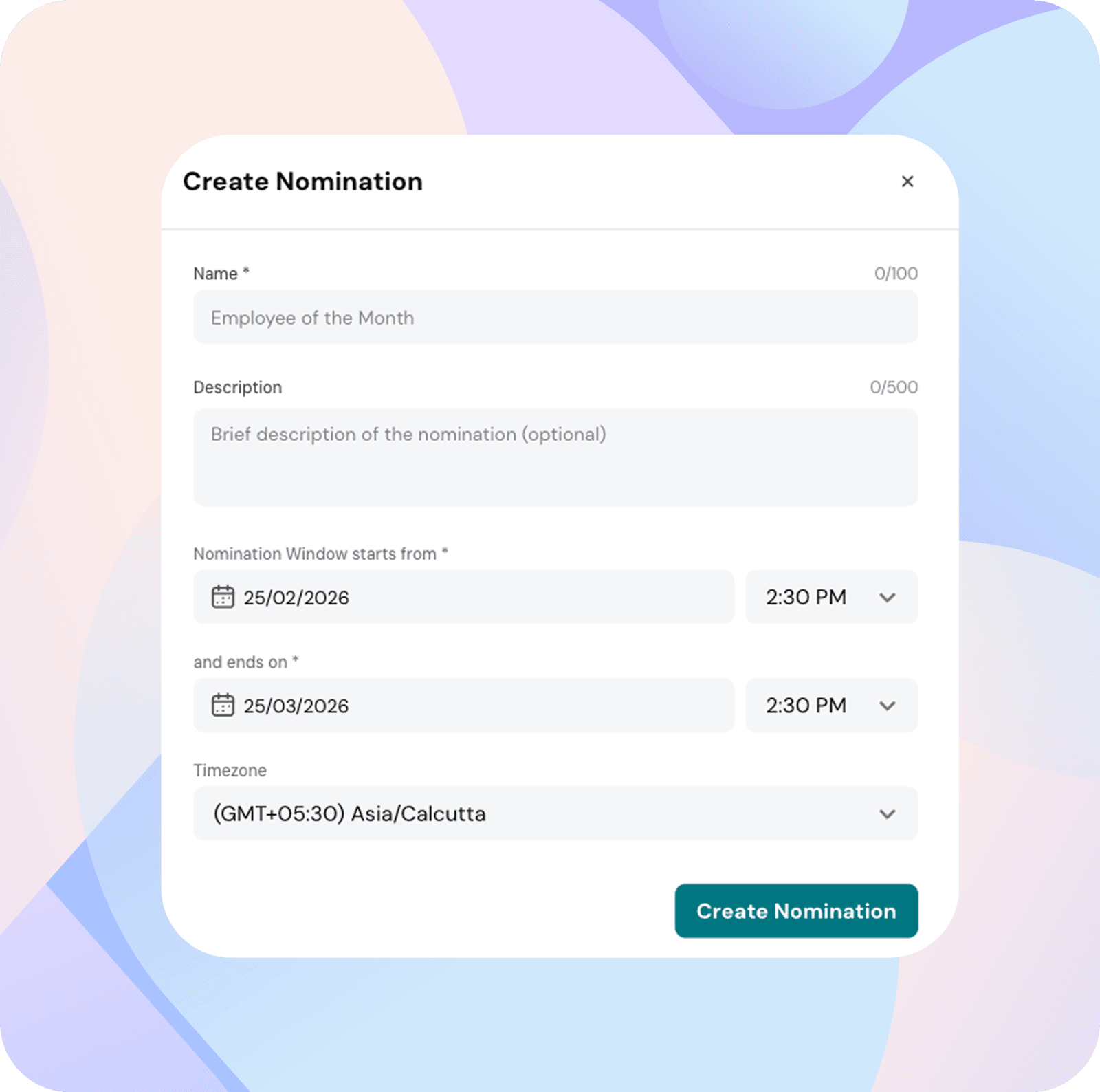
Submission limit
Control how many Nominations an employee can submit during the Nomination window.
This helps maintain balanced participation.
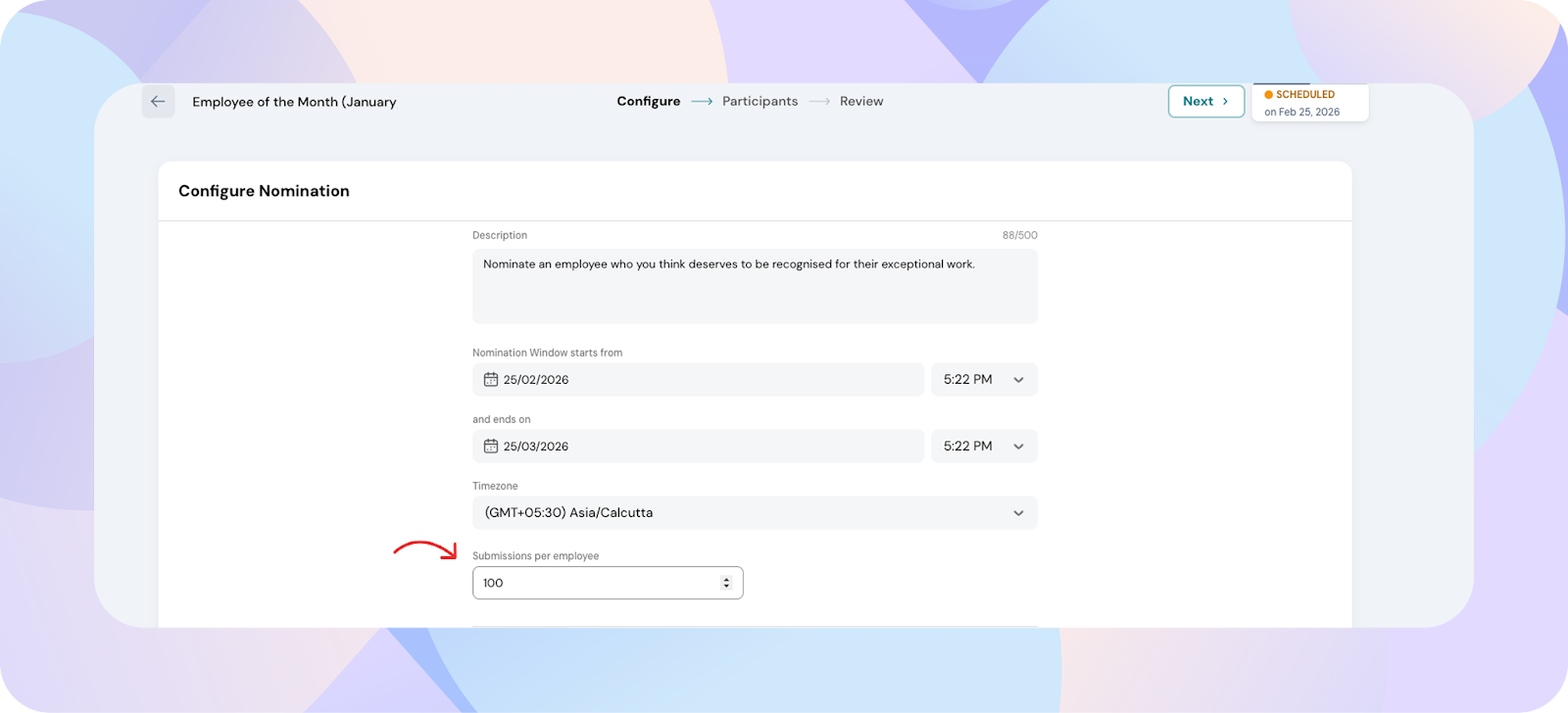
Who can nominate?
This setting determines who is allowed to submit Nominations.
You can choose from:
- All employees
- Departments
- Smartlists
- Individual employees
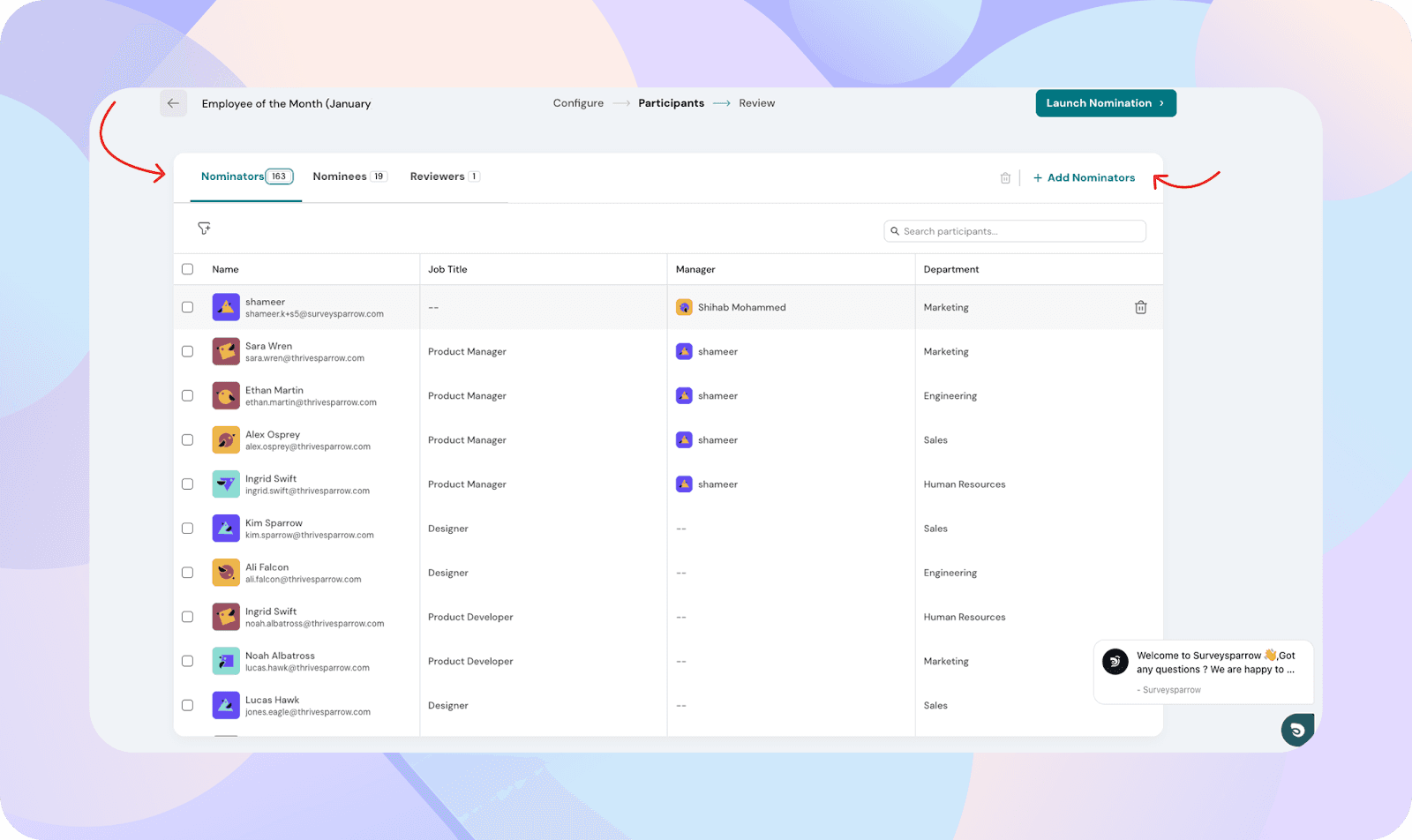
Who can be nominated?
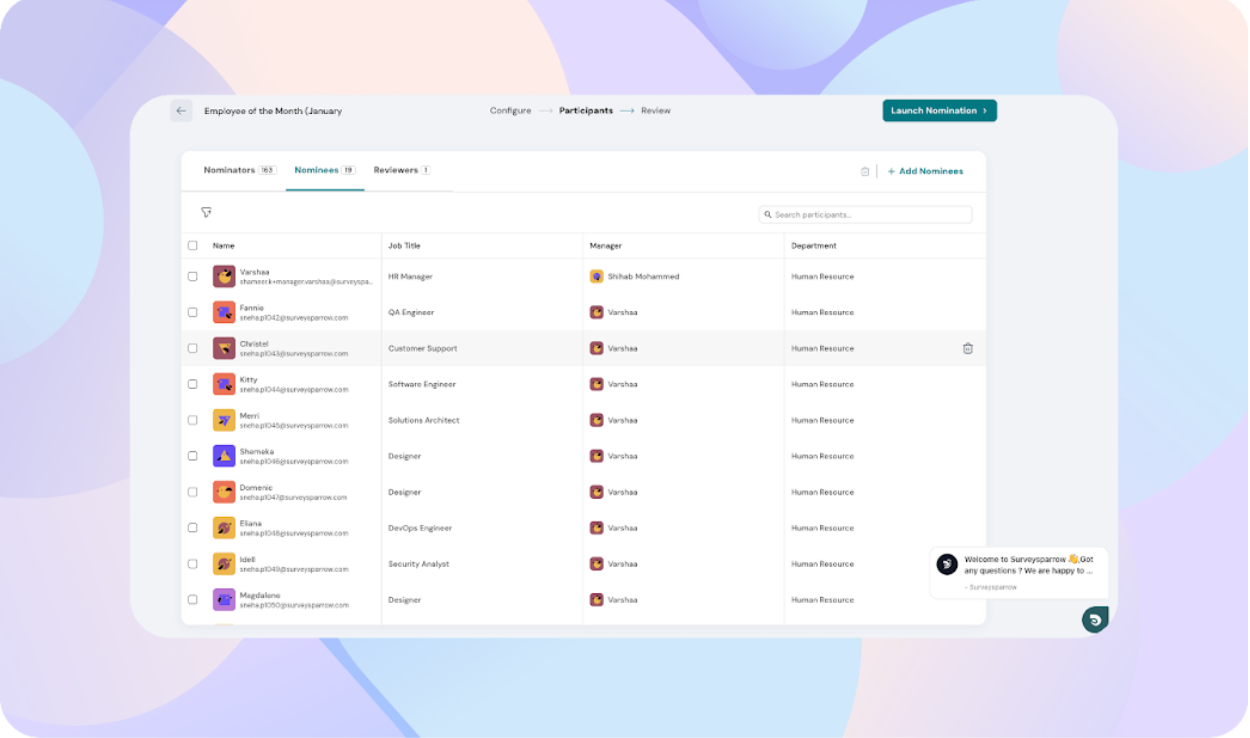
Choose the employees who are eligible to receive Nominations.
You can select from:
- All employees
- Departments
- Smartlists
- Individual employees
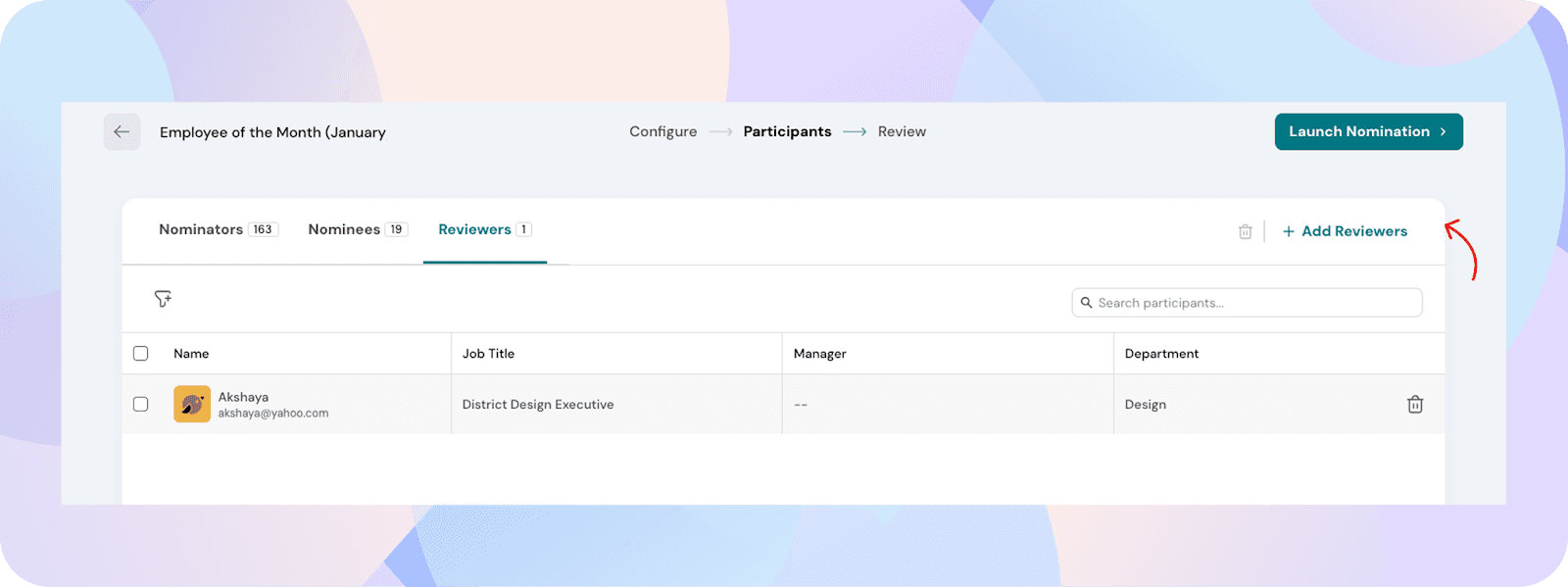
 Add reviewers
Select employees who will review the votes submitted for the Nomination.
Add reviewers
Reviewers will be able to access the Nomination and review votes based on their permissions.
Notification settings
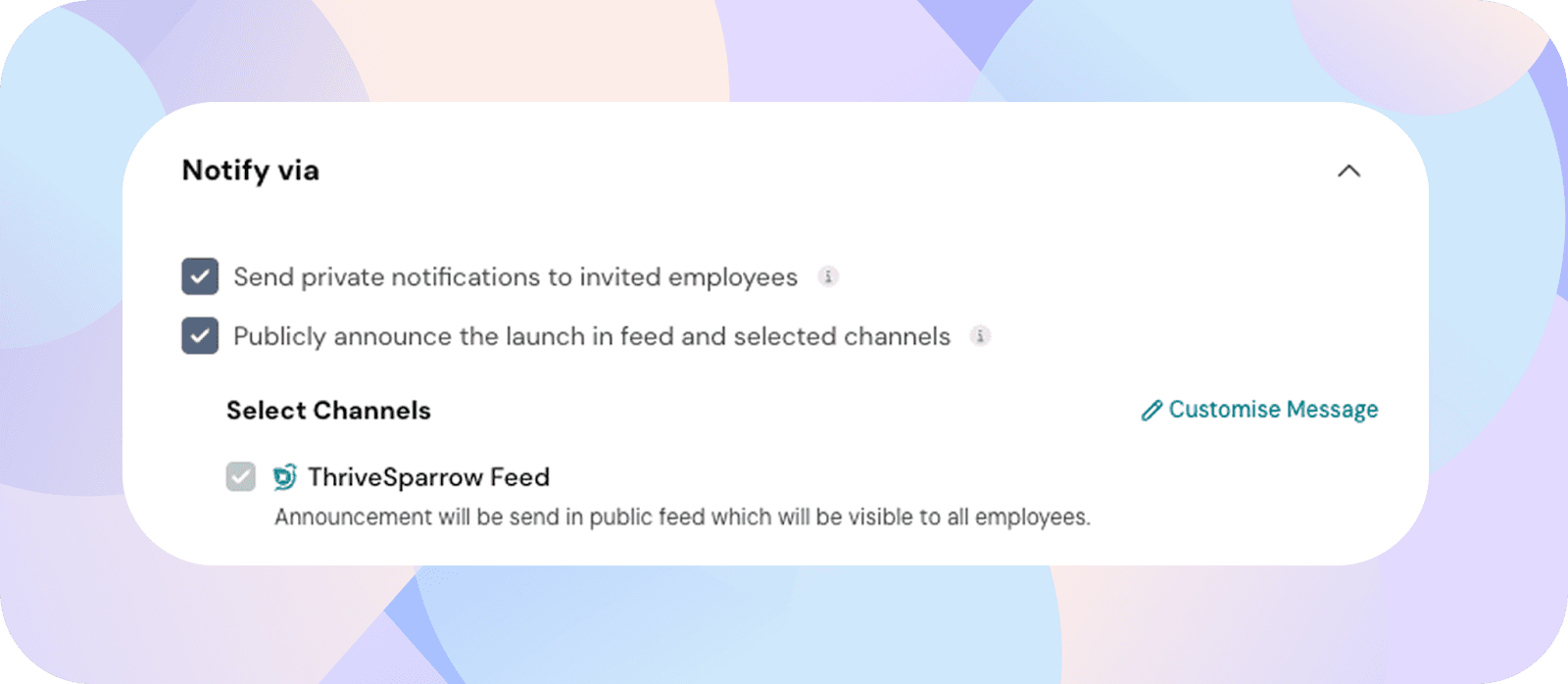
Choose how employees are notified when the Nomination is launched.
You can choose from:
- Send private notifications to invited employees
- Publicly announce the launch in feed and selected channels
By default, the announcement will be posted in the ThriveSparrow feed, where it is visible to all employees.
You can also customise the message before sending the announcement.
Viewing Nominations
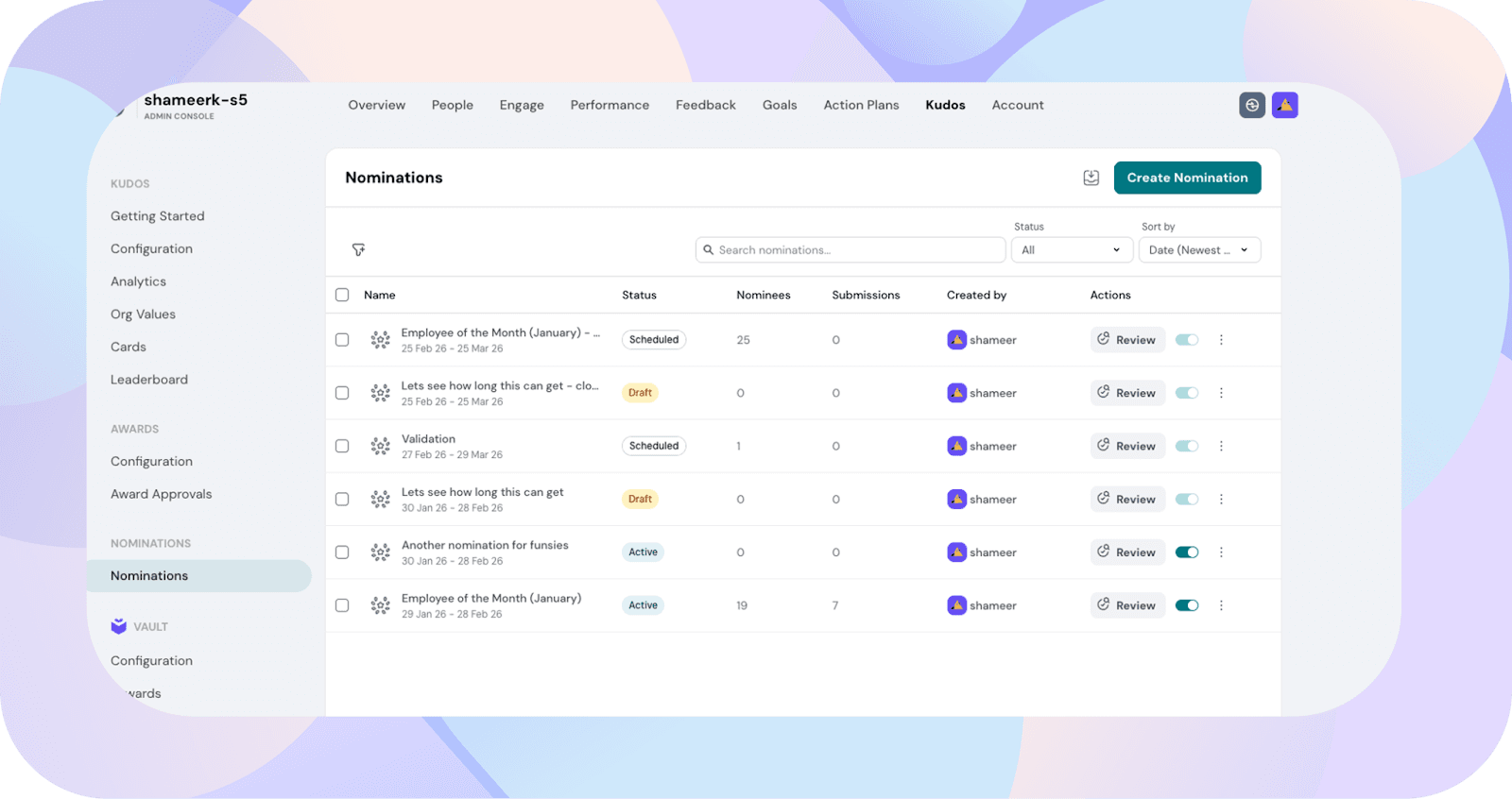
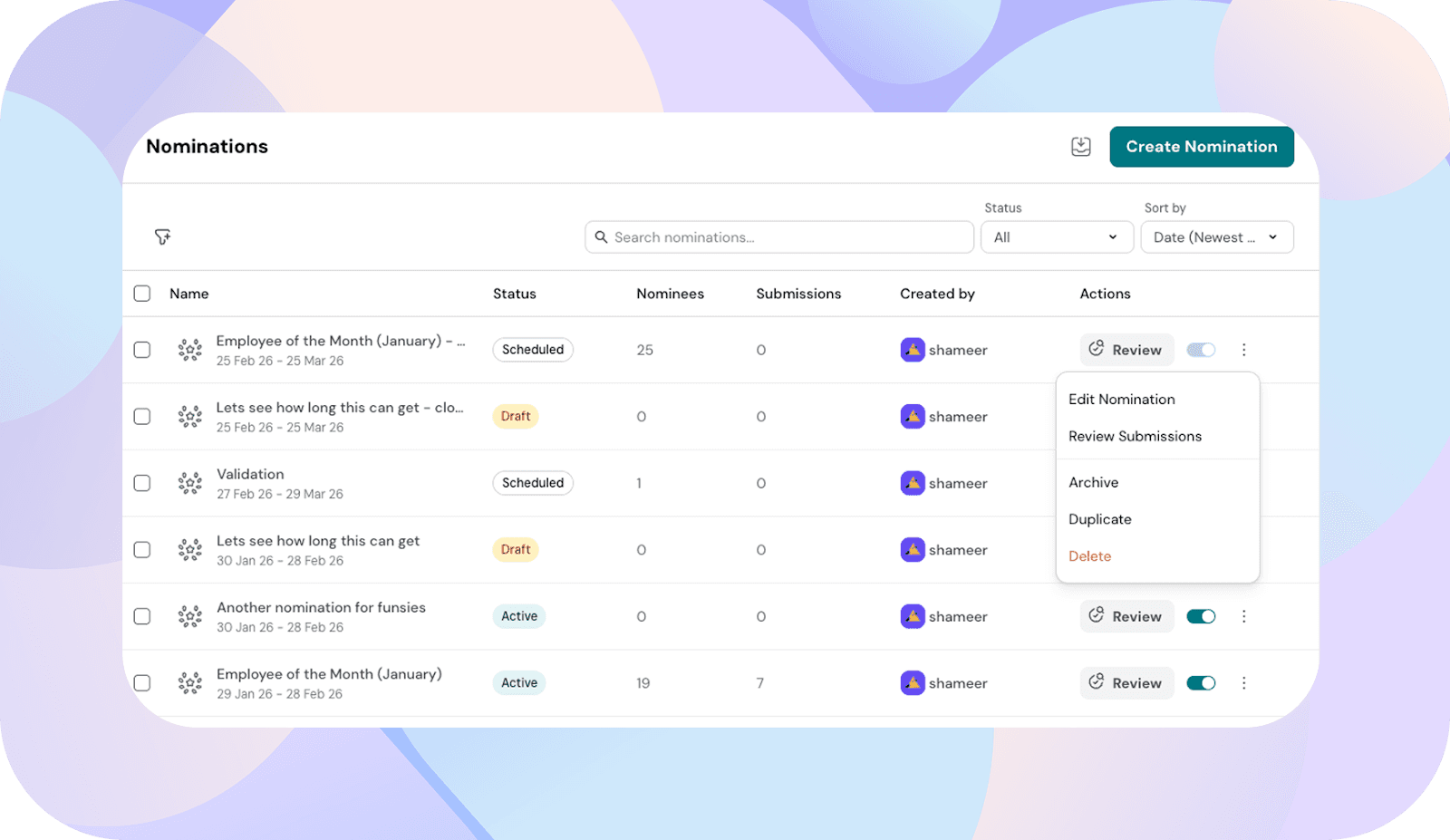
Once created, Nominations are listed under:
Kudos → Nominations
For each Nomination, you’ll see:
- Nomination name
- Nomination window
- Number of unique nominees
- Total votes
- Created by
- Status (scheduled, open, closed)
From this page, you can edit, review votes, duplicate, disable, or delete a Nomination.
How employees submit Nominations
Employees can submit Nominations from the home feed when a Nomination is open.
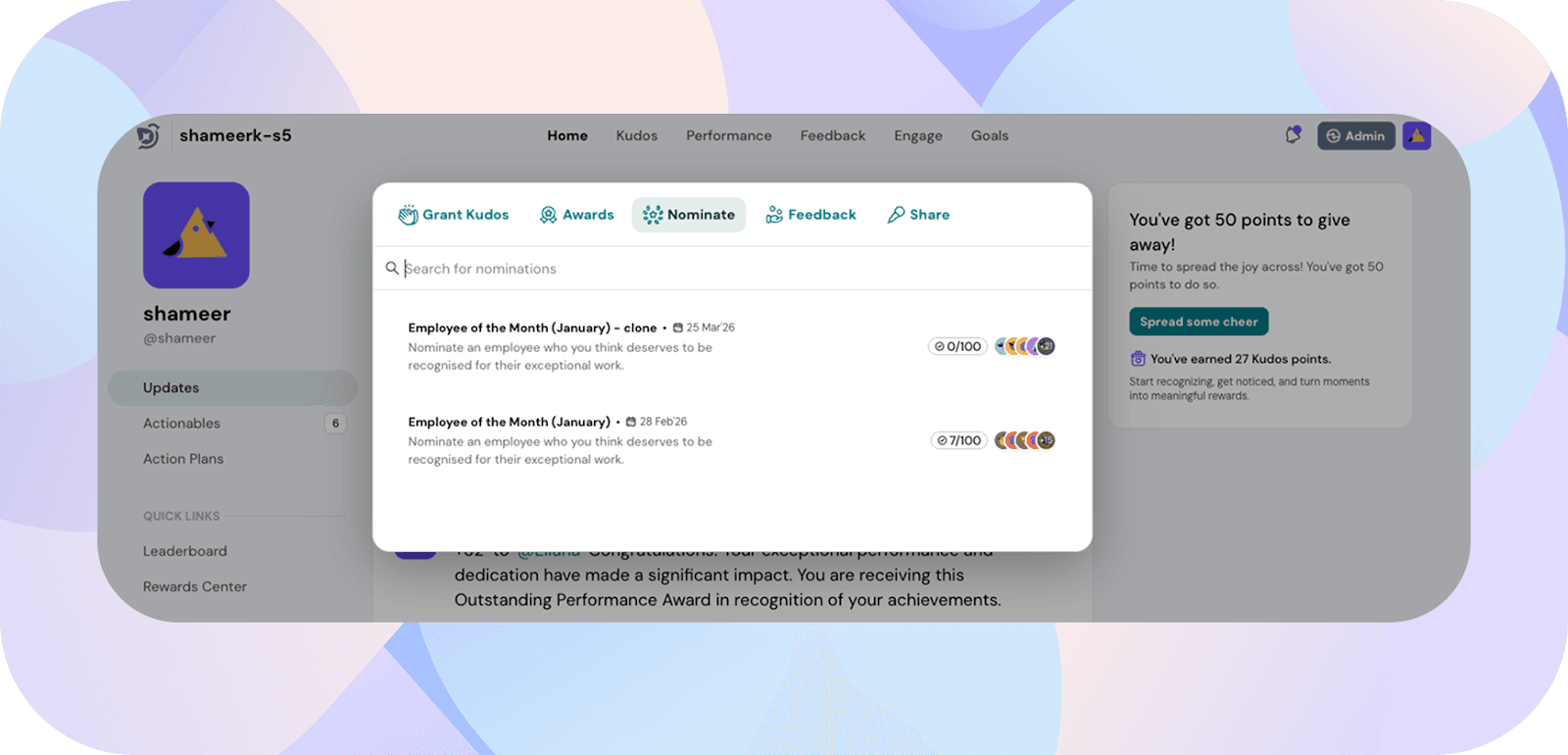
Home → Nominate
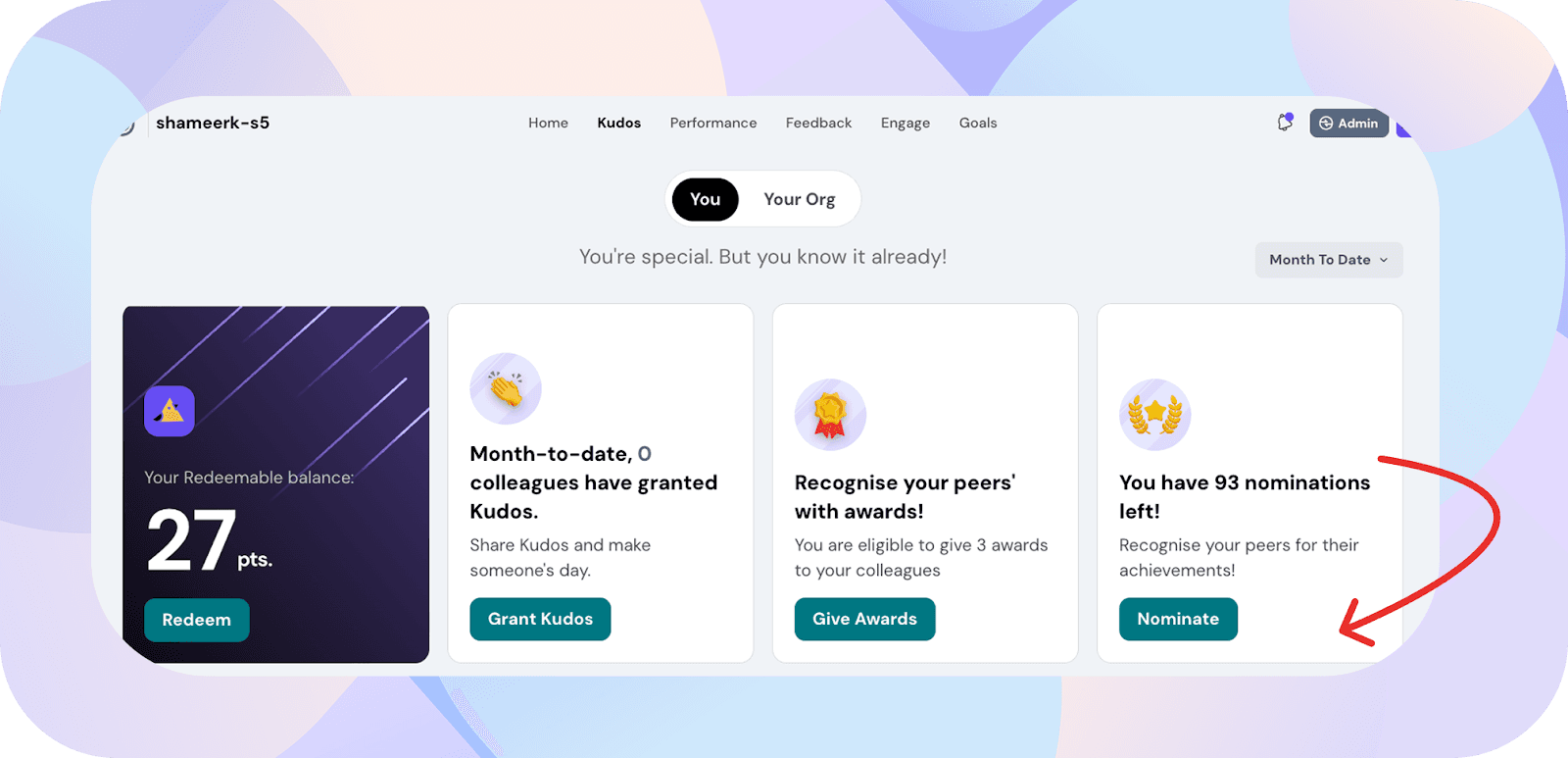
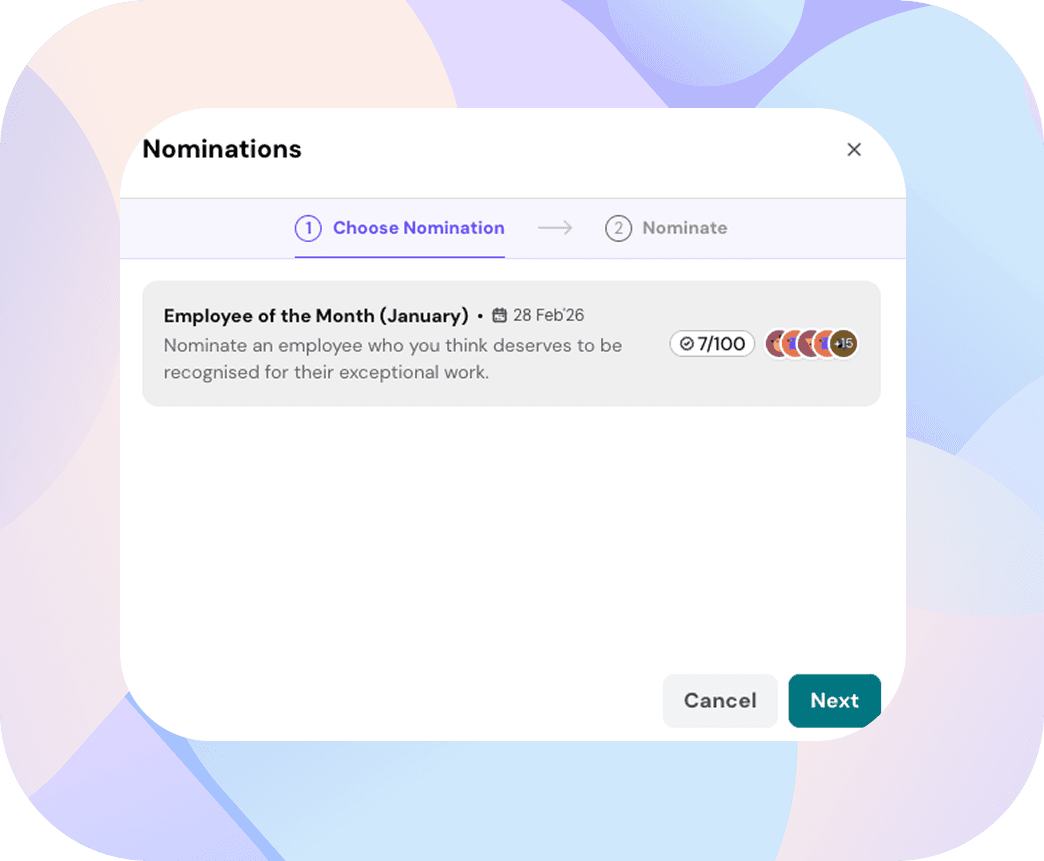
Step 1: Choose Nomination
All Nominations visible to the employee will be listed.
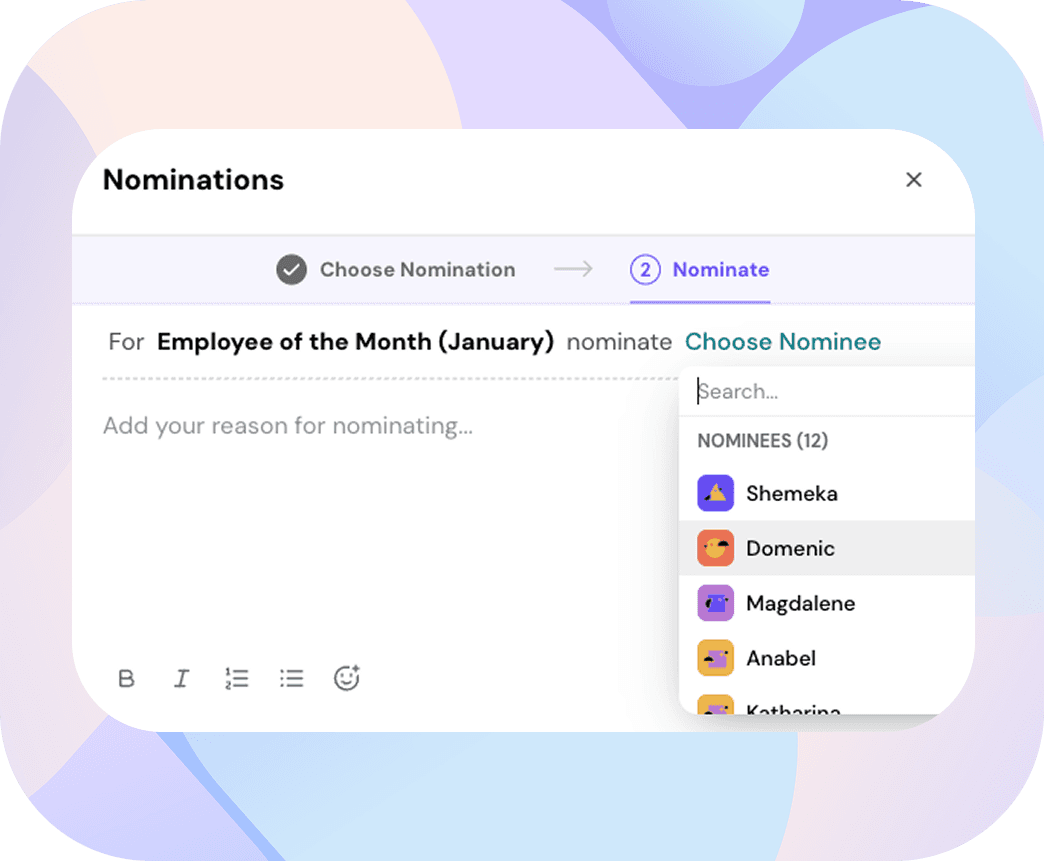
Step 2: Choose employee
Employees can nominate one person per submission.
Step 3: Enter reason
A written justification is required for every Nomination.
Once submitted, the Nomination is recorded for that nomination cycle.
Employees can view their past votes from the nomination history section on the home page.
Reviewing votes
Admins and reviewers can review votes from within the Nomination.
Admin View: Kudos → Nominations → Review votes
Employee View: Kudos → You → Review votes
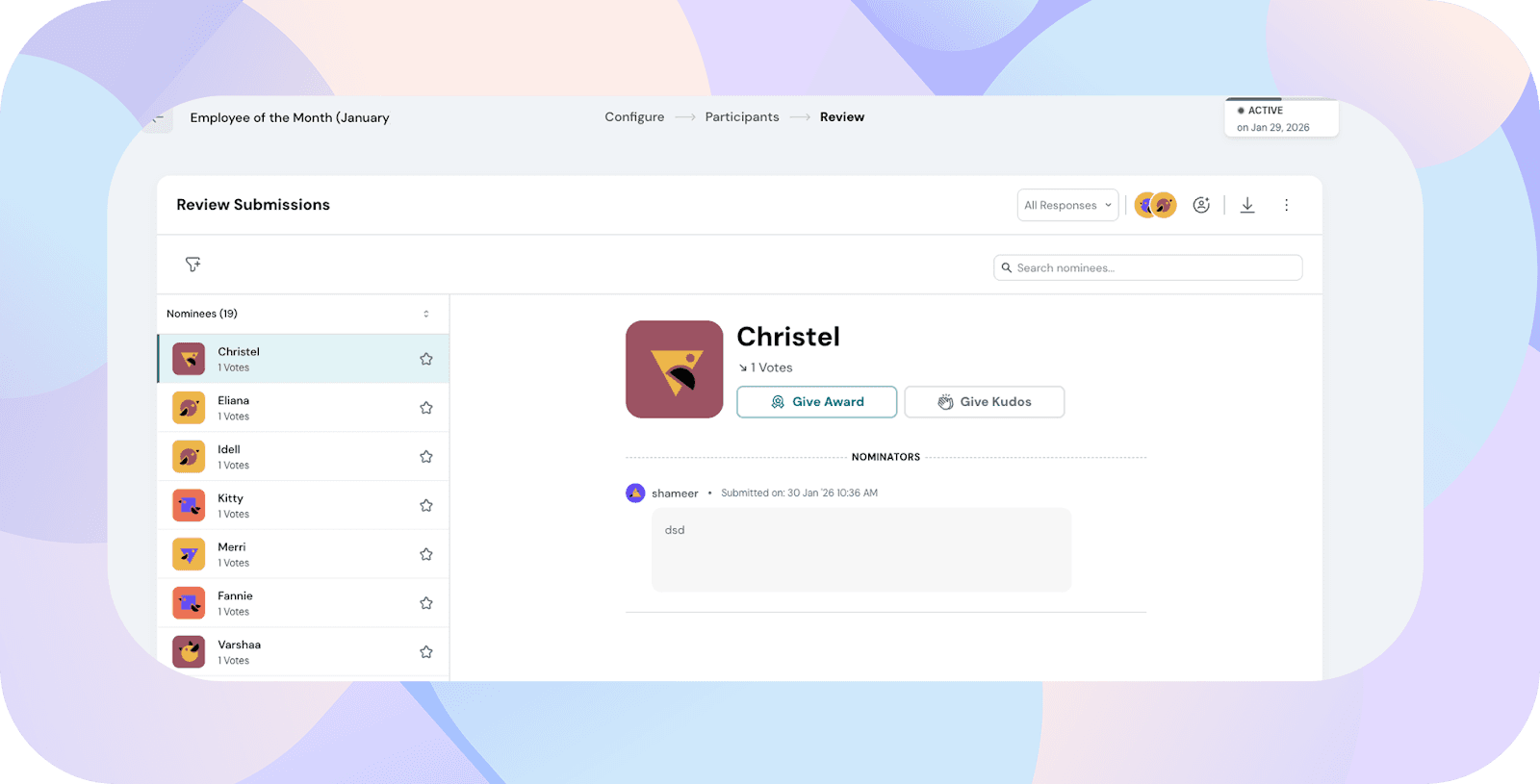
The review page displays nominees ranked from highest votes to lowest. Reviewers can review the votes both during the nomination window and after the nomination window has closed.
From this view, you can:
- View submission count per nominee
- Mark nominees as favourites
- Export votes as csv
- View and manage collaborators
- Grant recognition in the form of awards or kudos, depending on permissions
Note:
- A reviewer can only give awards for which they have award giver permission
- Employees added as reviewers but without admin access can review votes from from Employee view → Kudos
- Non-admin reviewers can perform review actions based on their assigned permissions
Editing a nomination
Kudos → Nominations → Edit
You can update:
- Nomination name and description
- Nomination window (present and future dates only)
- Nominators
- Nominees
- Reviewers
If a nominator or nominee is removed from an active Nomination, the system will display a confirmation prompt before applying the change.
If you remove a nominee after votes have already been submitted for them, all votes received for that nominee will be deleted.
Similarly, if you remove a nominator, all votes submitted by that nominator for that Nomination will be deleted.
Why this matters
Nominations provide a structured way to collect consensus before granting company recognition within a defined time frame.
By controlling eligibility, submission limits, and review workflows, Nominations make recognition programs easier to manage, evaluate, and repeat.
If you need help setting up or managing Nominations, feel free to reach out to us!