
How to create & edit a custom role?
This article covers how to build and manage Custom Roles in ThriveSparrow. If you haven't already, it's worth reading Understanding Custom Roles & Permissions to understand permission tiers, dependencies, and the full list of permissions you can assign.
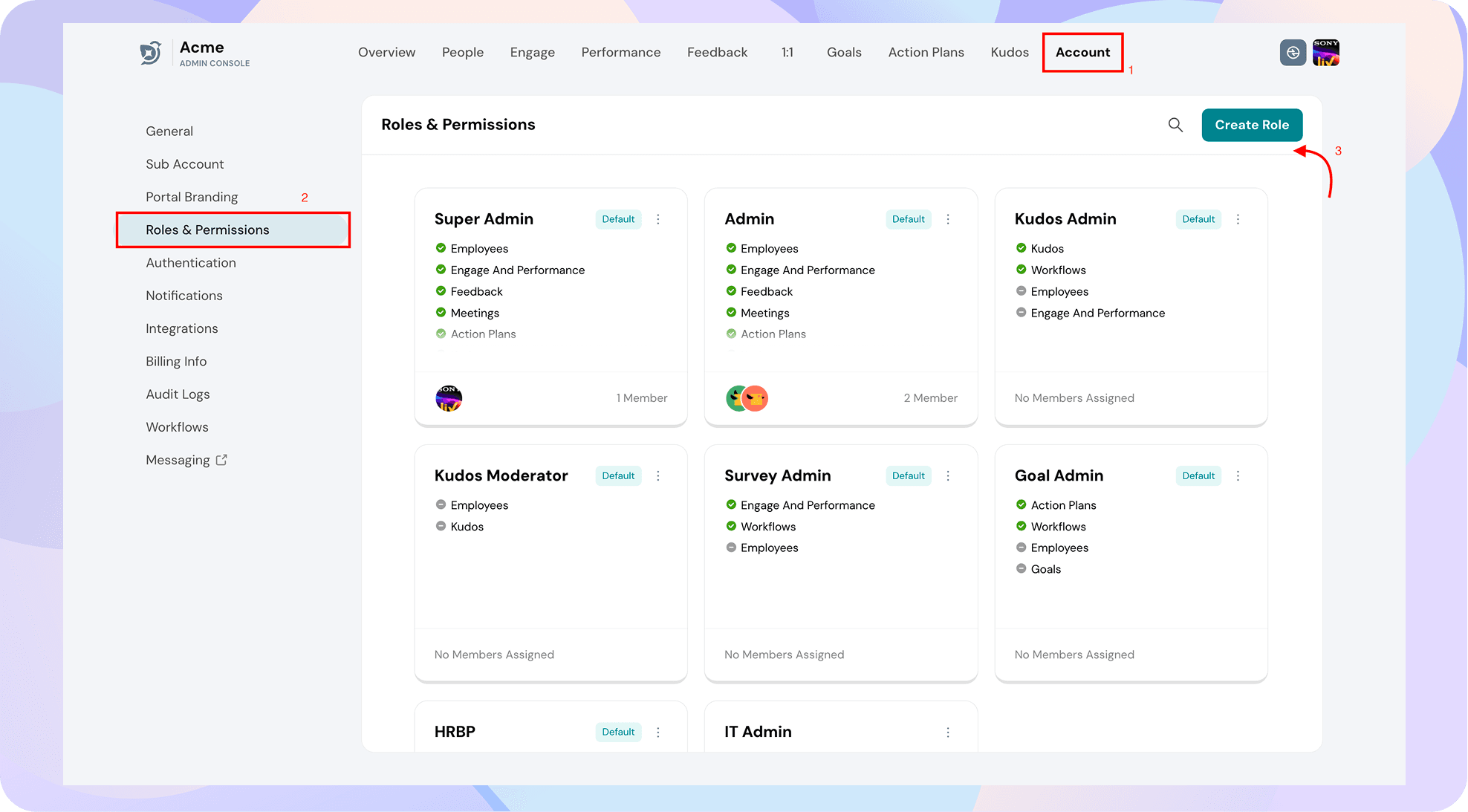
📍 Where to find this: Navigate to Admin view --> Account --> Roles and Permissions.
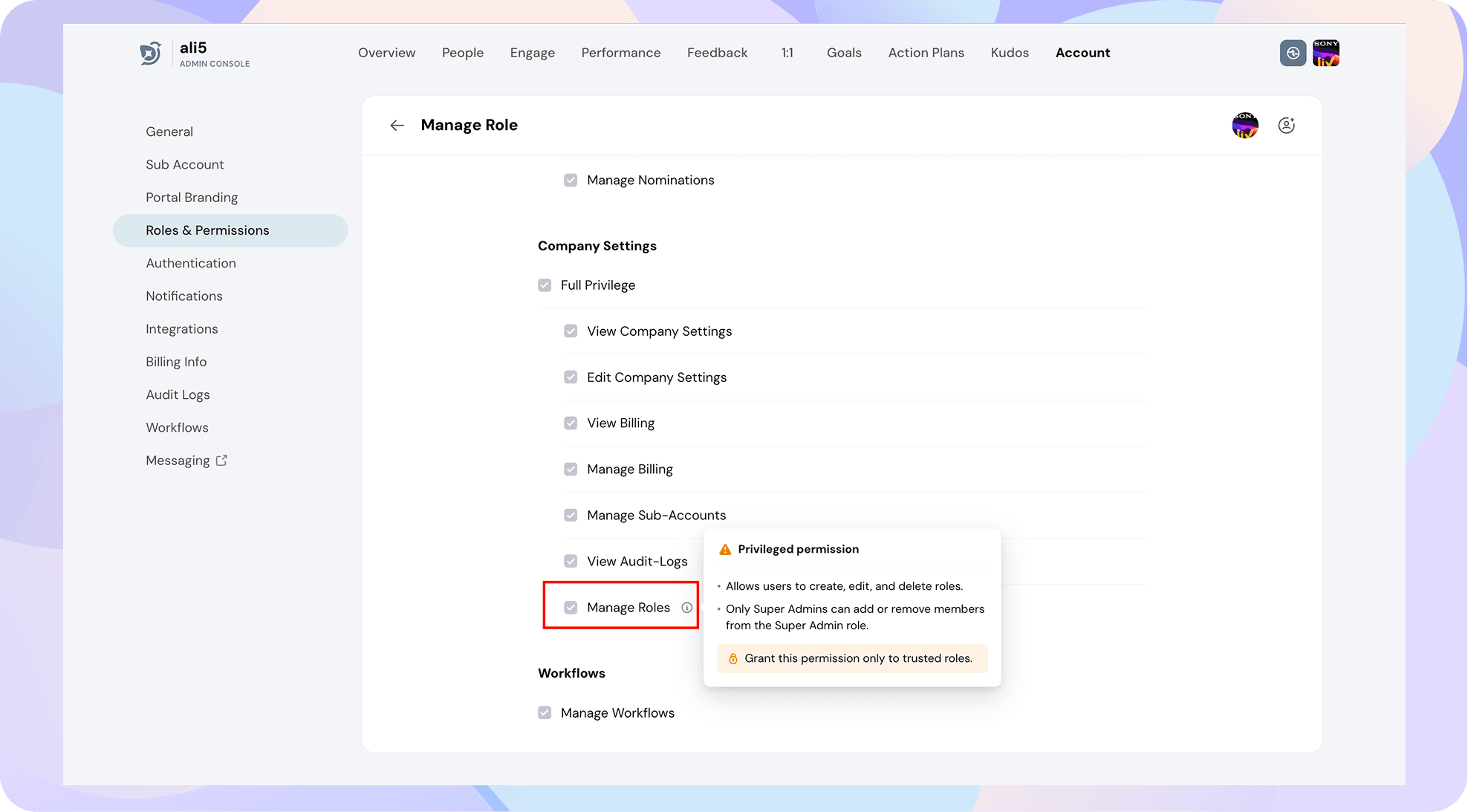
To create or manage Custom Roles, you need the Manage Roles permission. This is typically held by Super Admin and Admin roles by default.
A note on Super Admin
No one holding Manage Roles permission can add or remove a Super Admin's access. Only someone with the Super Admin role can do that. This is a safeguard against accidental privilege escalation.
Creating a custom role
- Create a new role. Give it a name that reflects what it's for; Eg IT Admin.
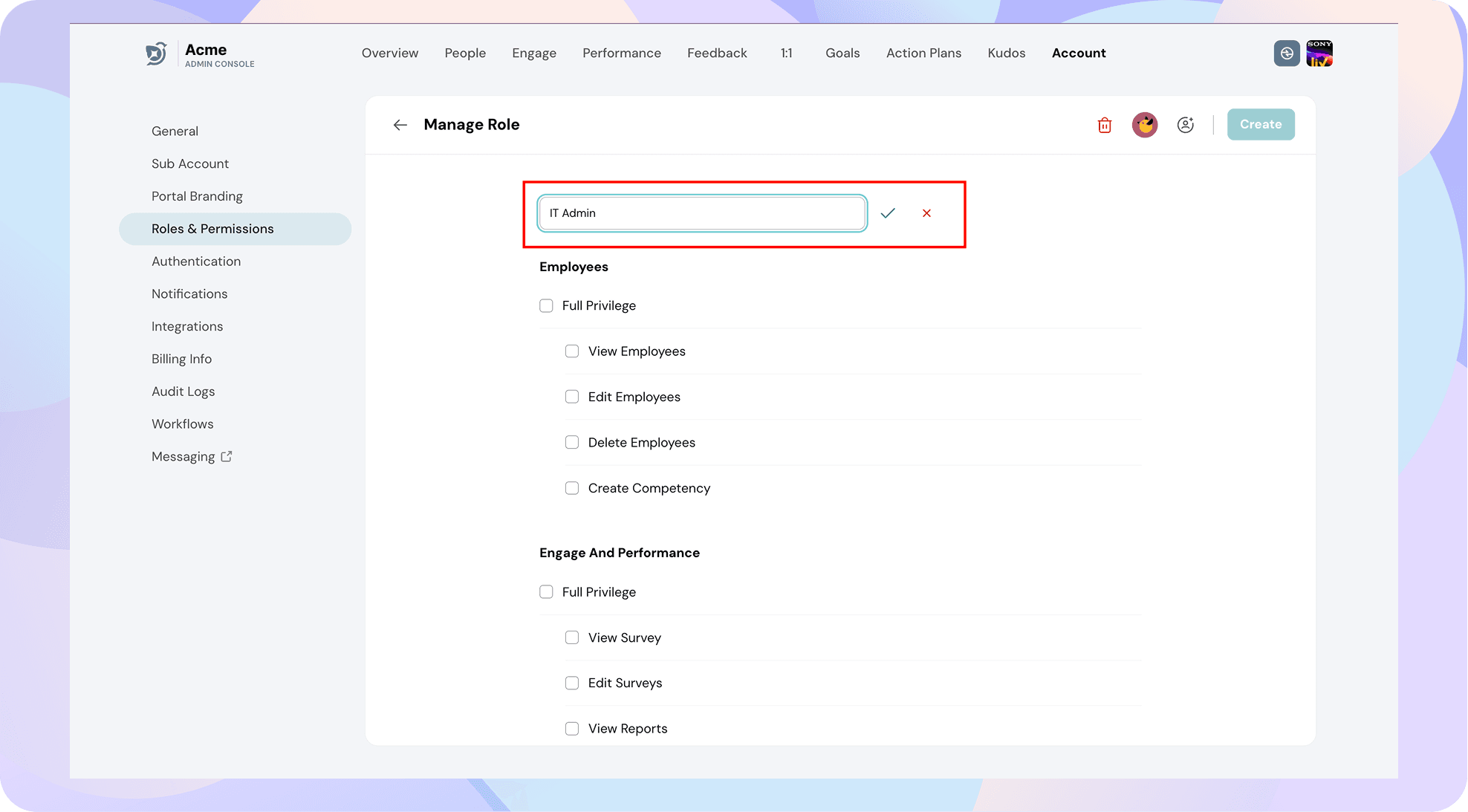
- Select permissions. Choose any combination of permissions across modules as mentioned in this article.
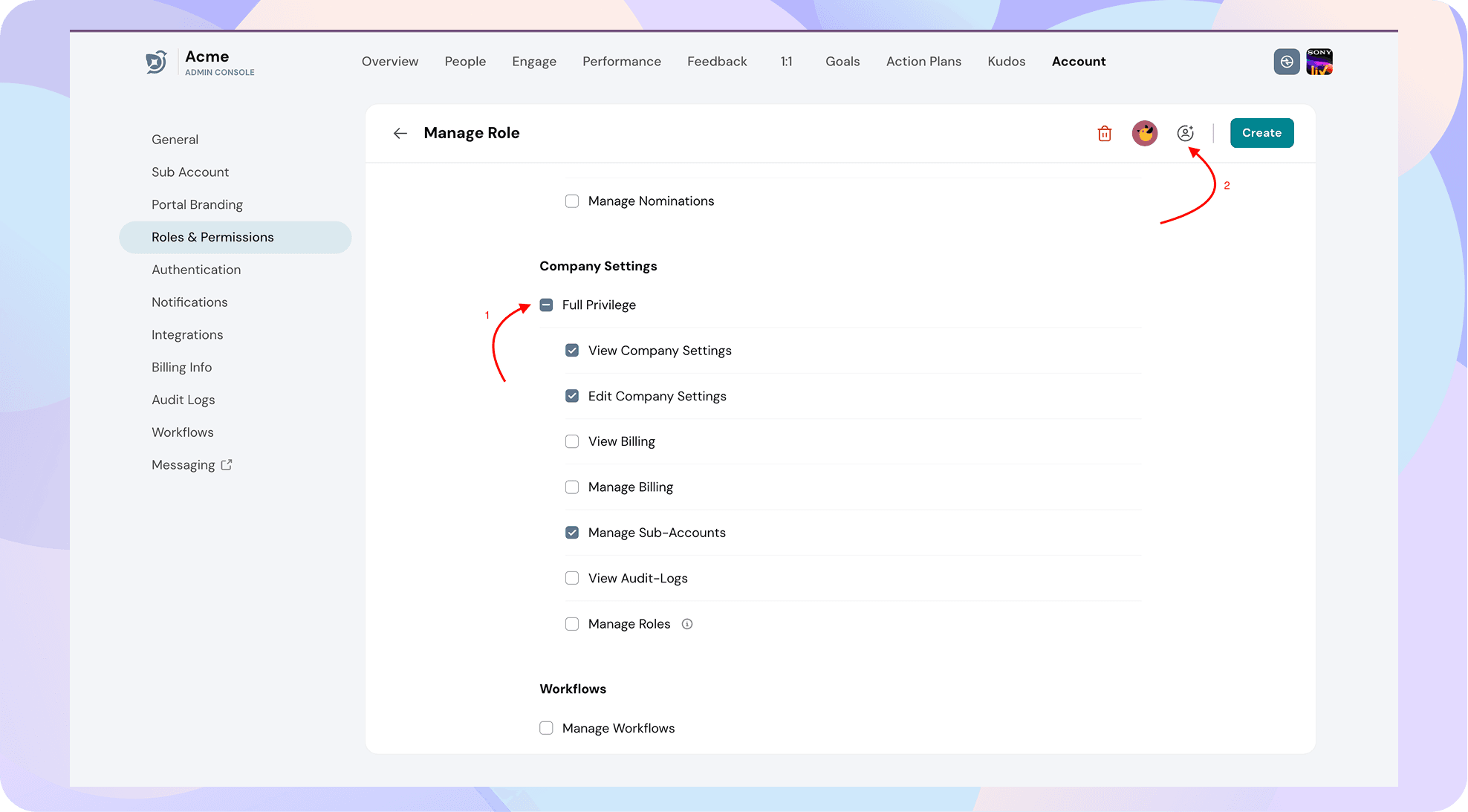
- Assign the role to employees. Employees assigned to the role will get all permissions associated with it. Each employee can be assigned to only one role.
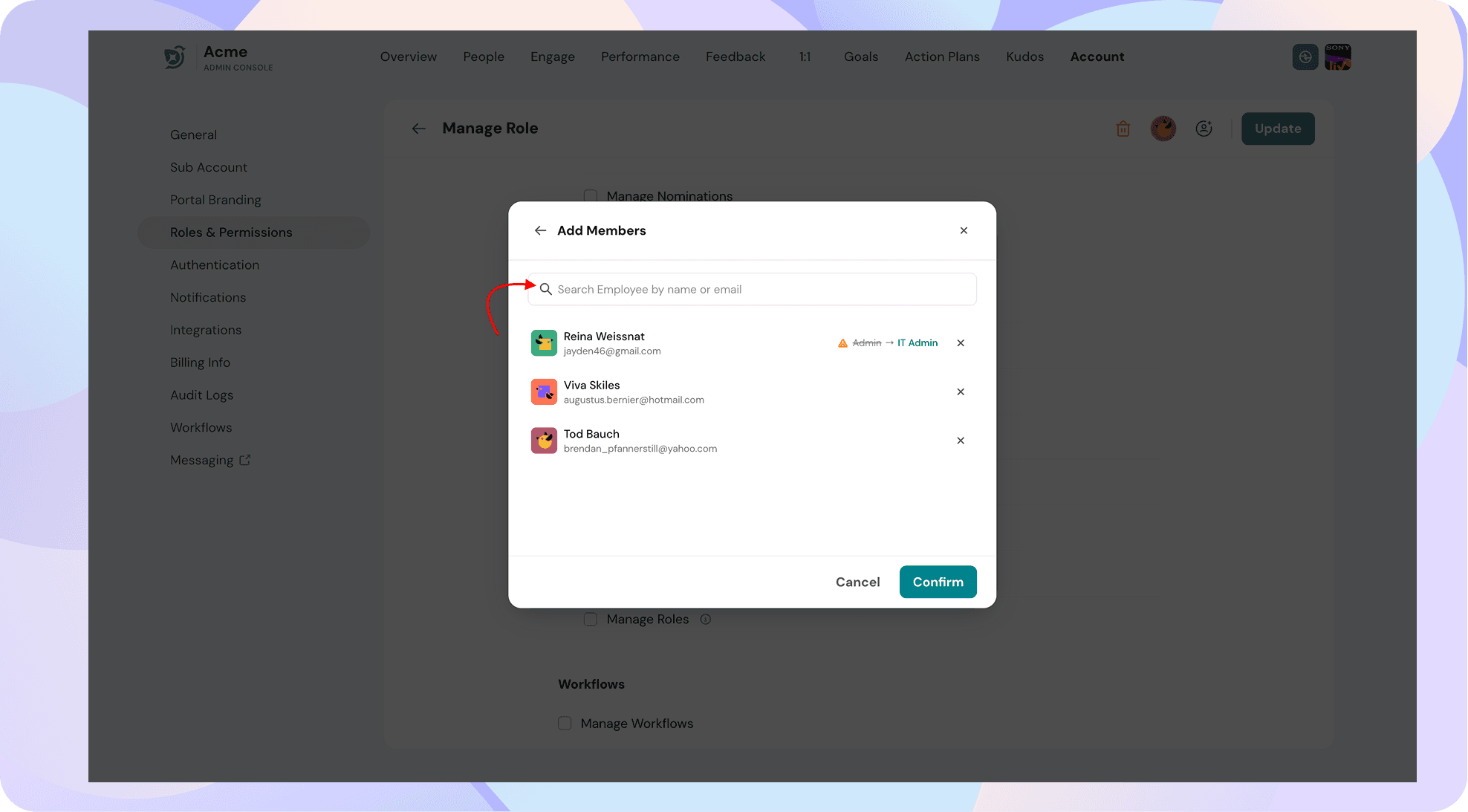
- Save. The role is now live.
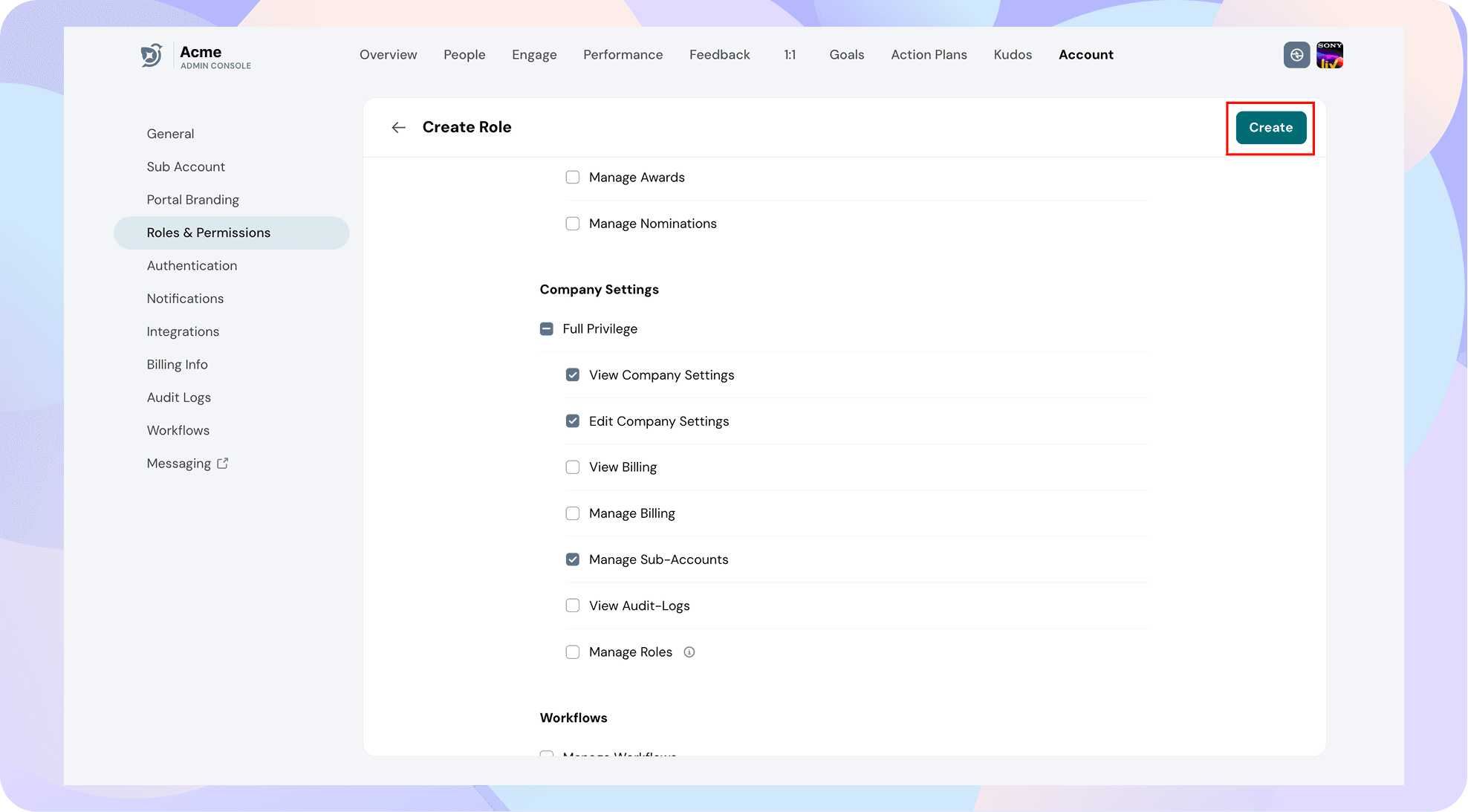
Example: To create an "IT Admin" role that can view company settings and set up authentication processes like SSO, SMTP, etc., grant the permission "Manage Company Settings". To help him monitor and troubleshoot email deliverability, grant the permission "View Audit Logs".
Editing an existing role
You cannot edit a default platform role like Admin or Super Admin. You can edit a Custom Role's permissions at any time from your roles list. Enter the custom role you'd like to edit.
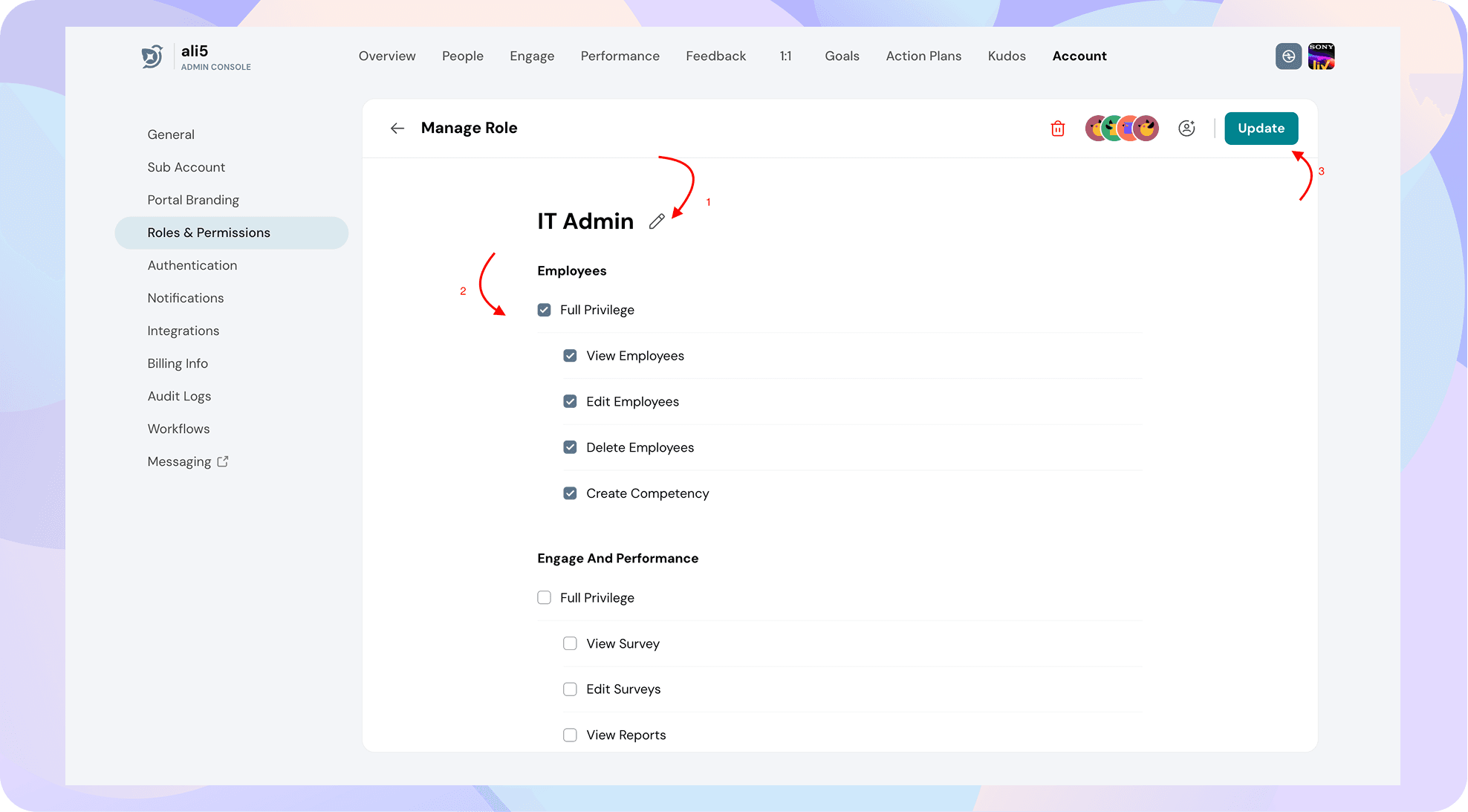
- Edit the name of the role by clicking on the Edit icon next to the name.
- Add or remove permissions the same way you did when creating the role. Note that dependency rules still apply, i.e you can't remove a parent permission while a dependent one is still selected.
- Click on Update button to save the changes. Note that changes take effect for affected users on their next session refresh. If someone is actively logged in, they may not see the change reflected until they refresh their page.
If you'd like to create a similar role with minute differences in permissions, you can duplicate an existing role and make edits to it. Click on the three dots next to the role and click on Duplicate.
Deleting a role
Click on the three dots next to the role you want to delete, then click on Delete.
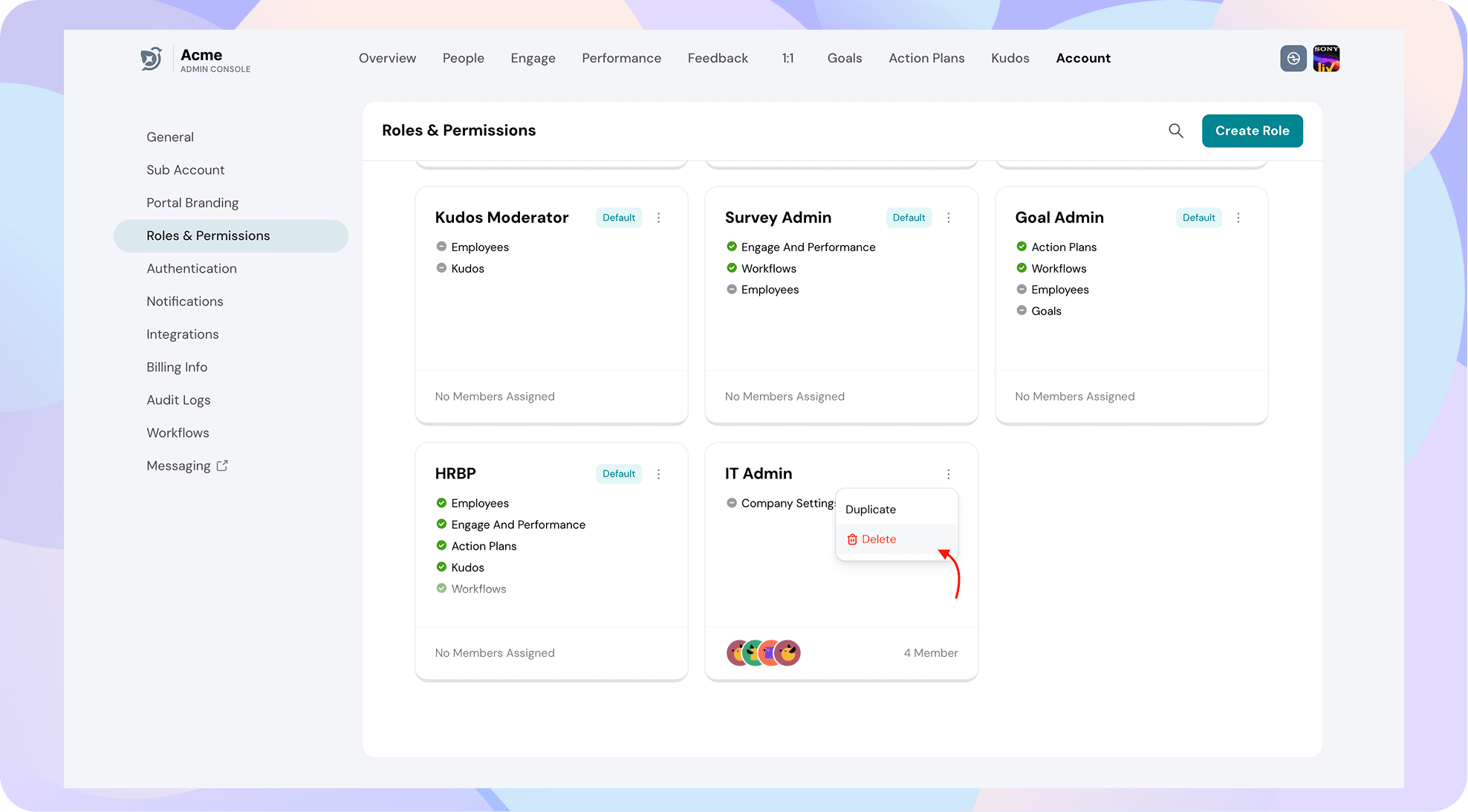
If you try to delete a role that still has people assigned to it, you'll be prompted to choose one of the following before deletion can go through:
- Reassign everyone currently on that role to a different role you select, or
- Default everyone currently on that role back to the baseline Employee role.
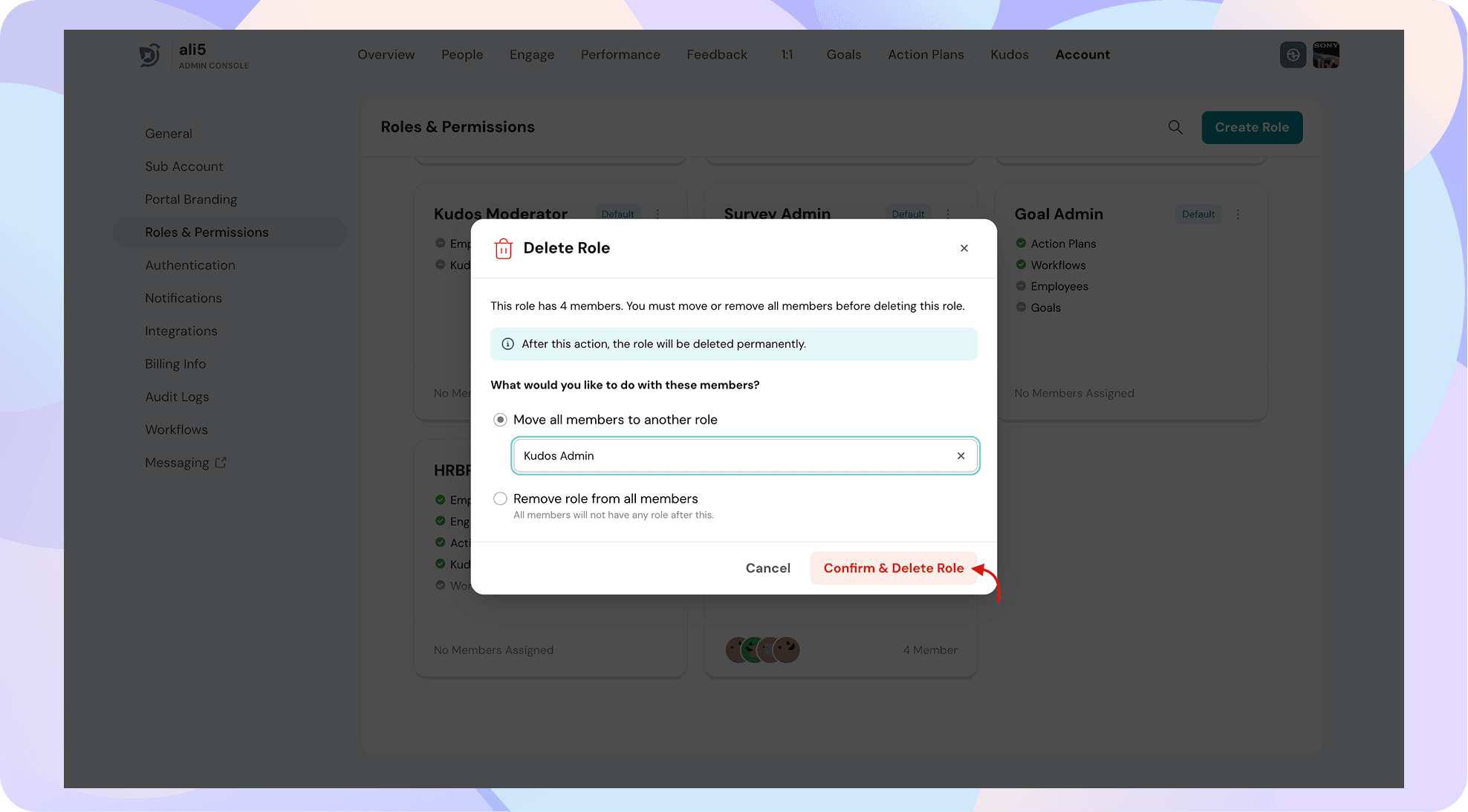
You won't be able to complete the deletion until you've made one of these choices — this prevents anyone from being left without a role.
FAQs
Can I create as many custom roles as I want? Yes — there's no limit mentioned on the number of roles you can create.
Will creating a Custom Role affect my existing default roles (Admin, Employee, etc.)? No. Default roles are untouched. Custom Roles are purely additive.
What happens to someone's access if I remove a permission from their role? It takes effect on their next session refresh — they'll lose access to whatever was removed at that point.
Can I edit what Super Admin can access? No — not even with Manage Roles. Only Super Admin can modify its own permission set.
Someone needs access I don't see listed here — what do I do? Reach out to support if you have a specific access need that doesn't map to anything in the permission list.