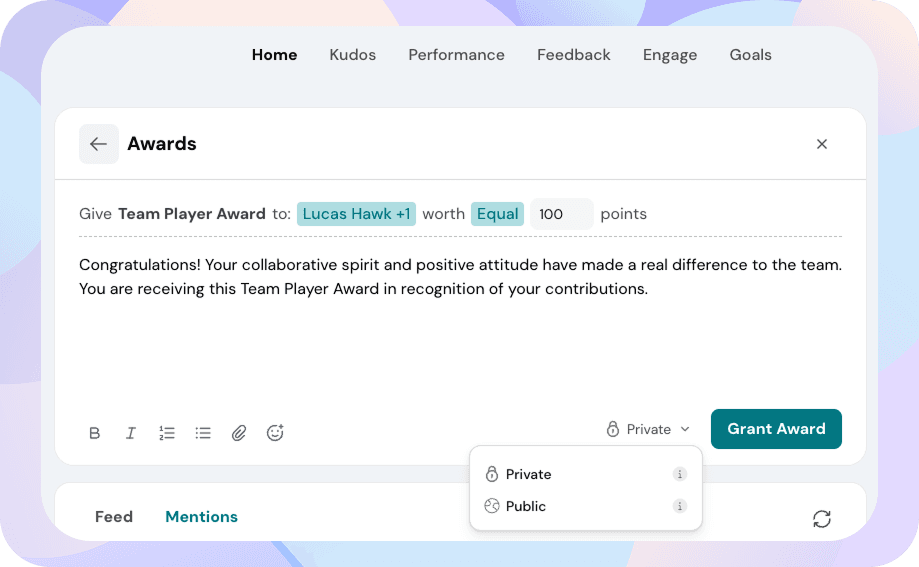
Awards are a company-driven way to recognize employees using points, budgets, and optional approvals set by admins. Unlike kudos, which are peer-to-peer, awards are controlled by the organization and usually given by managers or designated employees.
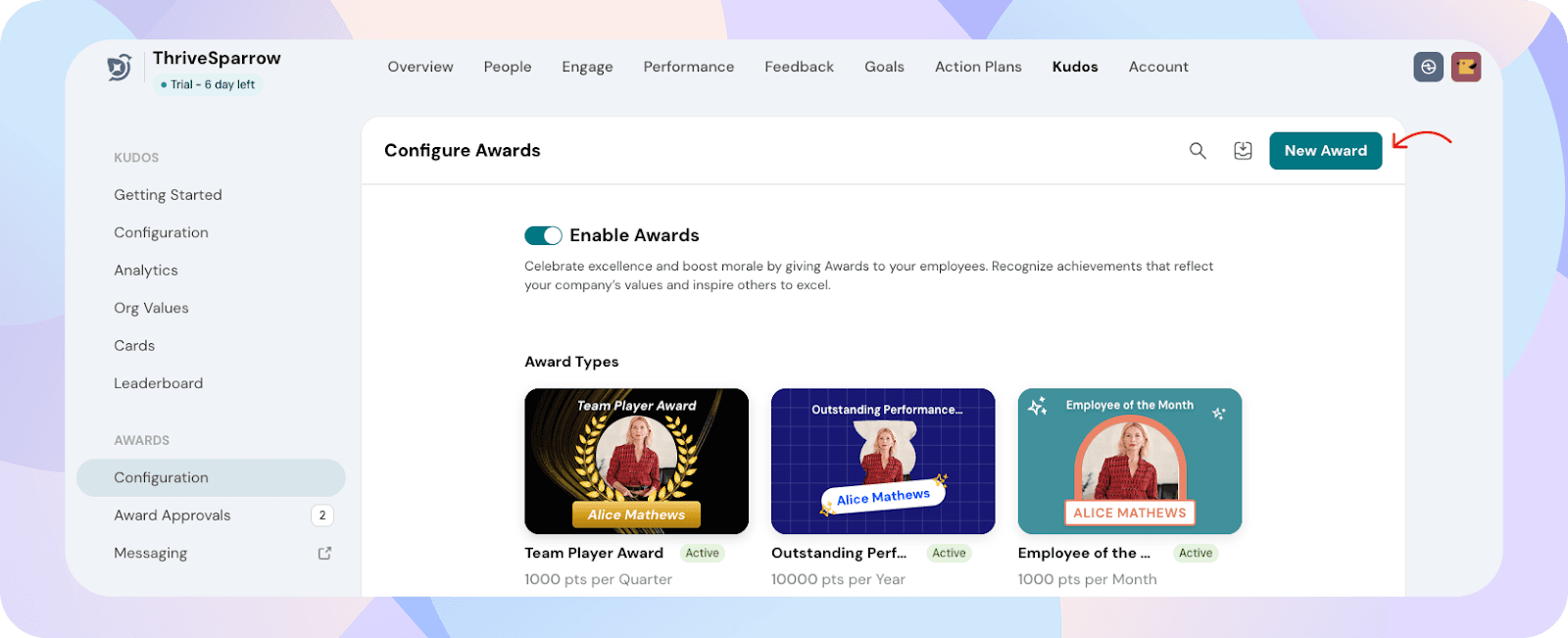
Award types
Award type defines whether an award has fixed, preset details or allows the giver to customize values such as points and the message when giving the award.
Who’s involved
Award givers are employees who have permission to give a specific award.
Recipients are employees who receive the award.
Approvers (optional) review and approve award requests before they are granted.
1. Creating an Award
You, as an admin, can create and manage all awards from: Admin View → Kudos → Awards
Step 1: Basic Details
Click New Award.
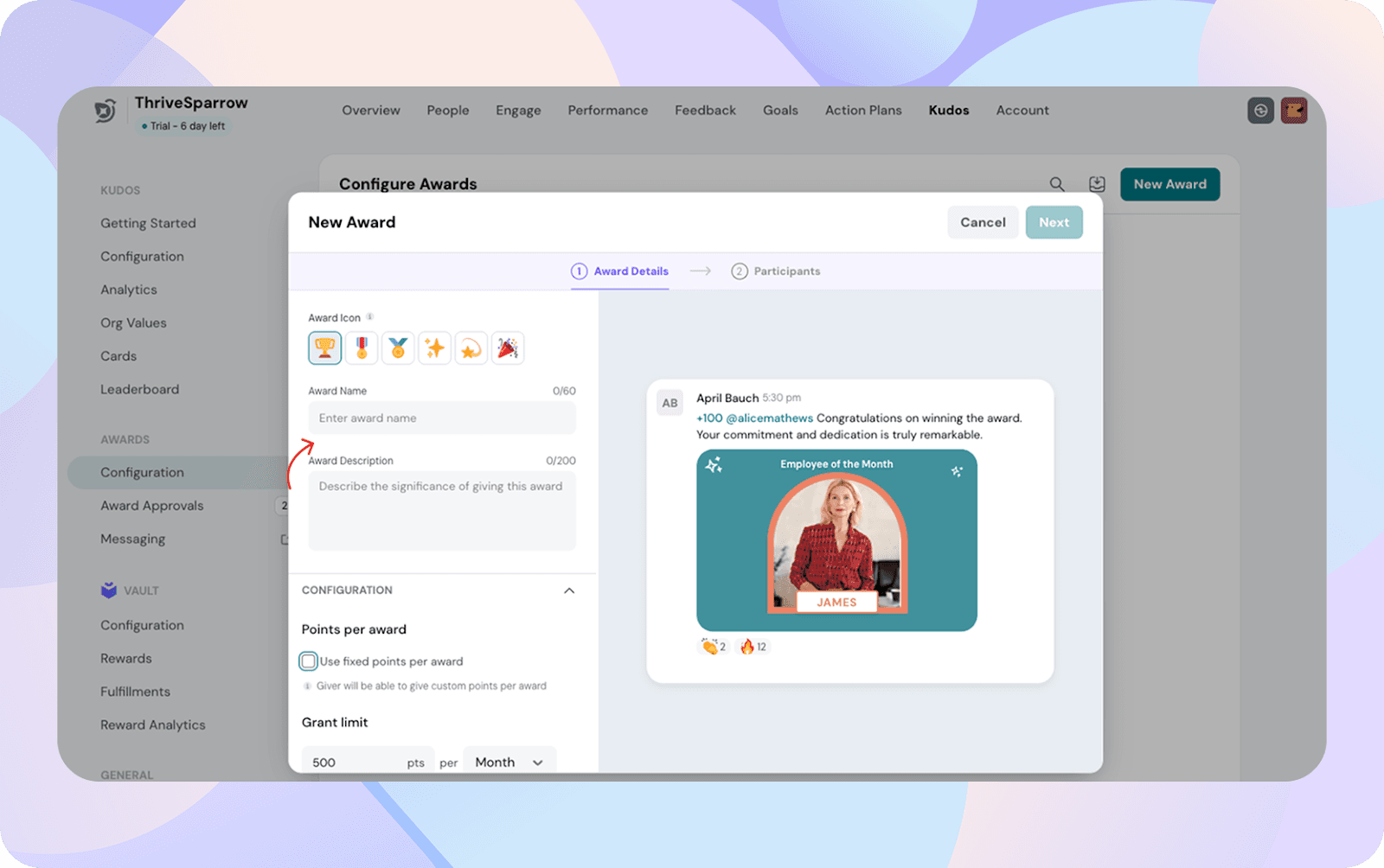
Enter:
Award Name (required)
Description (optional; shown to award givers)
2. Configure Points & Budgets Points Setup
Choose one of the following:
Fixed points per award The same number of points is given every time.
Custom points per award The giver selects the point value at the time of giving.
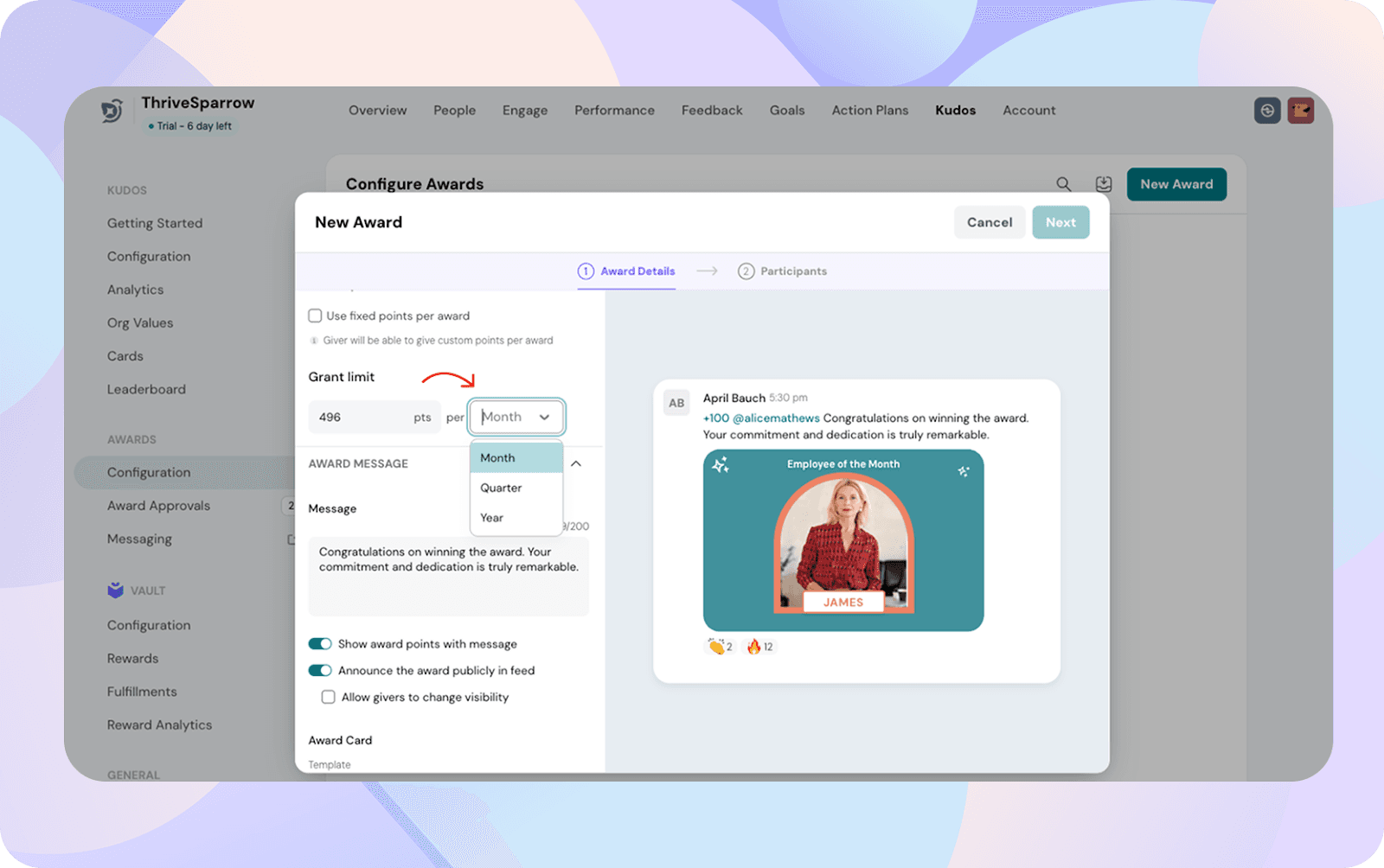
Budget (Grant Limit)
Set how many points can be spent on this award within a specific period:
Monthly
Quarterly
Annually
3. Message & Visibility Settings
Default Message Template
You can set a pre-filled message that appears when the award is given. Givers can personalize it unless restricted.
Show Points in Message
Enable this to automatically display the points at the top of the award post.
Post Visibility
Choose how and where the award appears:
Public feed Shows the award to the entire organization.
Private Sends notifications only to the giver, recipient and approvers.
You can also allow or restrict the giver’s ability to change visibility while sending the award.
4. Award Image Template
Set a default background image for the award. Givers may replace this image when sending the award (if allowed). The recipient's name and profile photo are always updated dynamically.
5. Choose Participants
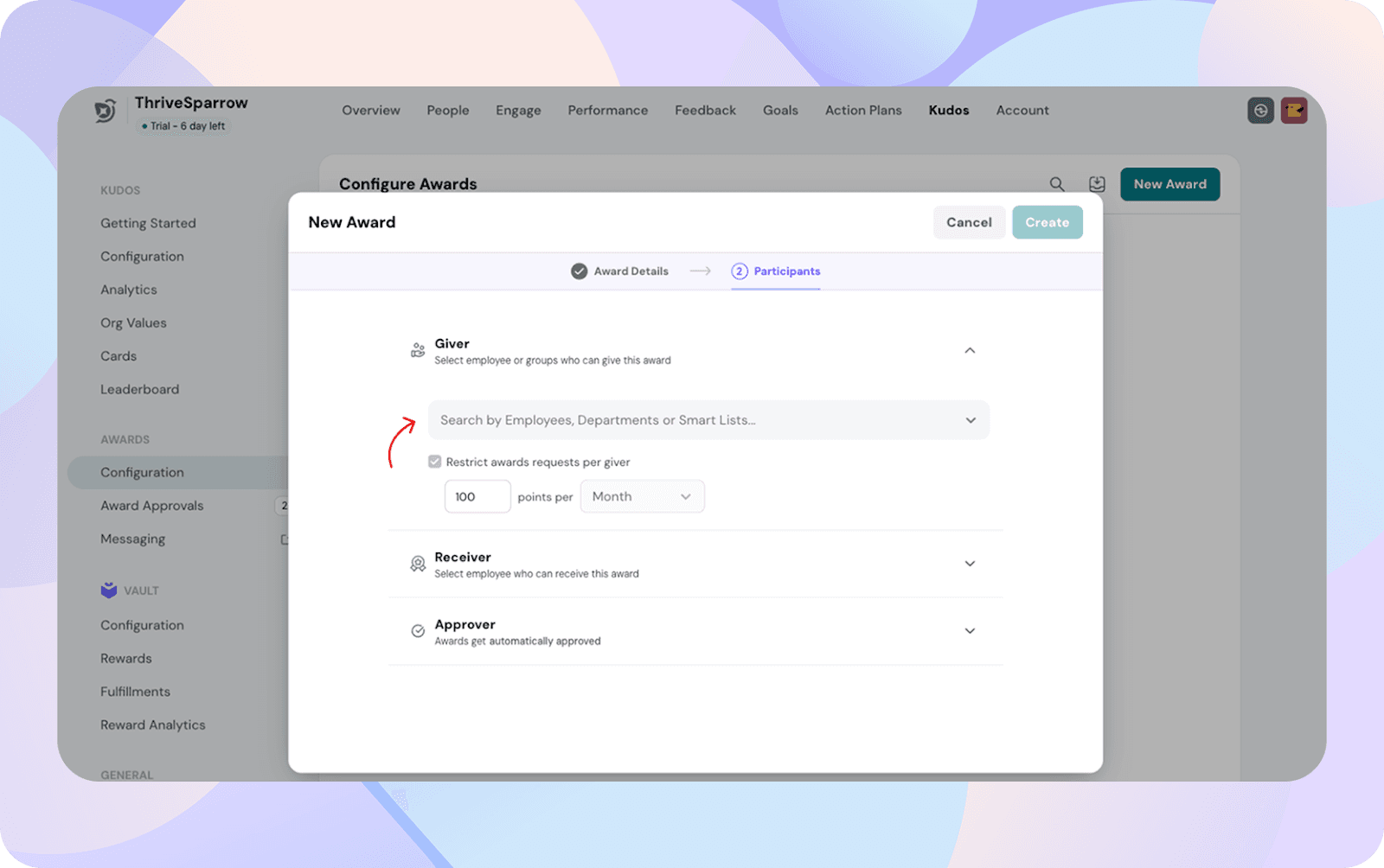
Givers
Select who can issue this award:
All employees
Managers / Department Heads / Group Heads
Smartlists
Specific employees
Restrict award requests per giver
Limit how many points or how many awards a giver can request within a budget period (for example, 100 points per month). This helps prevent overuse while awards are pending approval.
Recipients
Choose who can receive this award:
All employees
Departments
Smartlists
Specific individuals
6. Set Up Approvals (Optional)
Awards can be automatic or routed through multi-level approval.
Approval Options
Auto-approve (default)
Custom approval flow with up to 4 sequential levels
For each level:
Add one or more approvers
Only one person needs to approve at that level
Approvers receive notifications only when their level is active. Admins can override approvals regardless of the approval chain.
Important: Once approved or declined, the decision cannot be undone.
7. Managing Awards
From the Awards page, admins can:
Edit awards
Archive awards (after clearing pending approvals)
Duplicate awards
View approval history
Changes affecting giver/recipient eligibility may require clearing pending approval queues.
8. Giving an Award
(Only employees with award-giver permissions can give awards.)
Employees can give awards from: Employee View → Home → Give Award
Step 1: Choose an award
You’ll see a list of awards you’re eligible to give.
For each award, you can view:
Award name
Points associated with the award (fixed or configurable)
Select the award you want to give and continue.
Step 2: Add Details
Fill in:
Recipients (single or multiple, depending on eligibility)
Message (default text is pre-filled)
Points (if custom points are allowed)
Visibility (if enabled by admin)
Step 3: Submit
If approvals are enabled → request enters the approval chain
If auto-approve is ON → the award is granted immediately
Once approved:
Points are added to the recipient
Notifications are sent
The award appears on the feed if it’s public
Employees can track:
Awards they’ve given
Awards they’ve received
Status of pending approvals
9. Approver of an award
As an approver, your decision directly affects the award’s monthly budget.
Every award has a predefined budget (for example, 500 points per month).
Points are deducted only after an award is fully approved, but the deduction is counted against the date the request was created, not the approval date. (Example: An award was requested on January 28 and approved on February 2. The points will still be deducted from January’s award budget, not February’s)
When you approve an award, the points associated with that request are consumed from the award’s budget for that grant period (month, quarter, etc.).
If multiple awards are approved and the budget is exhausted, no further awards can be given until the next budget refresh cycle.