
Create & Interpret a Competency Matrix
Creating a competency Matrix in thrive is straight forward process in Thrivesparrow.
Under performance module, you should find a separate section Competency Matrix.
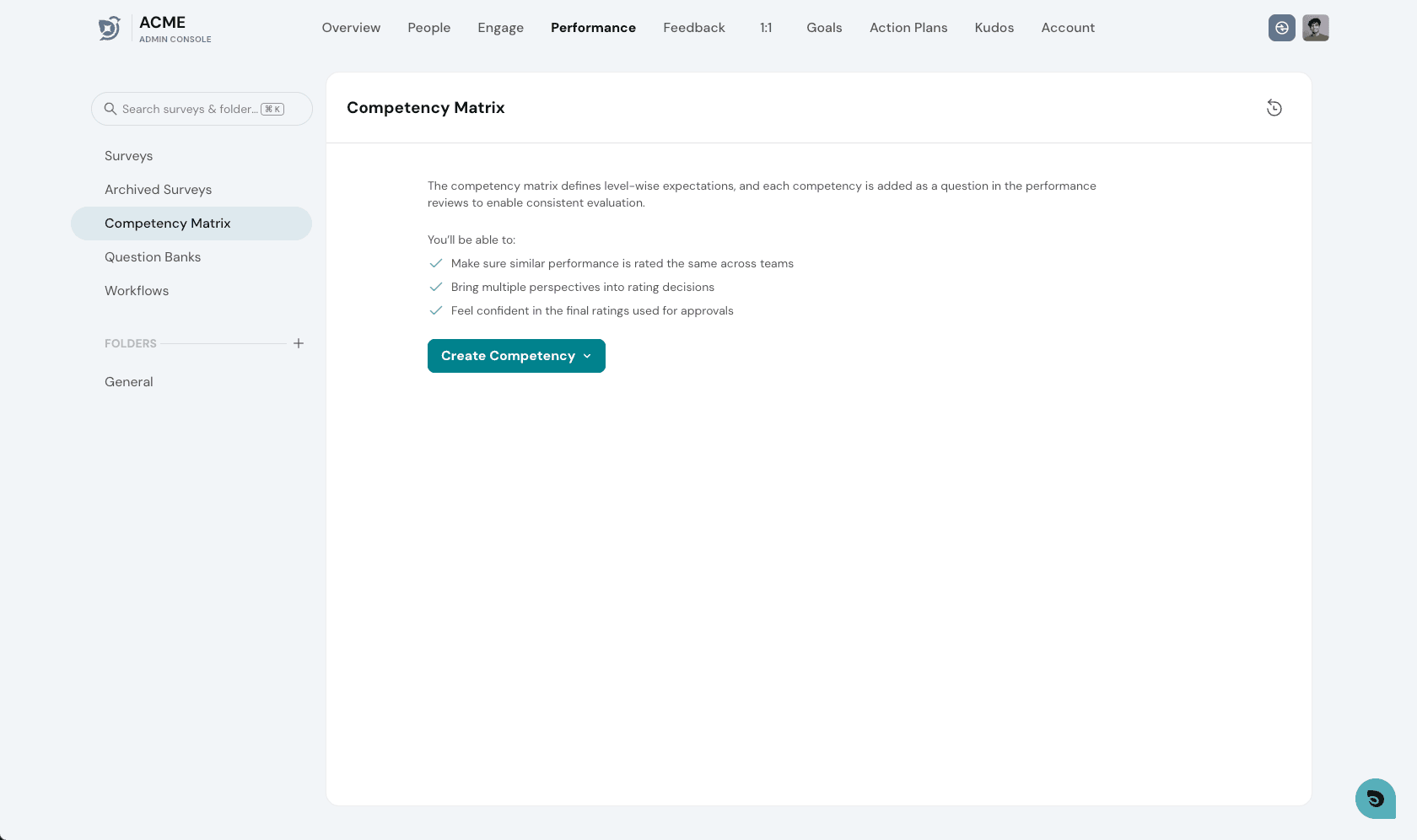
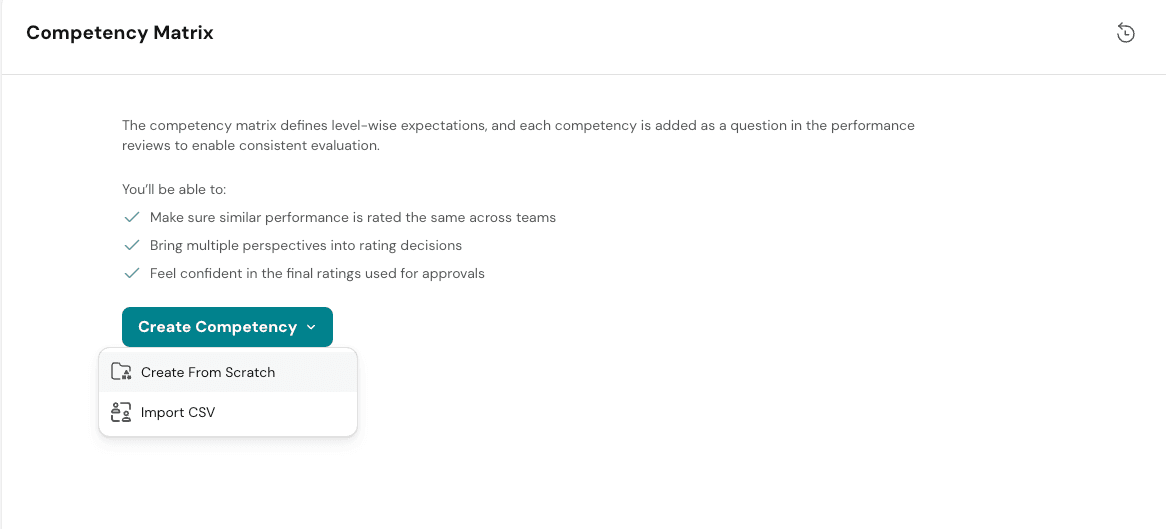
Two ways to create a competency
- Creating competency from Scratch
- Creating via Import CSV ( You can download a sample CSV and update and import the same )
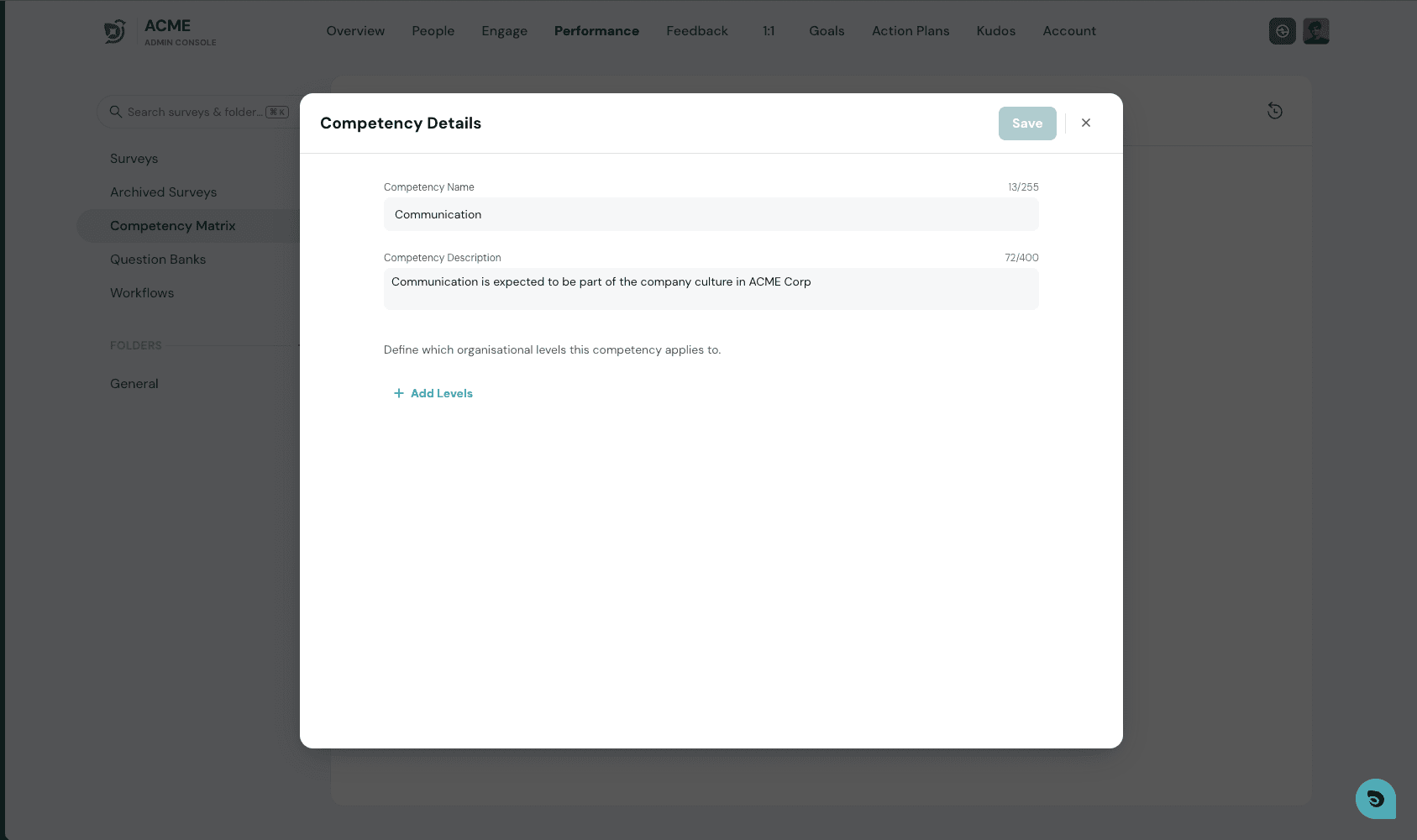
Creating from Scratch
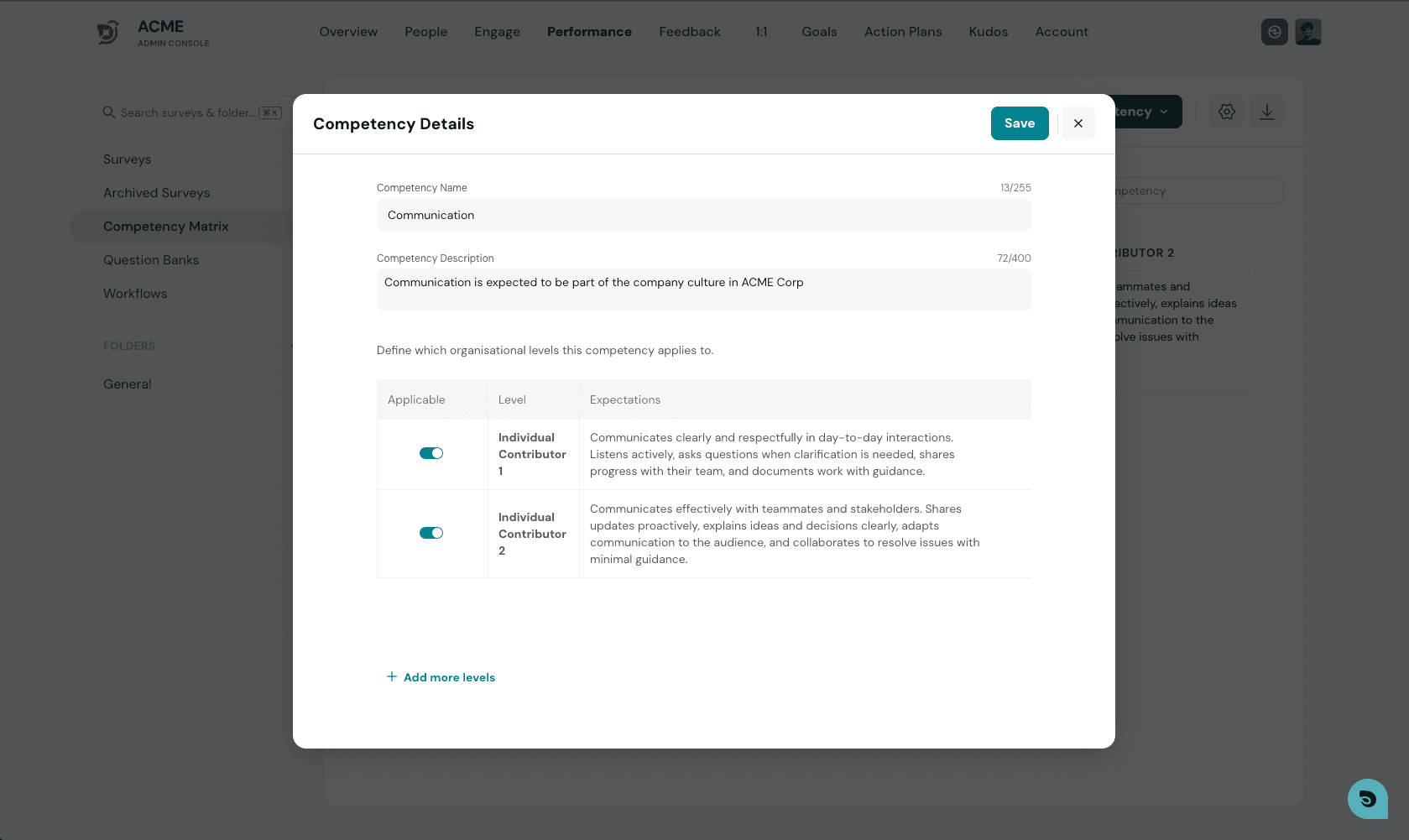
Once you hit create from Scratch, You will be prompted to enter the Competency Details
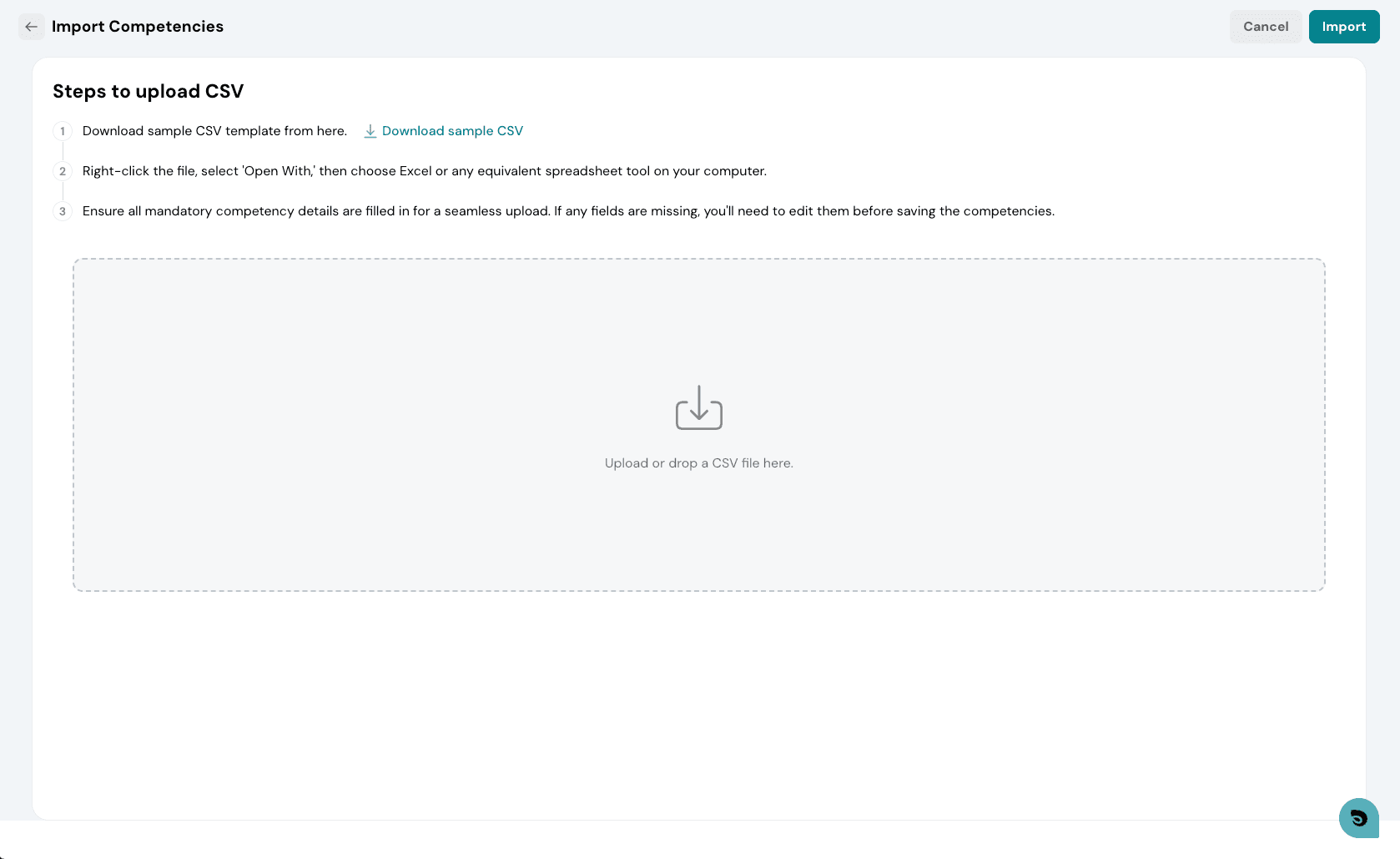
Import using CSV
You can download the sample CSV to understand the required format. Once completed, upload the file and ThriveSparrow will automatically map the fields and import the competency data.
Adding Levels to Competency
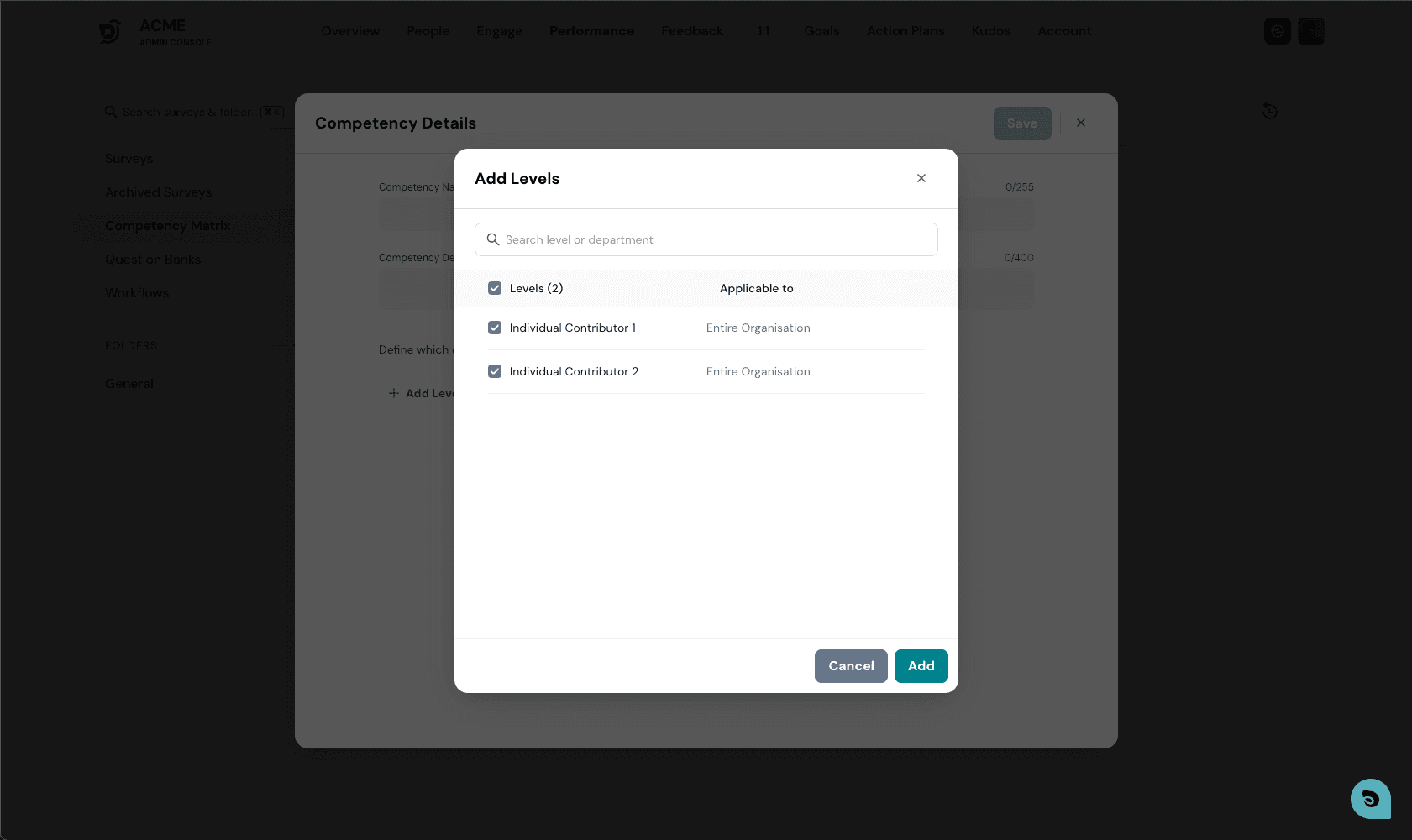
Next up we need to add Levels, Visit here to understand what are Employee Levels and how we handle Levels in Thrivesparrow
Select Levels that are valid for the competency to be created.
Last Step
Enter relevant information for the competency and hit on Save.
How to read the Competency Matrix
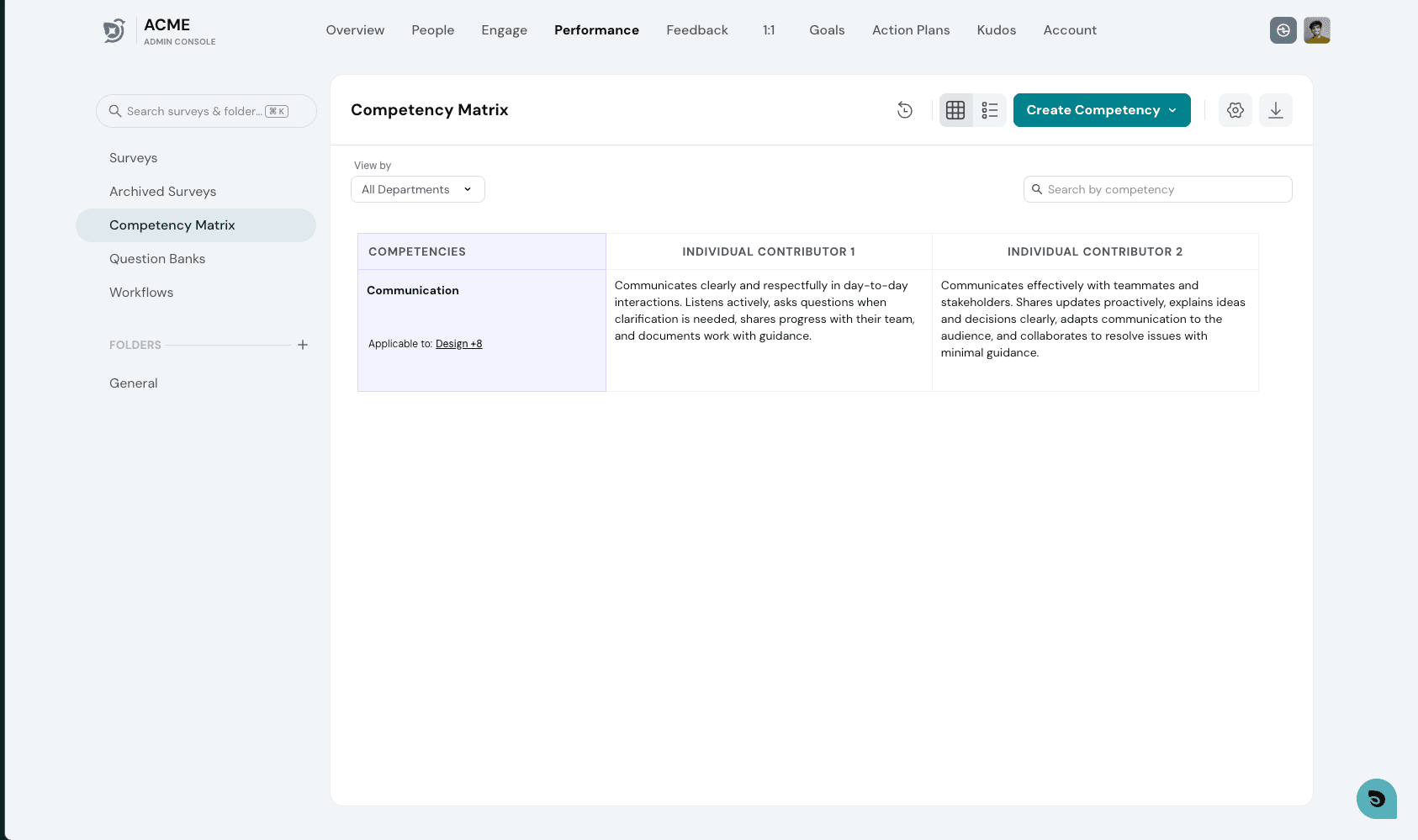
Competency Matrix in Thrivesparrow is a 2 dimensional view where the
- Row represents each Competencies.
- Column represents the expectations for each Employee Levels.
Note : Make sure that your Employees have been mapped with levels. Learn more about Linking Employee Levels to Employees
Who can see the Competency Matrix
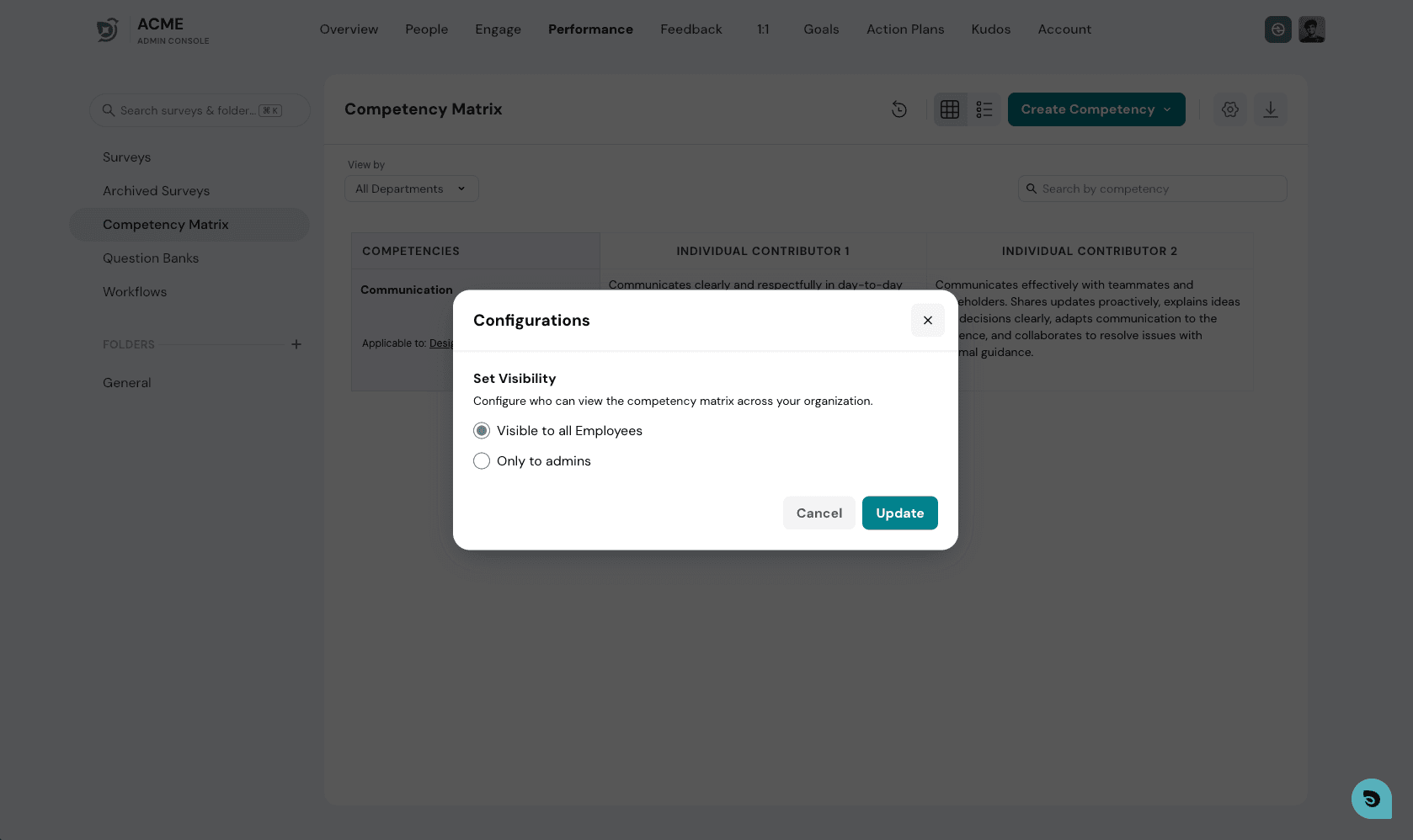
Admins can control who sees the Competency Matrix from the settings icon in the header.
How can Employees view their level in the competency Matrix
Under Employee View, Each employee will have Competency Matrix tab listed under the performance Module.
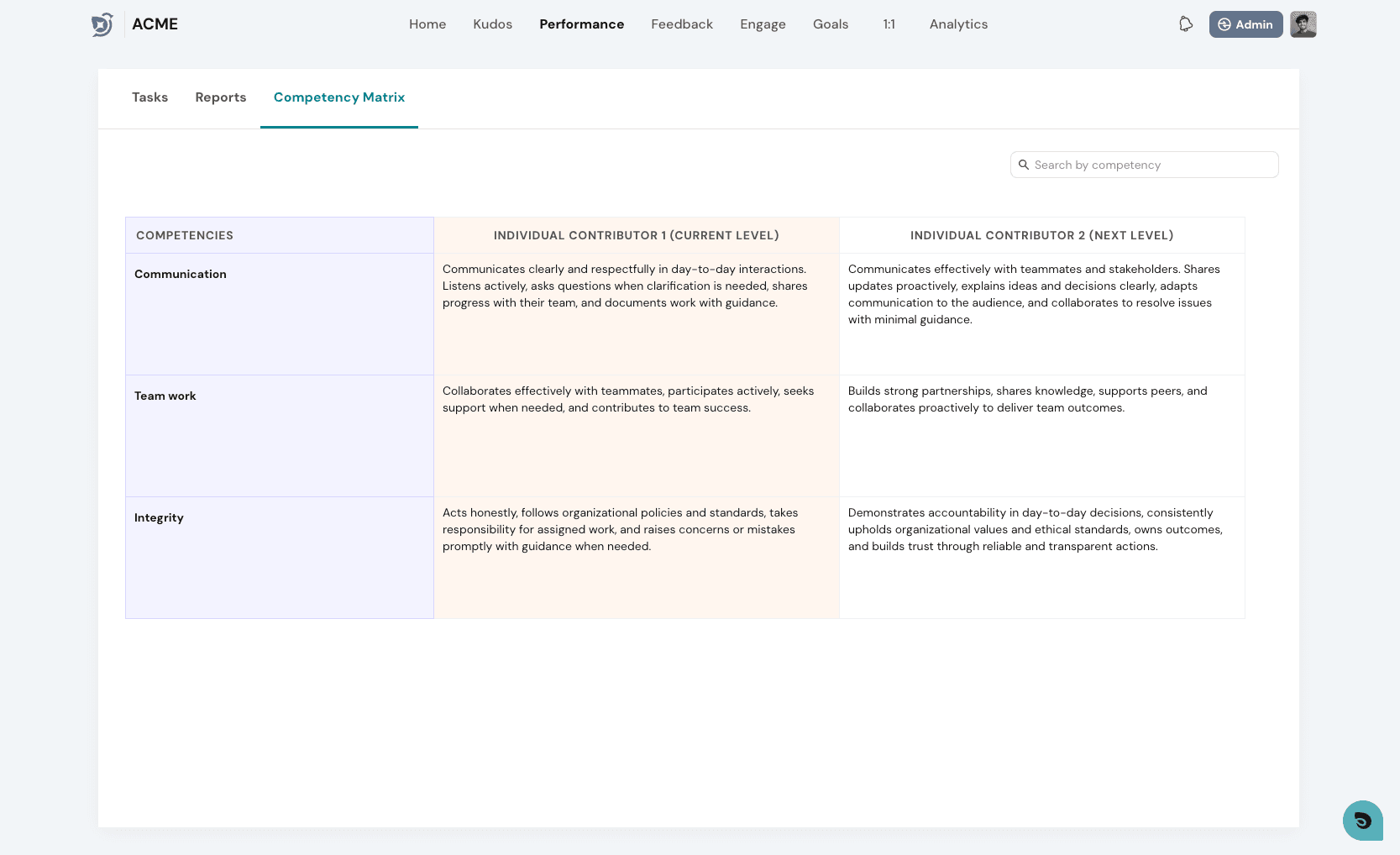
- Current Level highlights the expectations of employee's current level in the org.
- Next Level highlights the expectations for the employee's next level in the org.
That's how Competency Matrix can be created and Interpreted in ThriveSparrow. Should you need any help, don't hesitate to contact our support team.
Happy thriving!
Learn More about how to use Competency Matrix in a Performance Review