
How to enable calendar integrations for 1:1s
Calendar integrations allow employees to sync their Outlook or Google Calendar with ThriveSparrow so they can import existing meetings or push new 1:1s directly to their calendars.
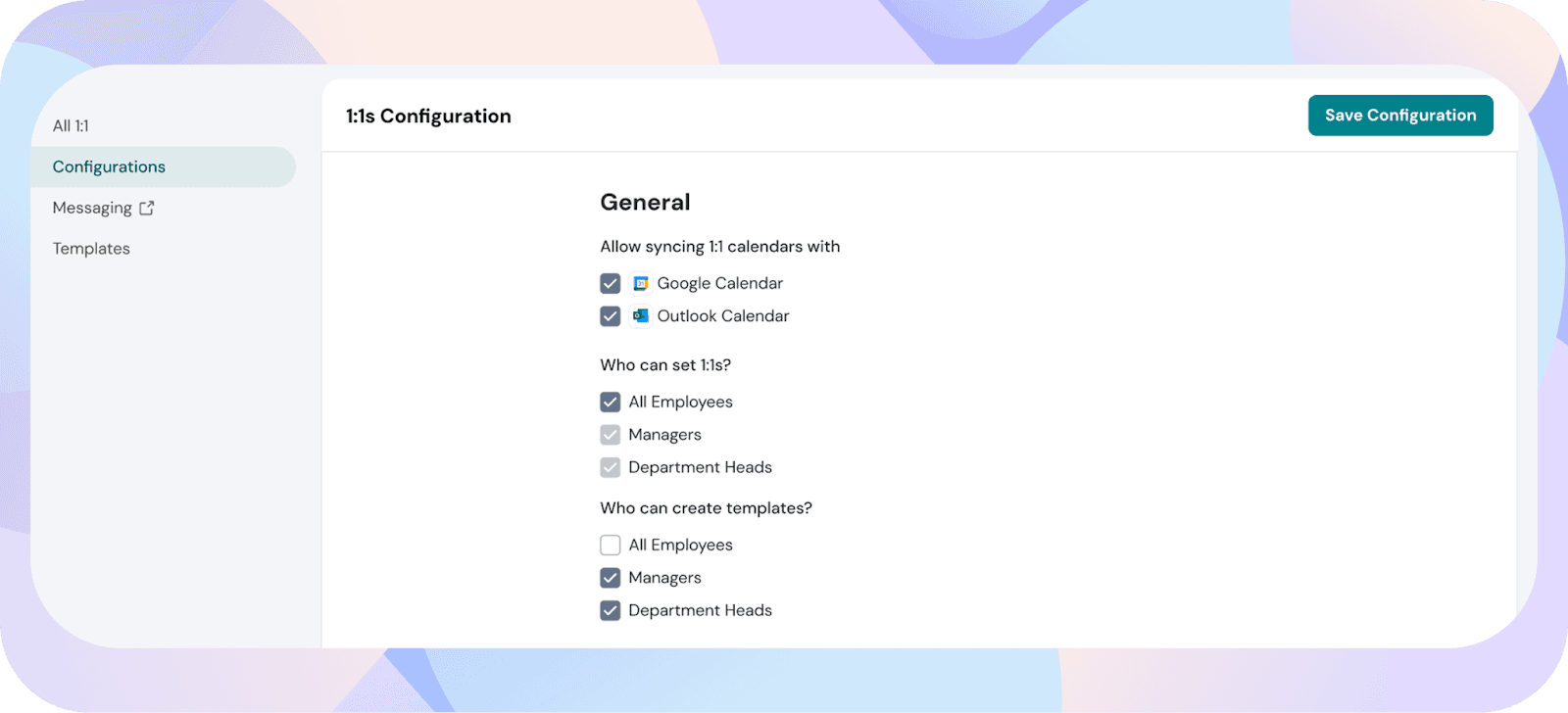
Admins can manage which calendar types are available for the entire organization.
1. Go to Admin → 1:1 → Configuration
From the left sidebar, open Admin, then click 1:1 and select Configuration.
2. Enable the calendars you want employees to use
Under Allow syncing 1:1 calendars, toggle on:
- Outlook
- Google Calendar
Note:
Turning off a calendar type will pause future syncing for employees who have already connected it, but it will not disconnect existing integrations.
A user can connect only one calendar at a time, either Google Calendar or Outlook, not both.
Calendar integration syncs only with the default calendar in the user’s account. Additional calendars will not be synced.
Once enabled, employees can:
- Sync their calendar when creating a 1:1
- Import existing meetings using Calendar sync
- Push manually created 1:1s to their connected calendar