
Search

To support flexibility in performance reviews, the Performance module applies score normalization so results remain consistent and easy to interpret across different rating scales.
In this article, we’ll walk through how score normalization works, how final scores are calculated, and how your normalization settings influence reports, benchmarks, and action plans.
Performance reviews allow you to choose rating scales ranging from 3-point to 10-point, giving you maximum flexibility to rate different types of questions appropriately within the same review.
Score normalization ensures that:
This makes it possible to mix rating formats such as 3-point, 5-point, or 10-point scales within the same performance review.
You can create and manage rating scales at the organization level.
Create → Setup Defaults → Survey Defaults → (⋮) → Add scale
When adding a scale, you’ll configure:
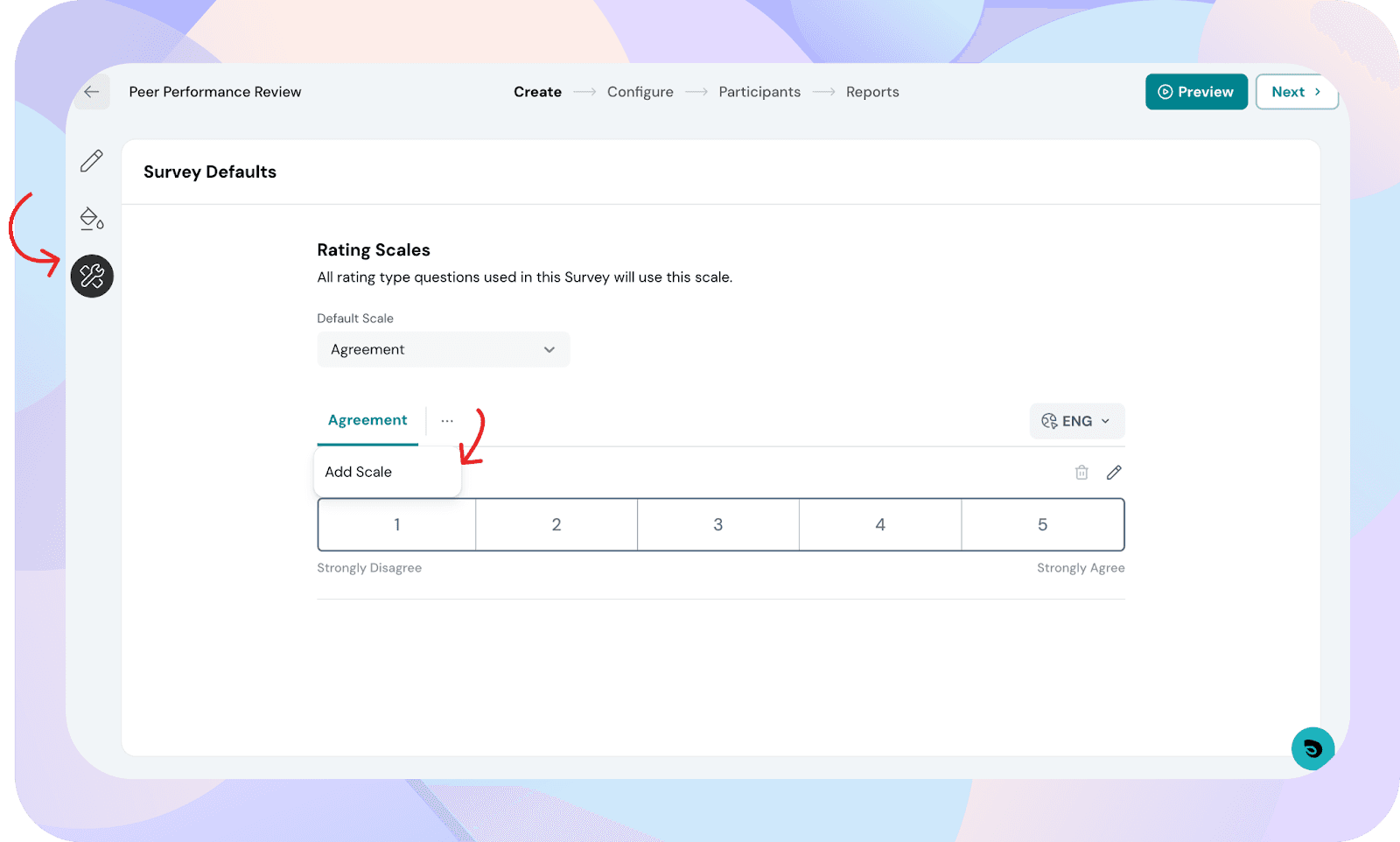
Example
You might create a 3-point Performance scale with options like:
Each scale is saved independently.
Note:
The Include NA option is now configured within the scale itself. It’s no longer dependent on question-level settings and applies only to that specific scale.
Once scales are created, you can assign them to individual questions within a review.
Builder → Add questions → Select a question (or create a new one)
From the question settings:
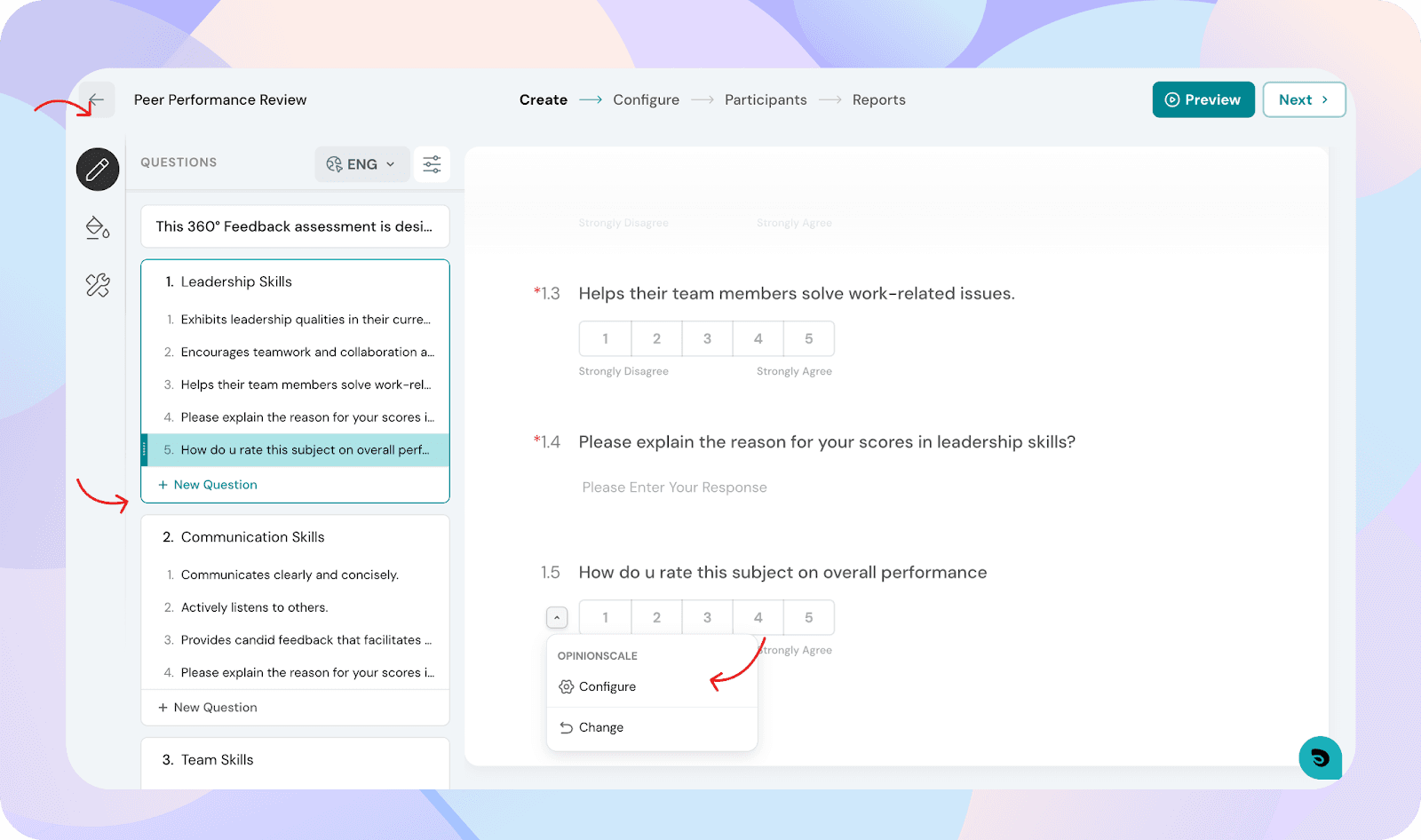
If a rating scale is changed for a question that already has responses, you’ll be prompted to delete the existing responses before applying the new scale. This ensures score consistency and prevents inaccurate calculations.
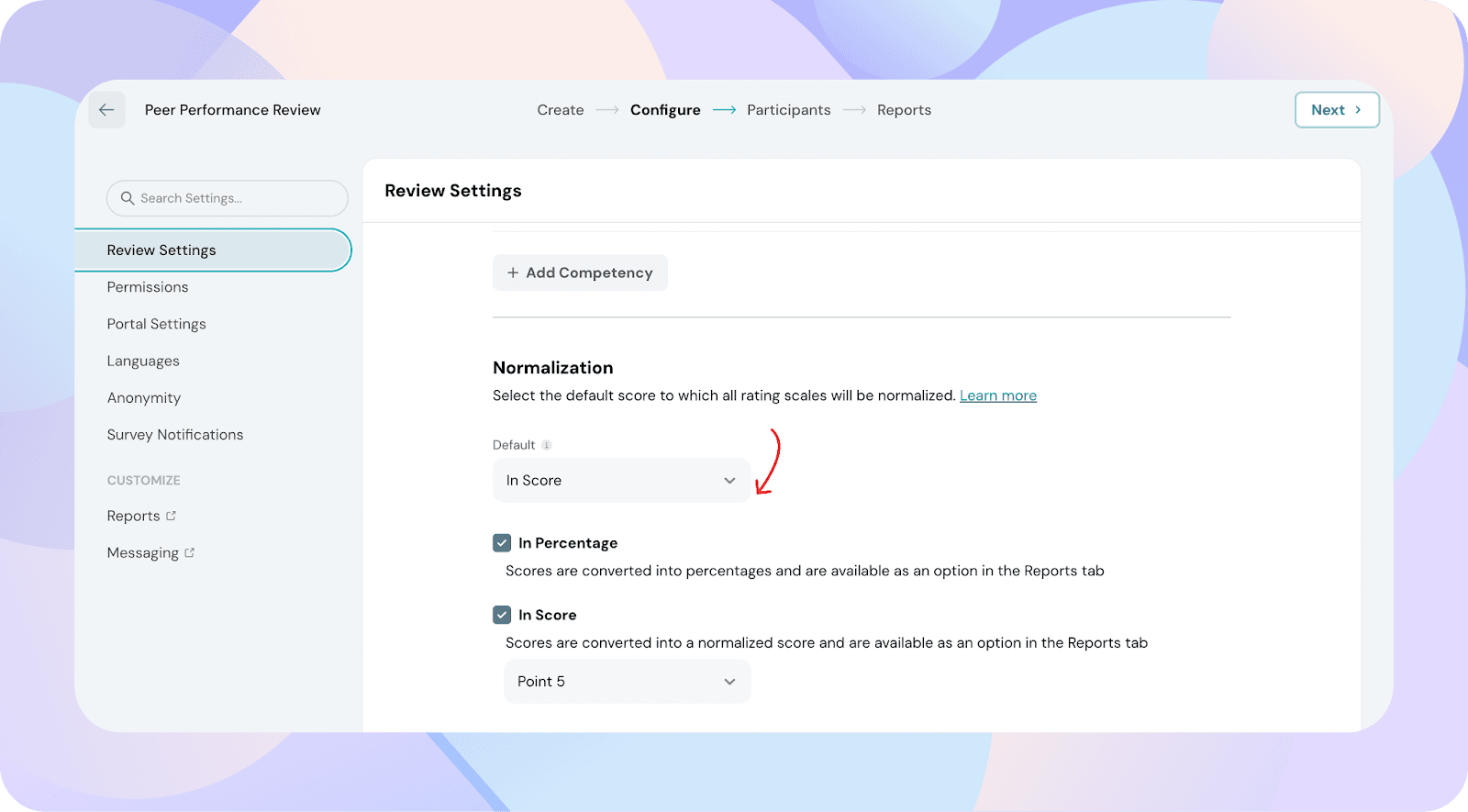
Normalization settings decide how all responses are converted into a final, unified score.
Configure → Review settings → Normalization
You’ll see two options:
By default:
Customizing the score scale
If In score is enabled, you can define the final scale used for normalization.
For example:
Normalize all questions to a 5-point score, even if some questions use 3-point or 10-point scales
If you prefer percentage-only reporting:
This choice applies across the entire review cycle, including Managers and approvers via Team Analytics. The option selected as default is what applies to performance reports and is also used as the default selection in the “Score by” dropdown in reports.
Benchmarks and scoring frameworks
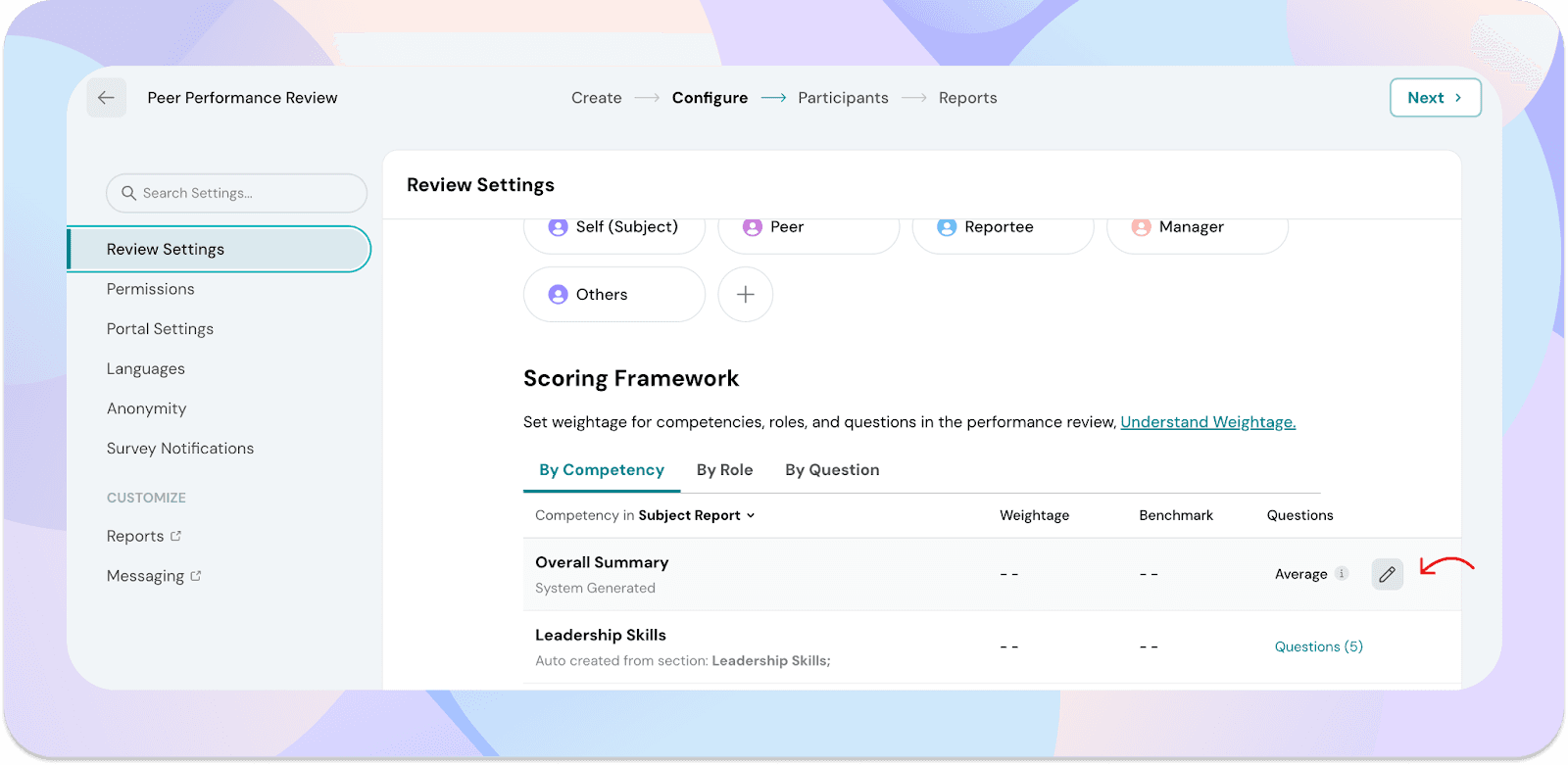
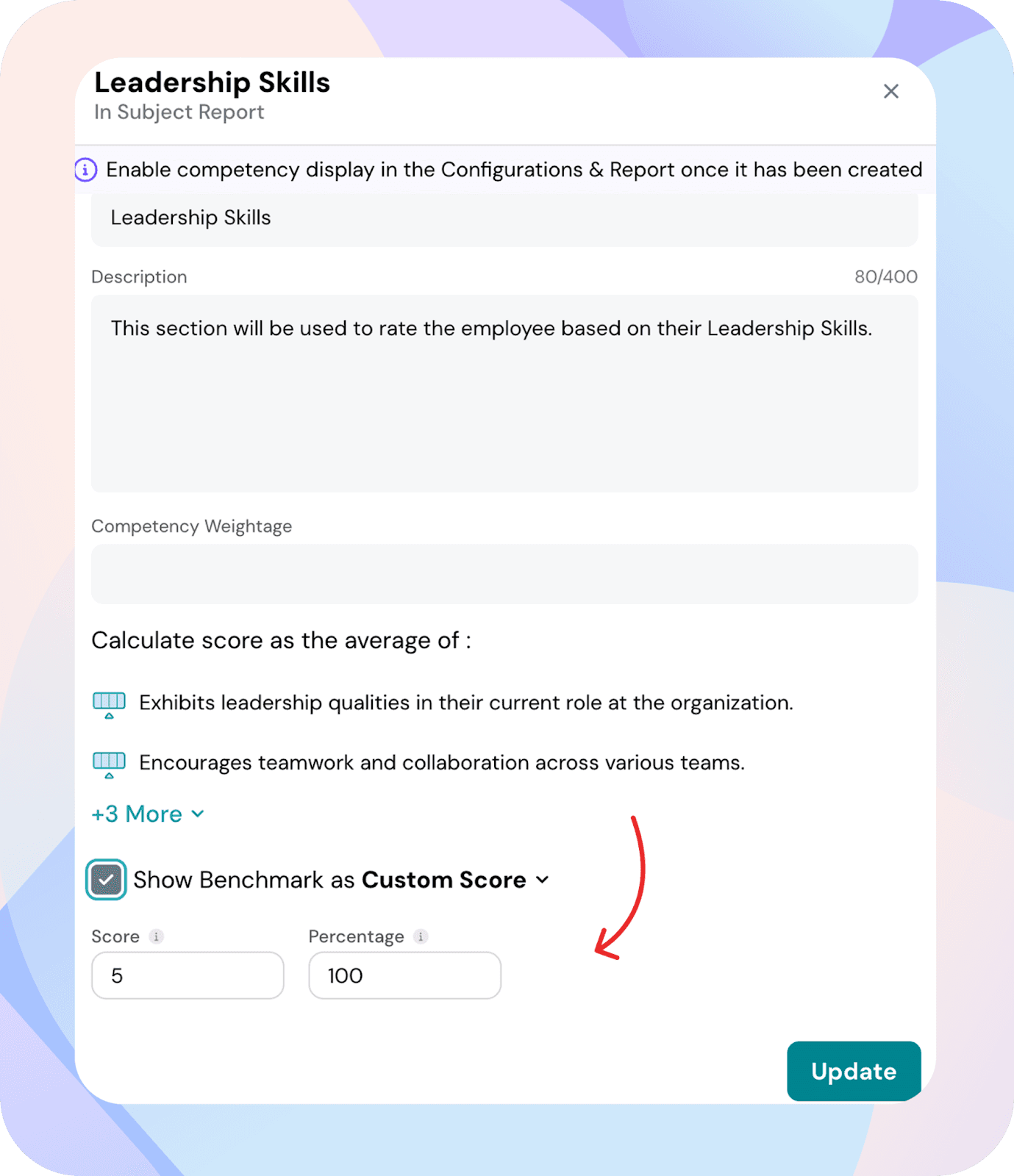
Performance benchmarks support both score and percentage formats.
Configure → Review settings → Scoring framework → By competencies
Important:
If the default scoring option or normalization type is changed, sections such as Blind Spots, Hidden Strengths, Your Strengths, Areas of Improvement, and Benchmarks will be reset. You’ll see a warning prompt before making this change.
Normalization directly impacts how data appears across reports and exports.
Configure → Reports (under Customize)
Key behaviors:
In other areas of the reports, you’ll have the option to toggle between normalization modes if both score and percentage are enabled in the settings. The default selection continues to follow the configured normalization preference.
Normalization settings are applied consistently beyond reports.
This means:
Score normalization ensures that:
Different aspects of performance are often best measured using different rating scales. The Performance module gives you this flexibility while still maintaining a single, clear scoring framework, with the system handling all normalization in the background.
By standardizing how scores are calculated and displayed, the platform ensures consistency across reviews, reports, and benchmarks—so you can focus on performance insights, not score conversions.
If you have any questions or need help configuring score normalization, feel free to reach out to us.
Powered By SparrowDesk