
Search
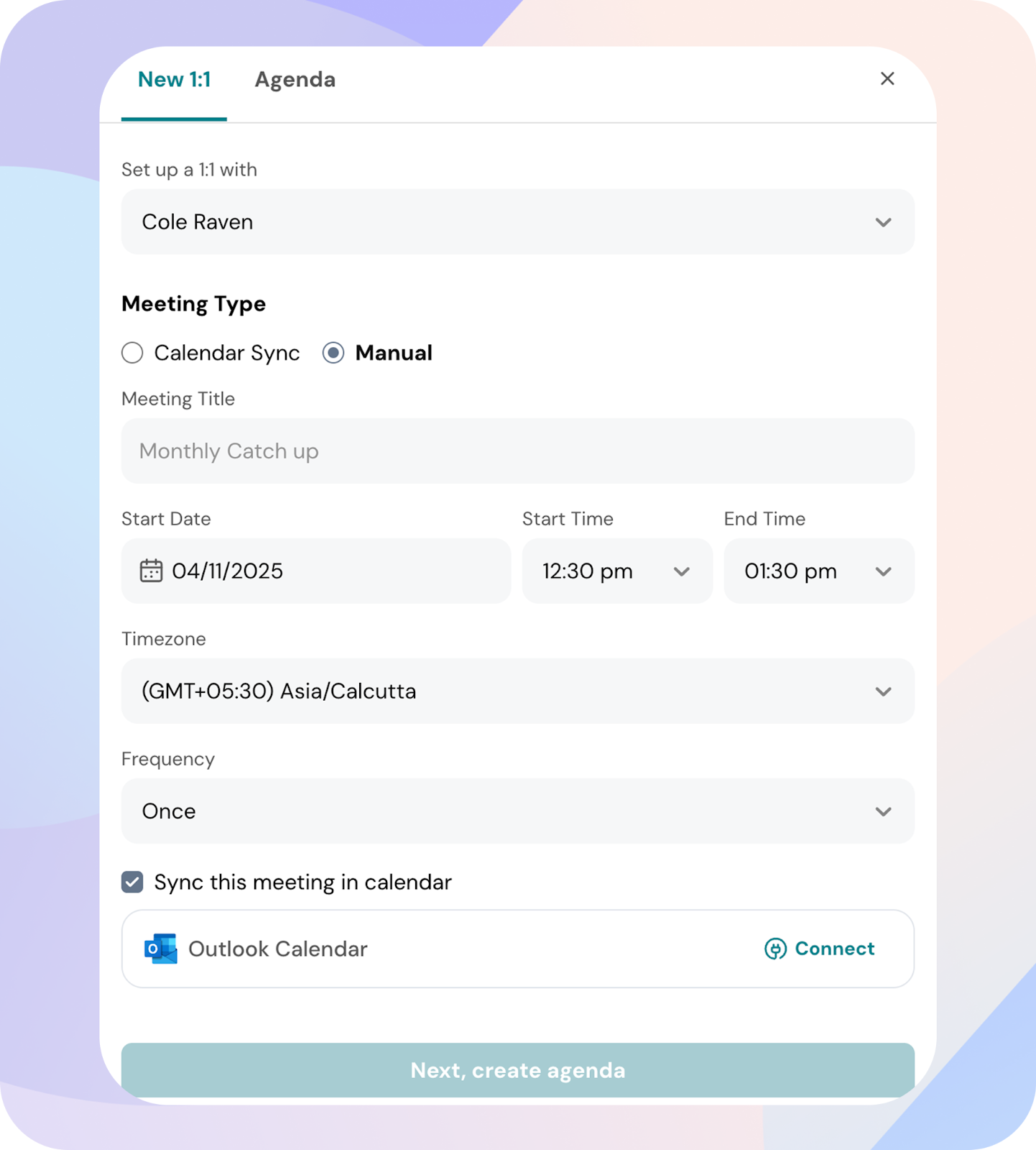
You can schedule a 1:1 with anyone in your organization. There are two ways to create it: by syncing your calendar or by creating the meeting manually.
Navigate to the 1:1 module
From your ThriveSparrow homepage, click on the 1:1 tab in the top navigation bar.
Create a one-on-one
You can schedule 1:1s with anyone in your organization.
Click + New 1:1 at the top-right corner of your screen. There are two ways to set them up: by connecting your calendar or creating them manually.
Option 1: Calendar sync
Connect your Outlook or Google Calendar and import your existing meetings.
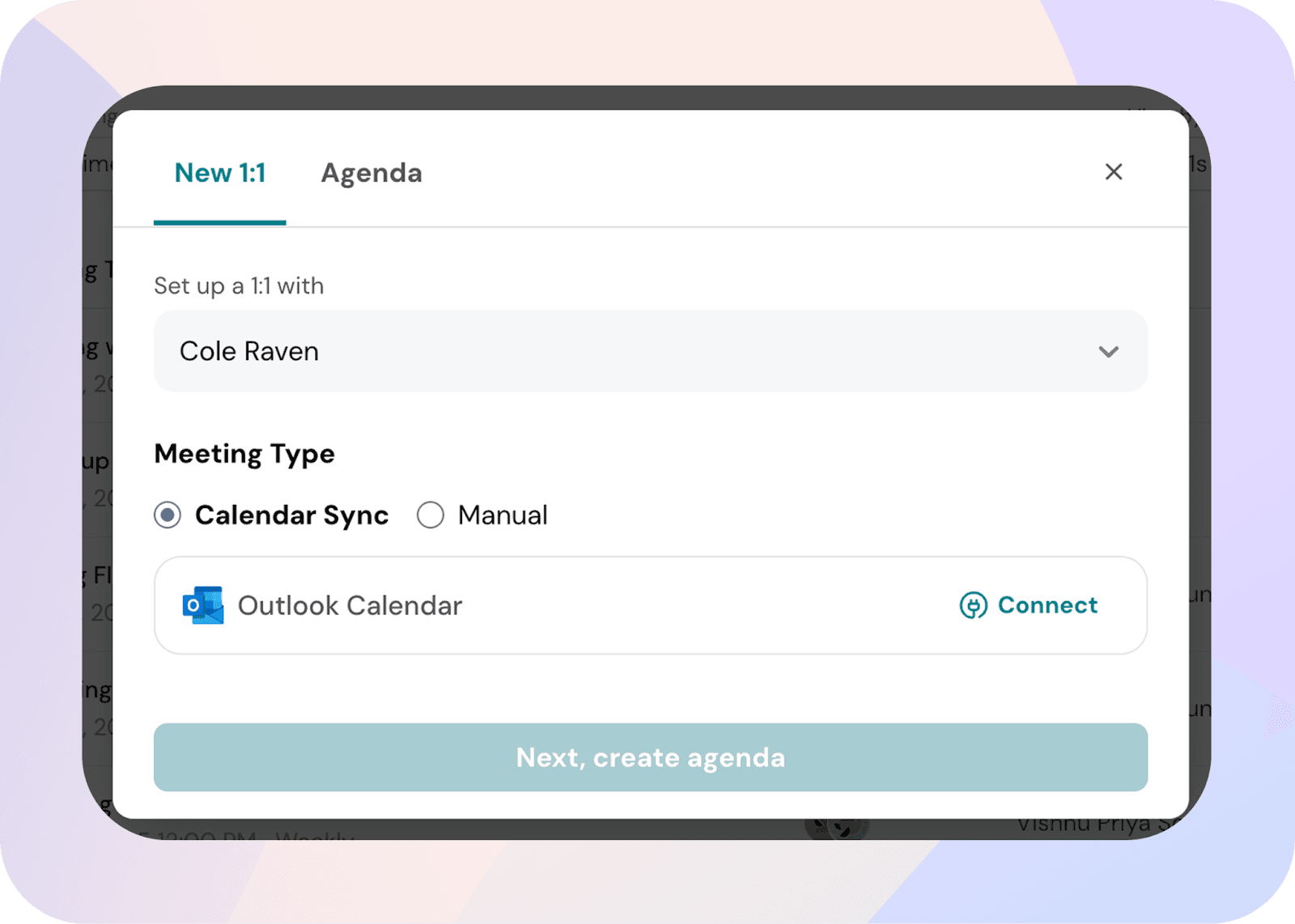
Only meetings with two participants, where you are the organizer, are shown during calendar sync.
If you select another employee, only meetings where both you and that employee are participants will appear.
Once synced, these meetings appear in your 1:1s list with options to add agendas, notes, and action items.
Option 2: Manual creation
You can also create a 1:1 directly in ThriveSparrow.
Tip: Keeping 1:1s recurring ensures consistency and helps both participants stay aligned on performance and development. We recommend having a 1:1 with your reportee at least once a month.
Powered By SparrowDesk