
Sending Notifications on Slack
There are three types of notifications you can send on Slack from ThriveSparrow:
- Engage Survey Notifications (Invites, Reminders, Report Ready)
- Performance Notifications (Invites, Reminders, Report Ready, etc)
- Goals notifications (Progress reminders, goal updates, etc)
How to enable Slack notifications?
Step 1: Integrate with Slack
In case you are already connected, ignore this step.
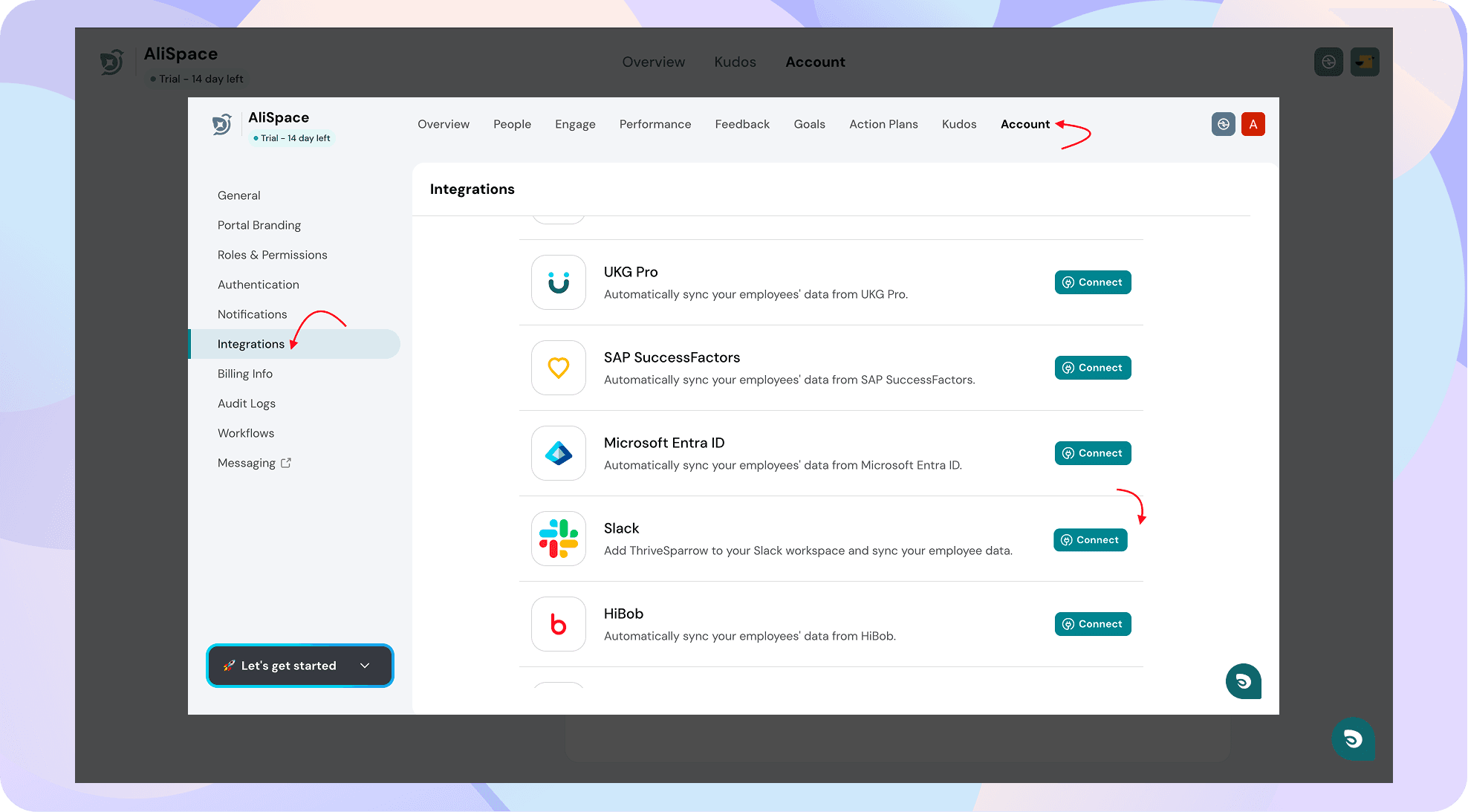
In case you are not, navigate to Account -> Integrations -> Slack and click on the Connect button.
Verify Slack Admin Authorization. Confirm that you have the necessary Slack admin privileges. If you're not authorized, kindly contact your organization's Slack admin for assistance.
You'll be directed to an OAuth verification page. Review the details and click Allow to proceed.
You are now integrated with Slack!
You will be redirected to Import Employees from Slack.
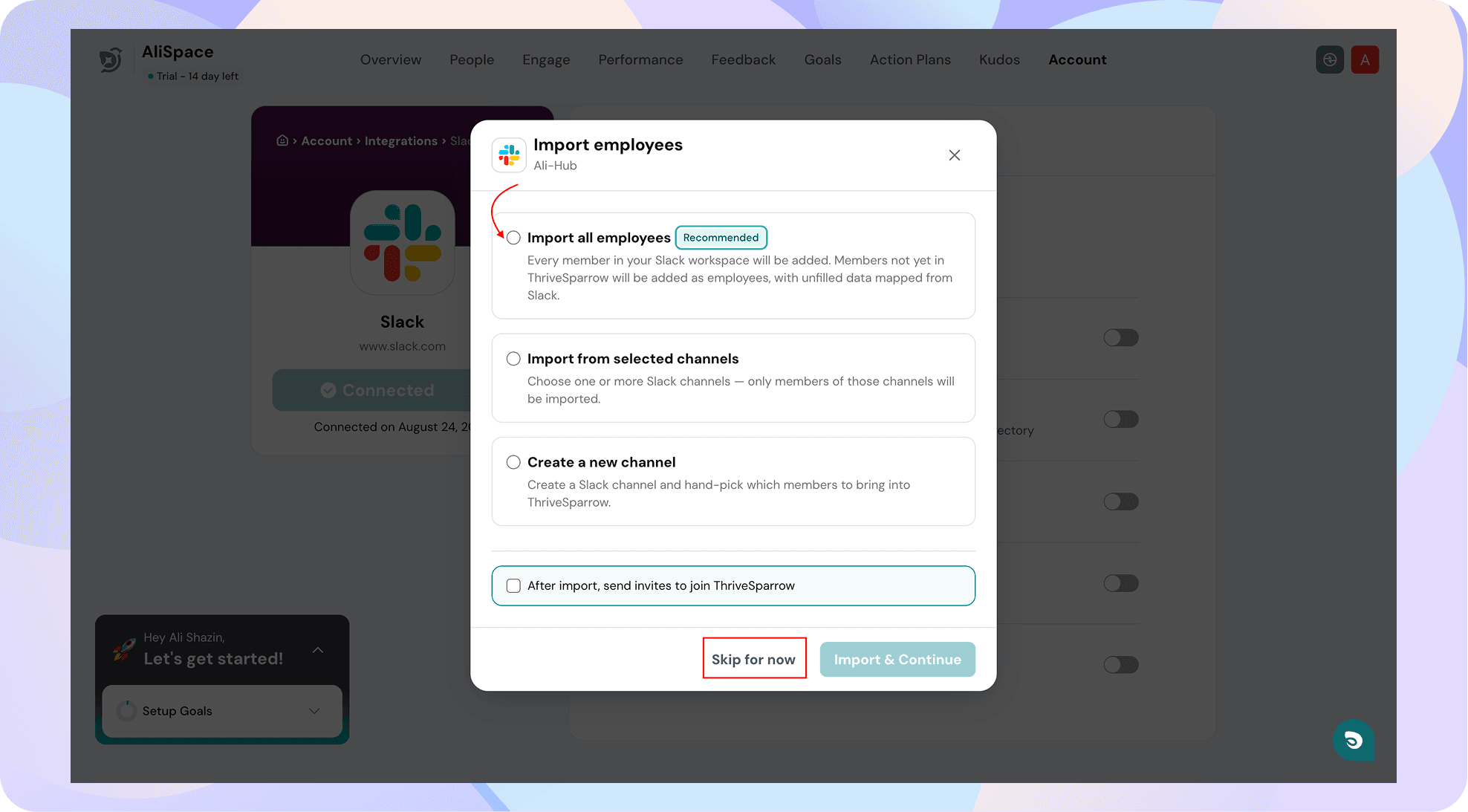
Step 2: Import Employees from Slack (Optional)
Note: It is not necessary for you to import your employees in order to send notifications to them.
If you'd like to import employees from Slack, refer to this article for more details.
If not, click on Skip for now to proceed with Step 3.
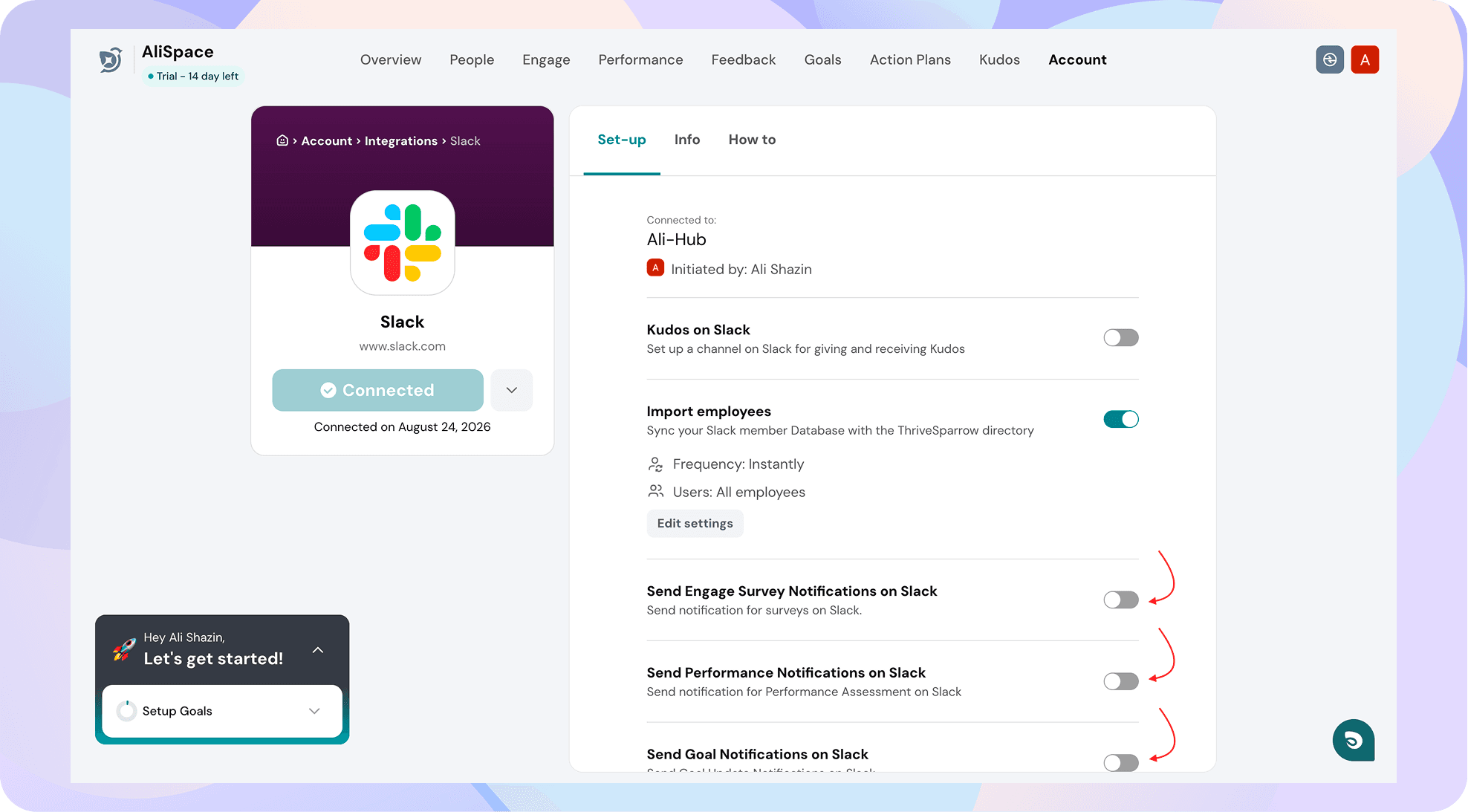
Step 3: Enable Notifications
From the Slack integration page, toggle ON notifications for Survey, Performance or Goals as per your requirement.
Step 4: Enable Notifications on Survey level
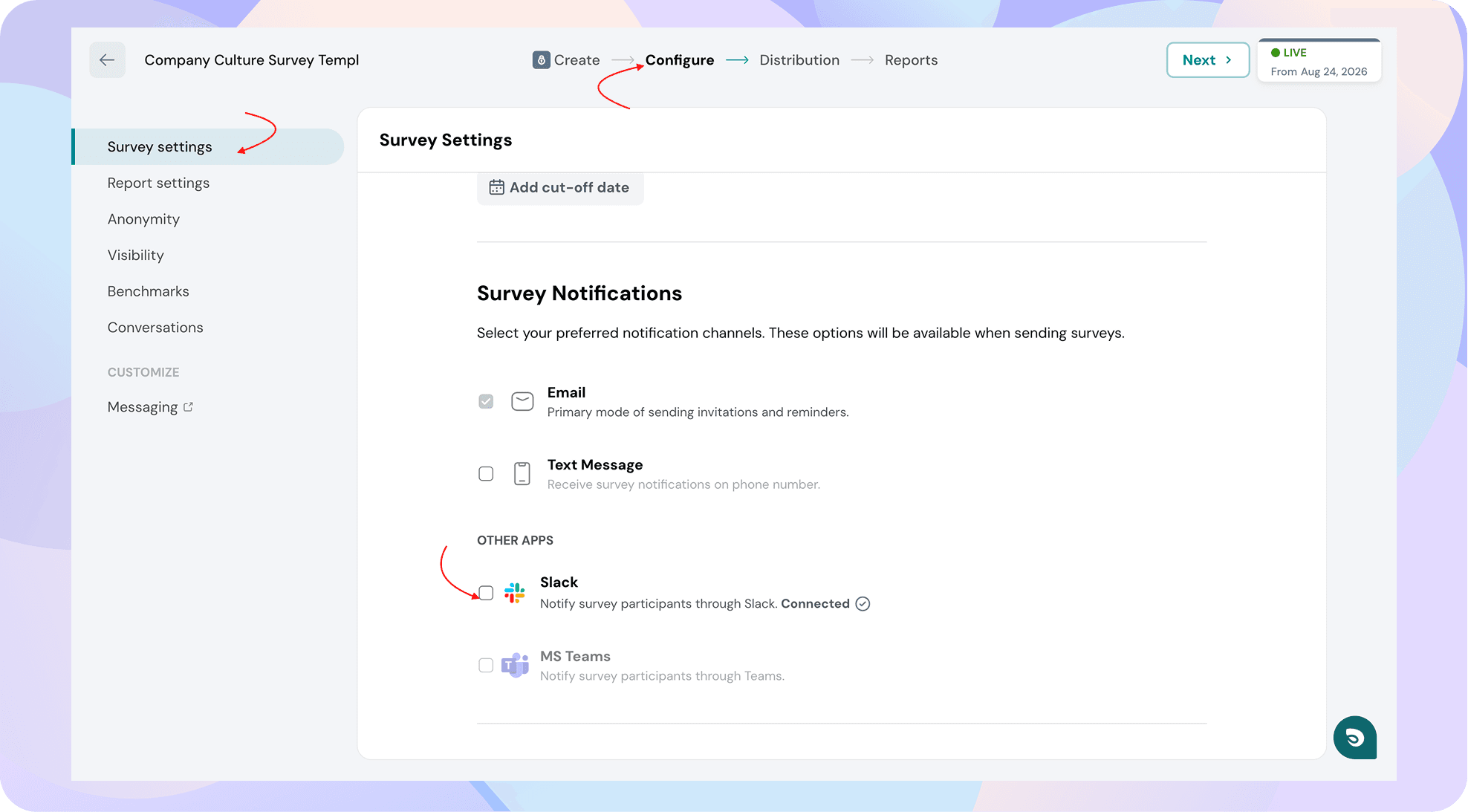
In case of Engage Surveys or Performance reviews, you will also have to turn on Slack notifications inside the particular survey.
Navigate to the specific survey and click on the Configure tab -> Survey Settings -> Survey Notifications.
Under Other apps, enable Slack notifications by checking the box next to the Slack icon.
There you go; now you should be receiving notifications on Slack. Should you have any questions, reach out to our support team. Happy thriving!