
How to generate AI-suggested action plans for Engage Surveys?
Once a survey collects enough responses, ThriveSparrow can automatically generate action plan suggestions based on its overall results — without you needing to pick a specific focus area first. This article covers those survey-wide, auto-generated suggestions.
Turning on automated AI suggestions for a survey:
AI Suggested Action Plans feature will be enabled for all accounts by default. To understand the admin-level configurations for the suggestions, refer to this article -
Inside an Engage survey, you can access this configuration by following these steps.
- Go to Engage → Survey → Configure → AI-suggested Action Plans
- Turn ON the toggle to enable automatic generation of AI-suggested Action Plans.
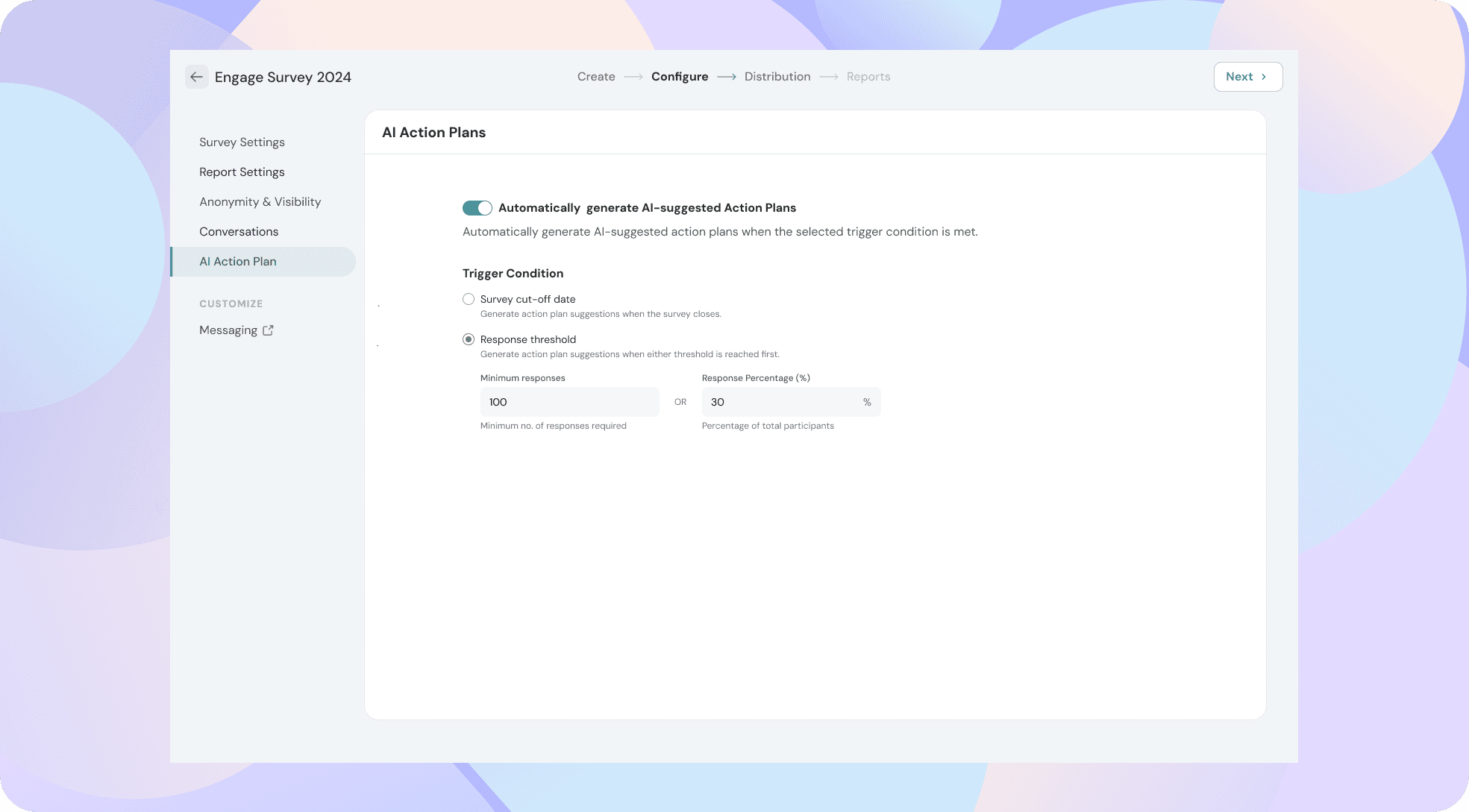
- Set the trigger for automatic generation. You can either choose:
- Survey cut-off date: This ensures suggestions are generated only after the entire program has concluded. This is recommended for better suggestions.
- Response threshold: Select the minimum number or percentage of responses the survey needs before suggestions are generated.
Once your survey reaches the threshold you set, ThriveSparrow automatically generates a set of action plan suggestions based on the overall results.
Viewing the AI Suggestions:
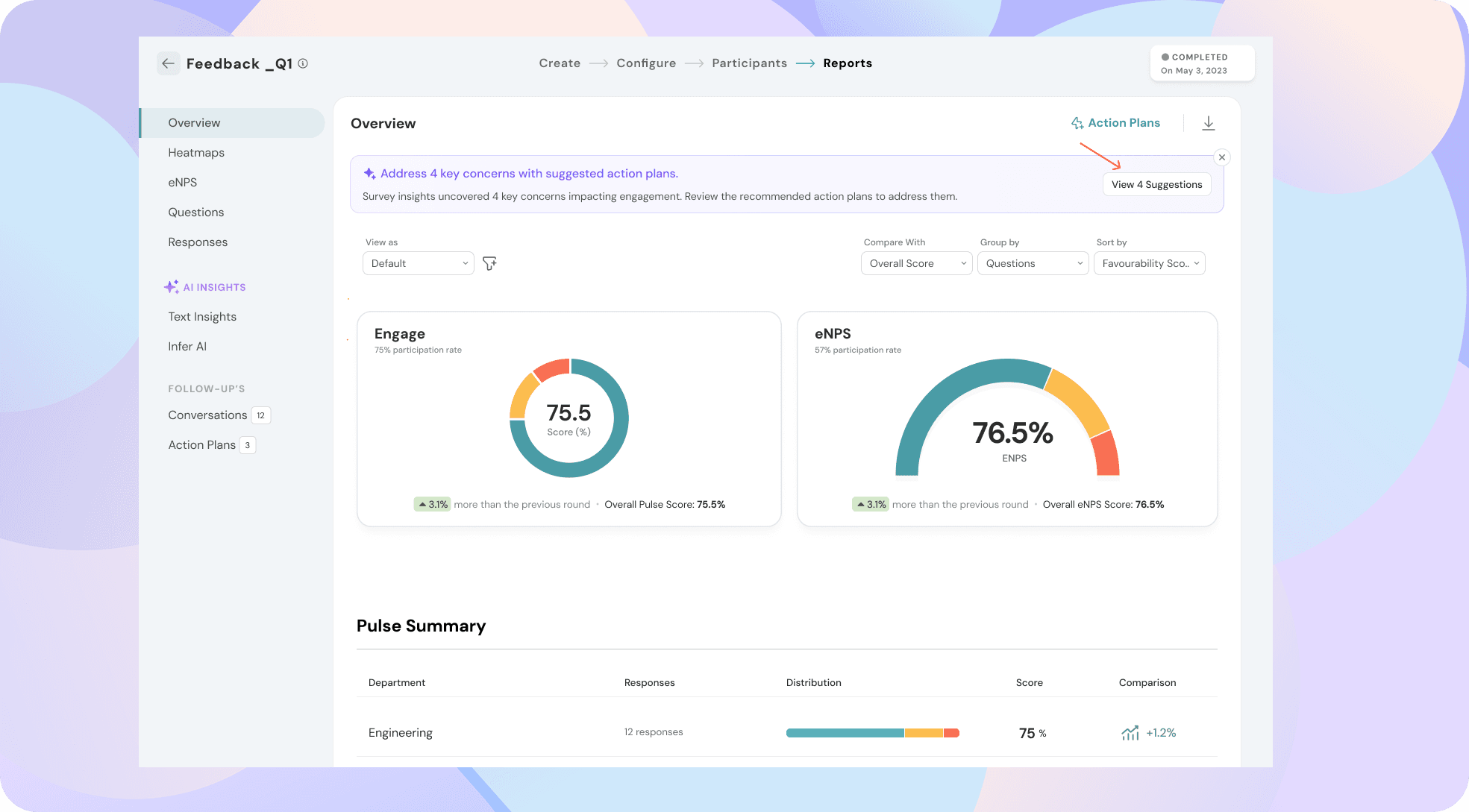
To view the AI suggestions, go to your Survey Reports -> Overview page or Action Plans page.
If the suggestions are still generating, you will be shown a banner asking you to wait. After the generation is complete, you can click on "View Suggestions" from the top banner.
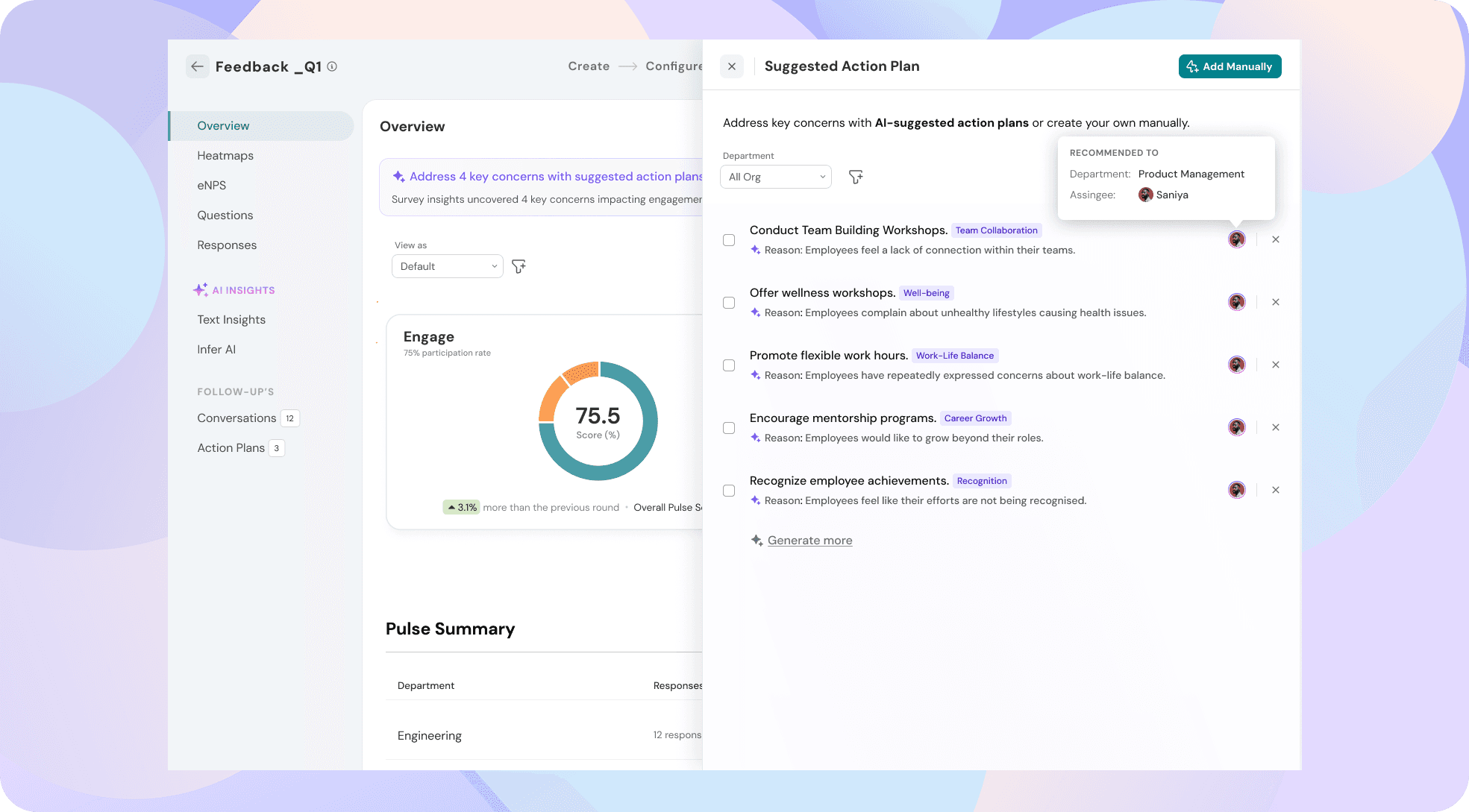
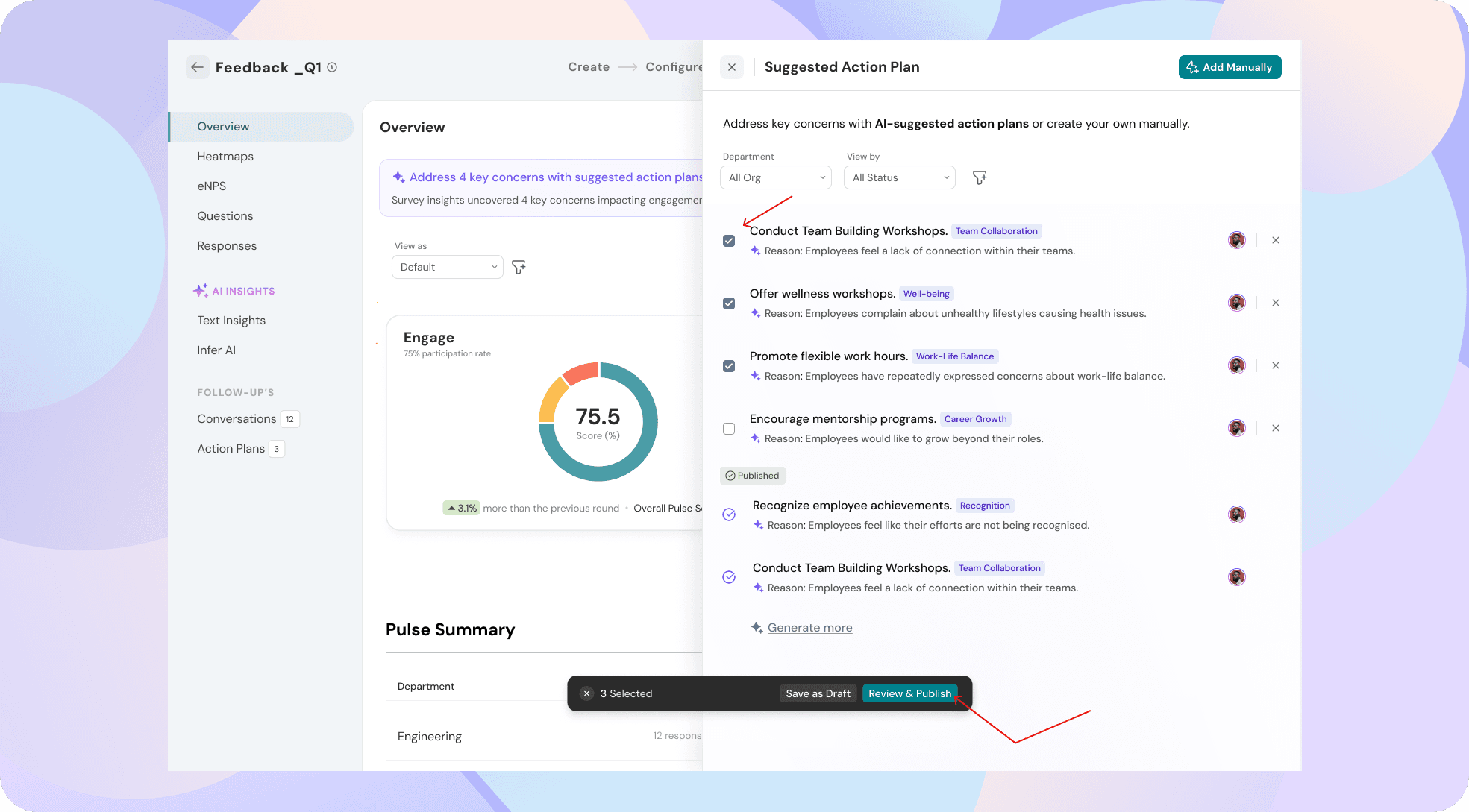
The suggestions will be listed on the side panel along with recommended assignees. The reason behind each suggestion will also be highlighted.
Note: These suggestions are built using the frameworks and context your admin has configured. See Understanding AI-Suggested Action Plans for more details.
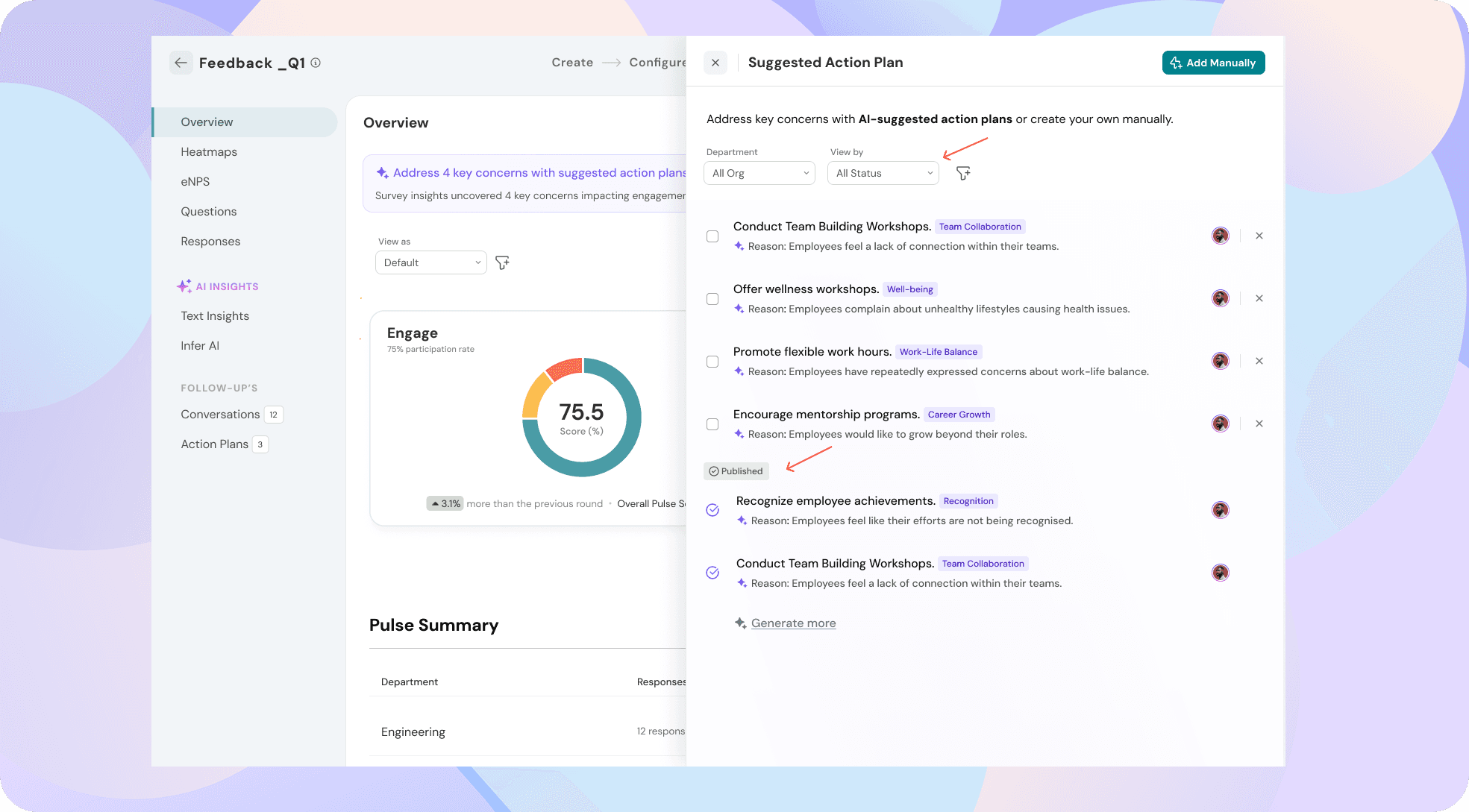
You can filter and view the suggestions based on the applicable department, recommended assignee, and status of the suggested action plan.
Click on the 'x' icon to discard a suggestion if it is not applicable. If you feel the suggestions are not relevant to you, click on "Generate more" to get more suggestions.
Acting on the Suggestions:
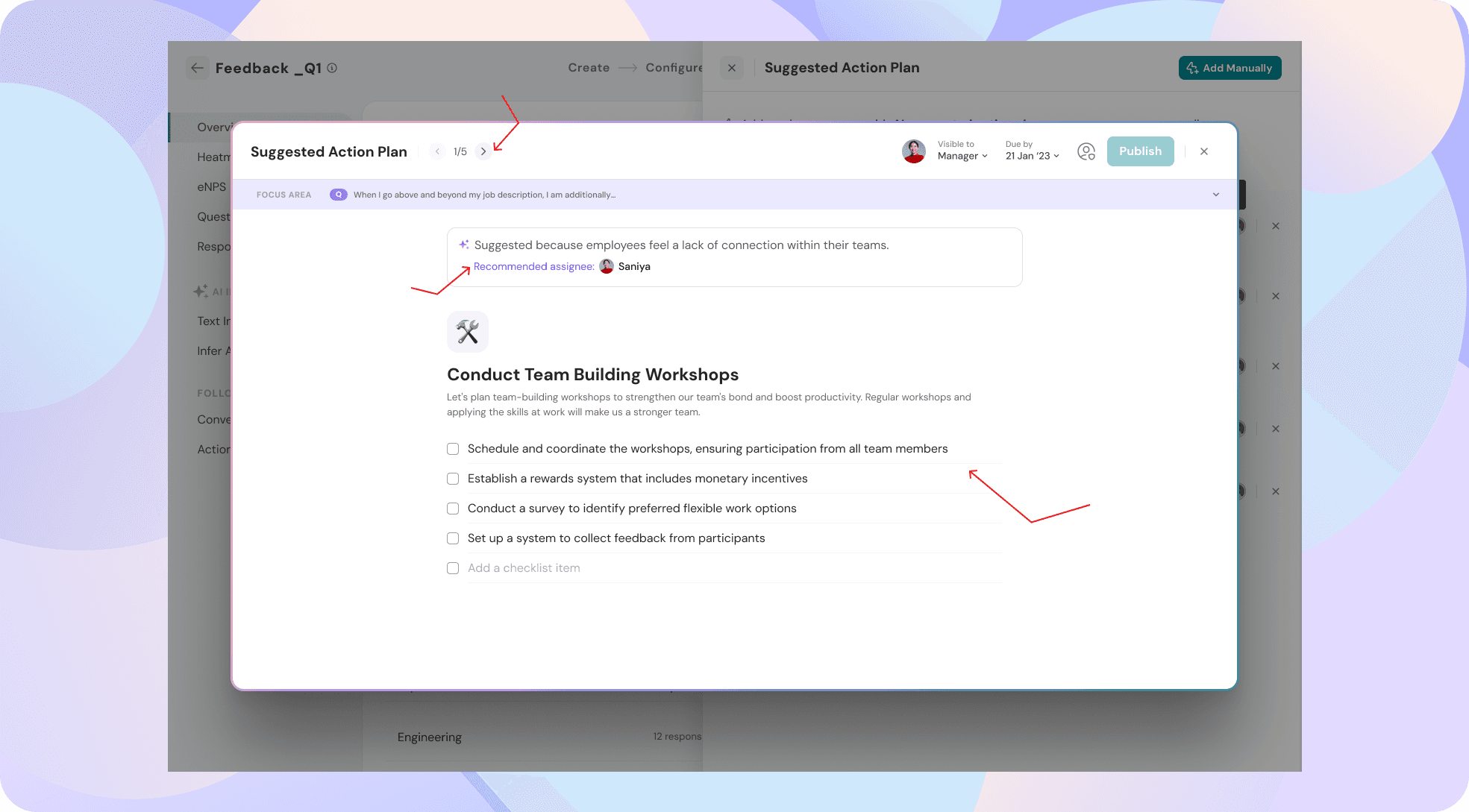
Click on any action plan to view its checklist items and confirm or edit as necessary. After filling the mandatory fields (Assignee, due date, etc.), click on Publish or Draft as required.
To perform bulk actions, you can select the action plans and click on "Review and Publish".
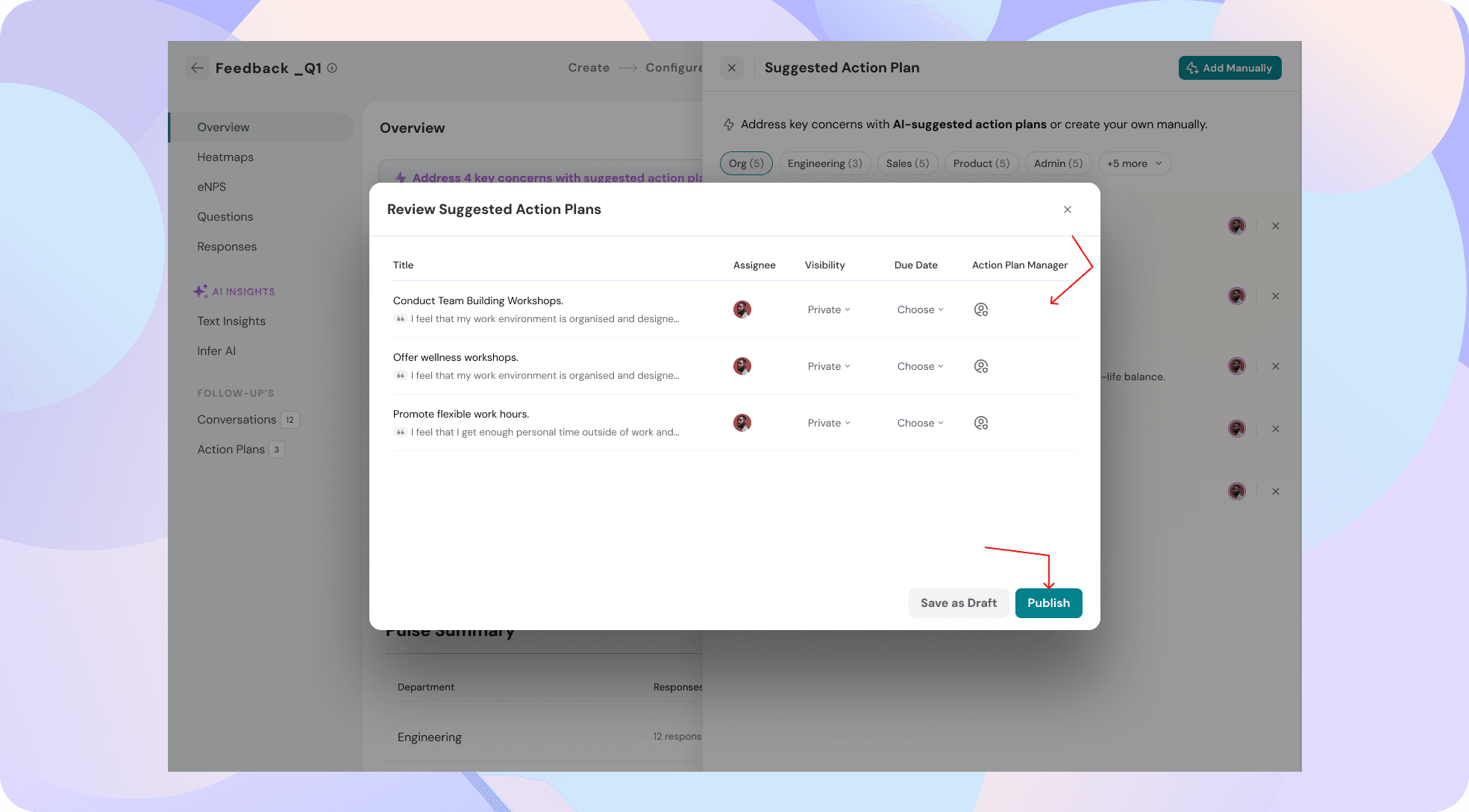
On the review modal, you can select and confirm the assignee, due date, and action plan managers. Click on Publish or Draft according to your preference.
Finding suggestions you've acted on
To view the suggestions you have already drafted or published, you can follow either ways listed below:
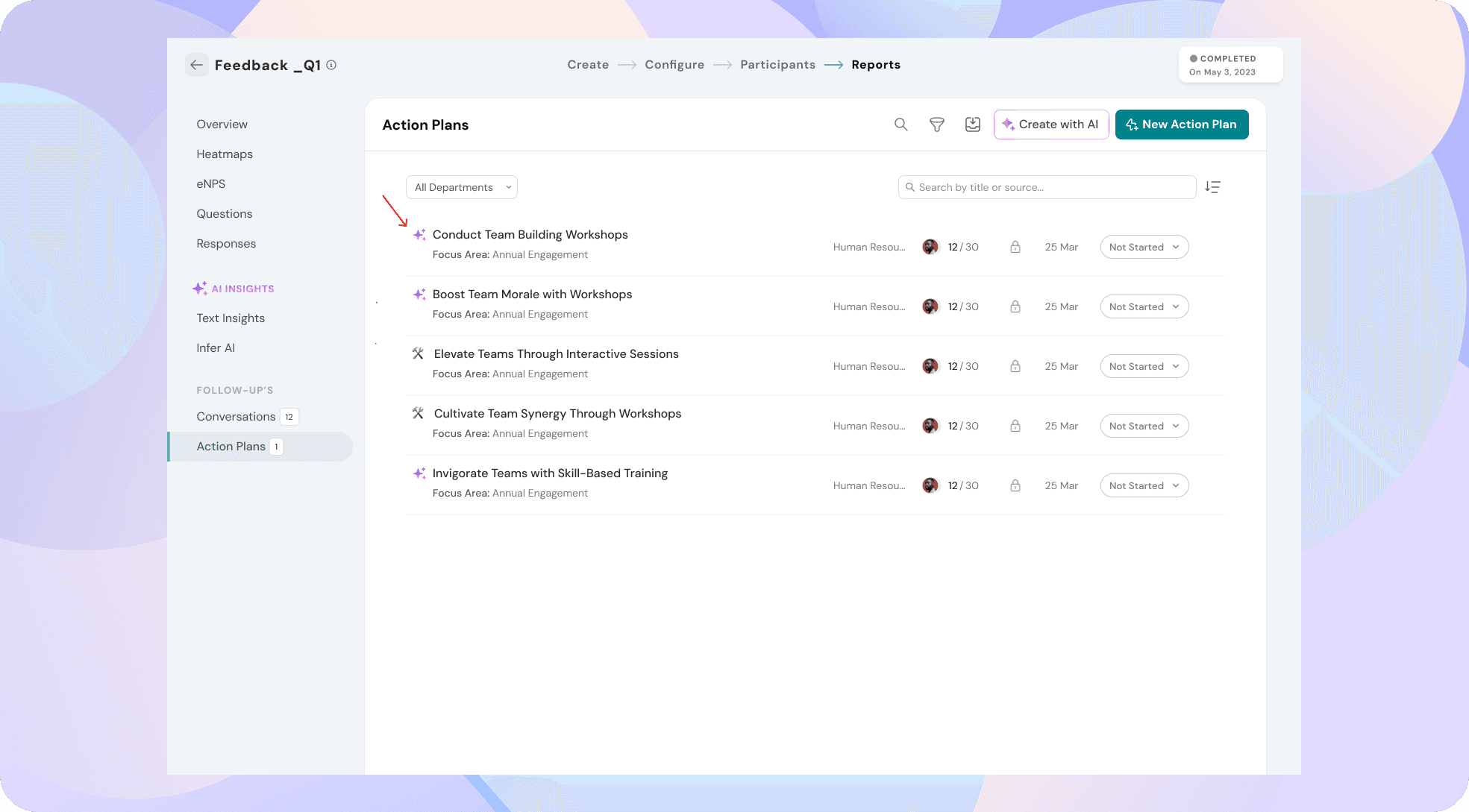
- Go to Engage → Survey → Reports → Follow-ups → Action Plans. All published and drafted action plans will land here. Those that were created out of AI suggestions will be clearly marked with a "Sparkle" icon.
- Click on View Suggestions to see the side panel. On the side panel, published/drafted suggestions will be listed under each pill. You can use the Status filter to filter out further.
Need help setting up AI Suggestions? Contact Support.