
How to set up goals reporting in subject and group reports
Once you’ve added goal-based questions, their results automatically appear inside performance reports, both for individuals (Subject reports) and teams (Group reports).
Where to find it
Go to Performance → Reports → Subject / Group reports.
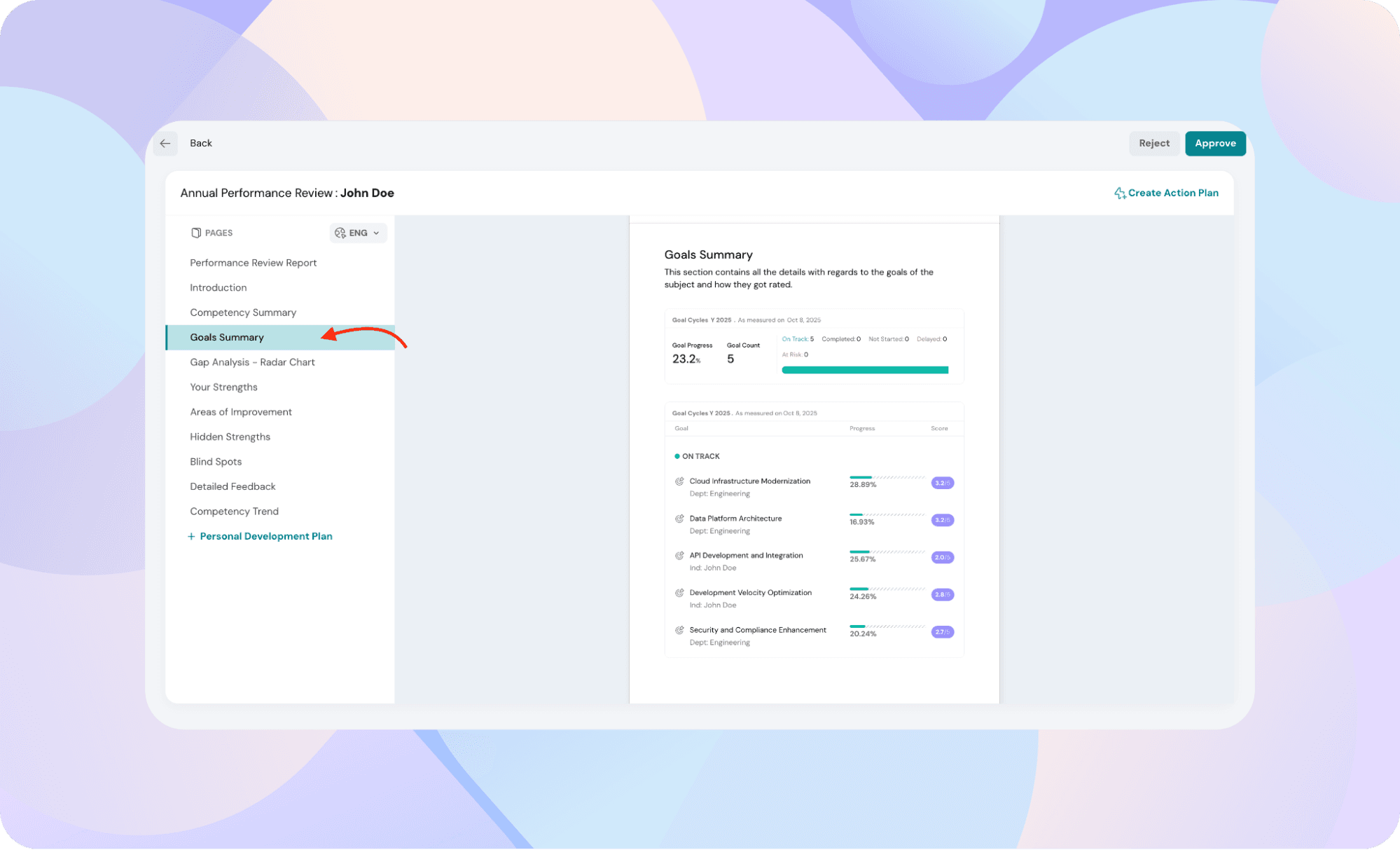
You’ll find a section called Goal summary, which shows how each person or group performed on their goals.
What it shows
The Goal summary widget gives a quick overview of:
- Goal status (On track, completed, delayed, not updated)
- Goal counts (How many goals were evaluated)
- Average goal ratings or scores
Each goal listed here comes directly from the goal-based question used in that review.
Goal-based questions also appear in the Detailed feedback section, showing each goal’s score and feedback separated by evaluator roles—just like regular review questions.
How to configure the goal summary widget
- In the report view, click the three-dot menu next to the Goal summary section to add or edit the Goal summary widget
- Customize it using these options:
- Filters: Show specific goal types (like “individual” goals only)
- Max goals per section: Limit how many goals appear
- View by: You can choose to view the goals grouped by Status or Update level (showing the least or most updated goals).
- Order: Choose how you want them to display in the report
Notes
- Only goals that were evaluated through goal-based questions are shown here.
- Goal data stays frozen after launch, so new goal updates won’t change the report.