
Introduction to Workflows
Workflows let you automate repetitive tasks across ThriveSparrow, automatically triggering actions like sending notifications, adding people to surveys, or posting Kudos whenever something happens in the platform. Instead of manually performing the same steps every time an employee joins, a goal is completed, or a survey response comes in, you can set it up once and let ThriveSparrow handle it going forward.
Where to find Workflows
You can access Workflows from:
- The Account page, under the Workflows tab
- The relevant module you're working in — People, Engage, Performance, Goals, and Action Plans all link into the same Workflows experience
Getting started
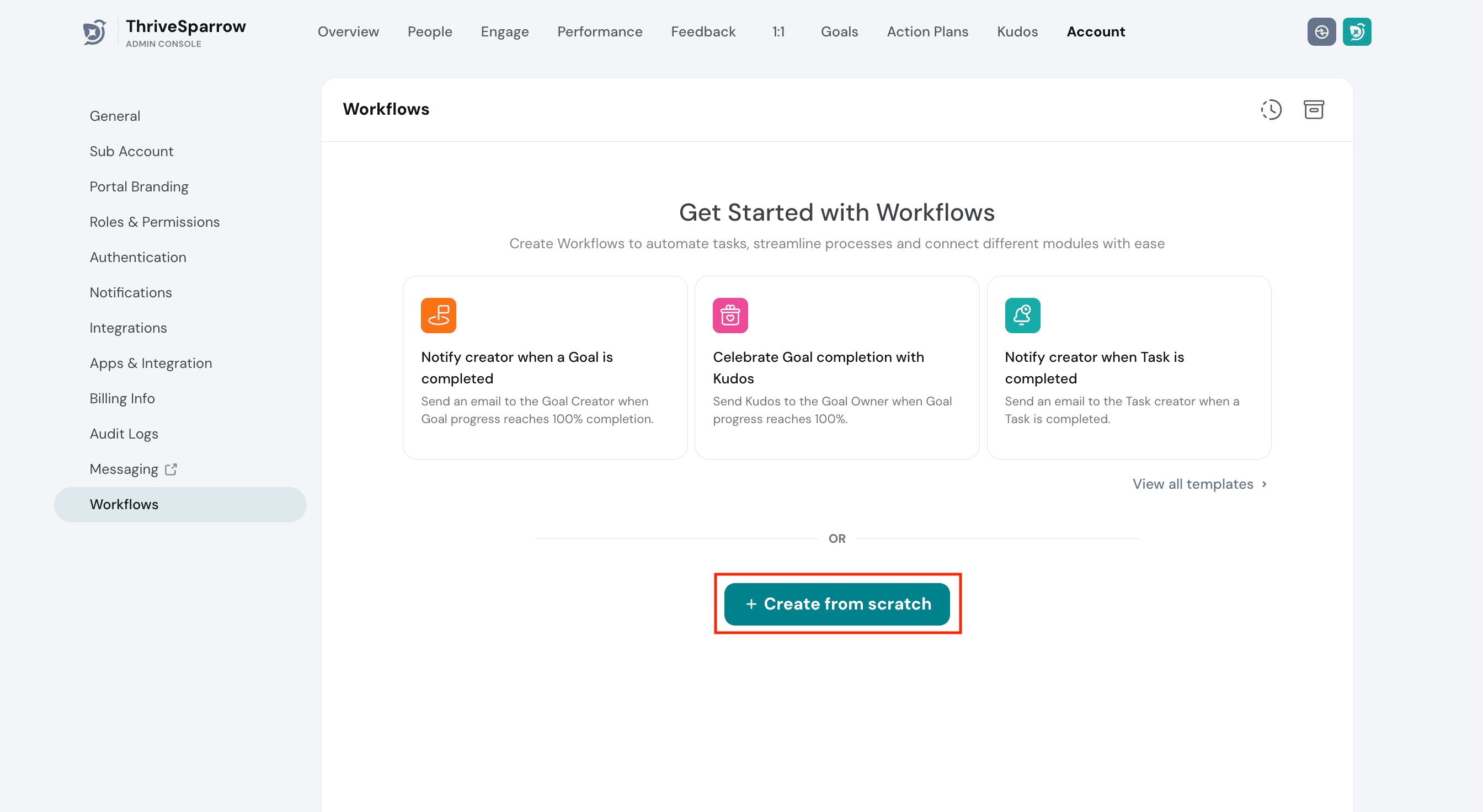
When you open Workflows, you have two options:
- Start from a template: ThriveSparrow provides a set of default templates (for example, notifying a goal's creator when it's completed, or celebrating goal completion with Kudos) so you can get going without building anything from scratch. Click View all templates to see what's available.
- Create from scratch: Build a fully custom workflow by defining your own trigger and actions.
Every workflow follows the same basic structure:
Trigger → Conditions (optional) → Action(s)
A workflow starts when a trigger event happens, optionally checks conditions you've defined, and then performs one or more actions in sequence.
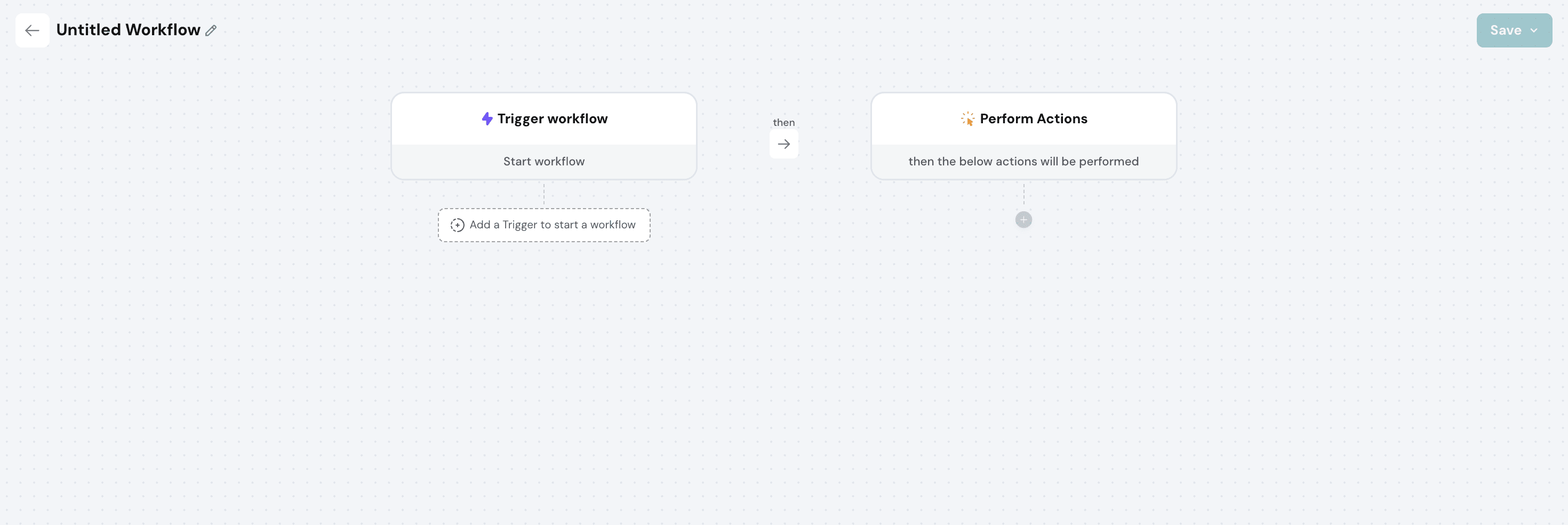
Supported triggers
Triggers are grouped by module. Each of the following is a distinct, individually selectable trigger event:
General (People Directory)
- When an employee is created
- When an employee is updated
- When an employee is deactivated
Goals
- When a Goal is created
- When a Goal is updated
- When Goal progress reaches a threshold
- When a Task is created
- When a Task is updated
- When Task progress reaches a threshold
Performance
- When a performance evaluator is assigned
- When a subject is added to a performance review
Engage
- When a participant is added to an engagement survey
- When a participant is added to a pulse survey
- When a response is submitted in an engagement survey
- When a response is submitted in a pulse survey
Action Plans
- When an action plan is created
- When an action plan is updated
More triggers will be added to this list in future releases.
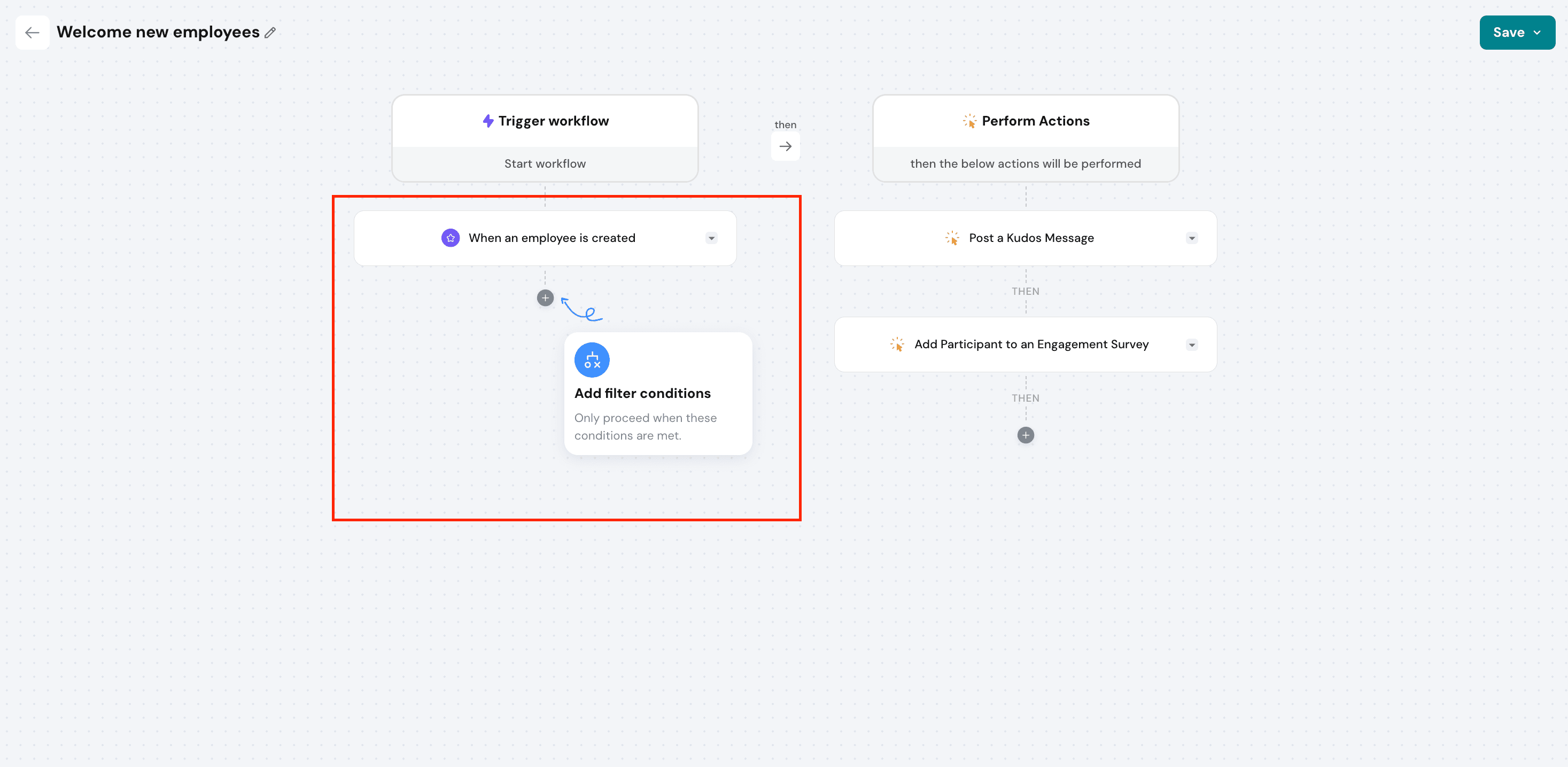
You can select one trigger per workflow, and add conditions on top of it to narrow it down.
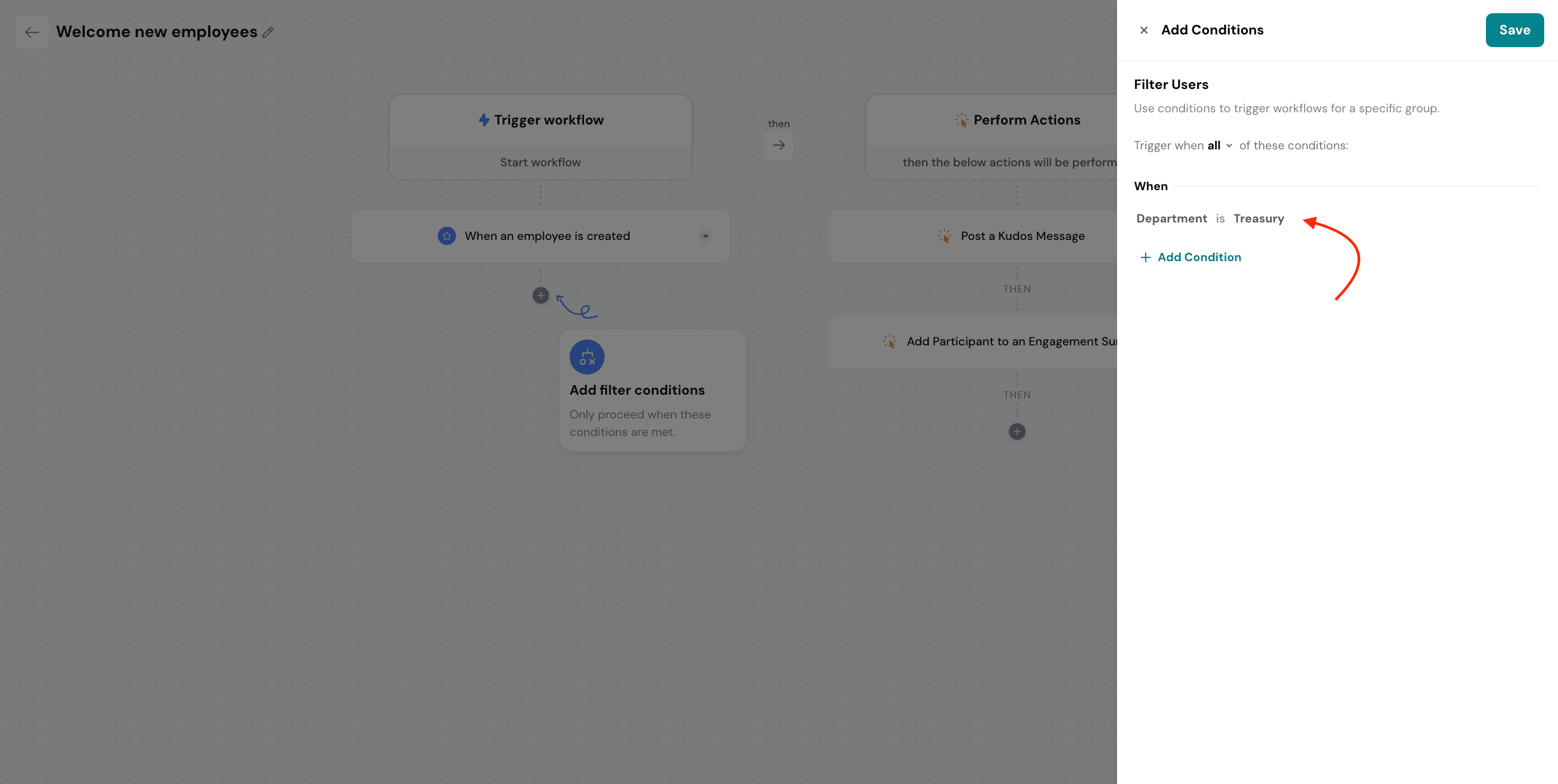
Adding conditions
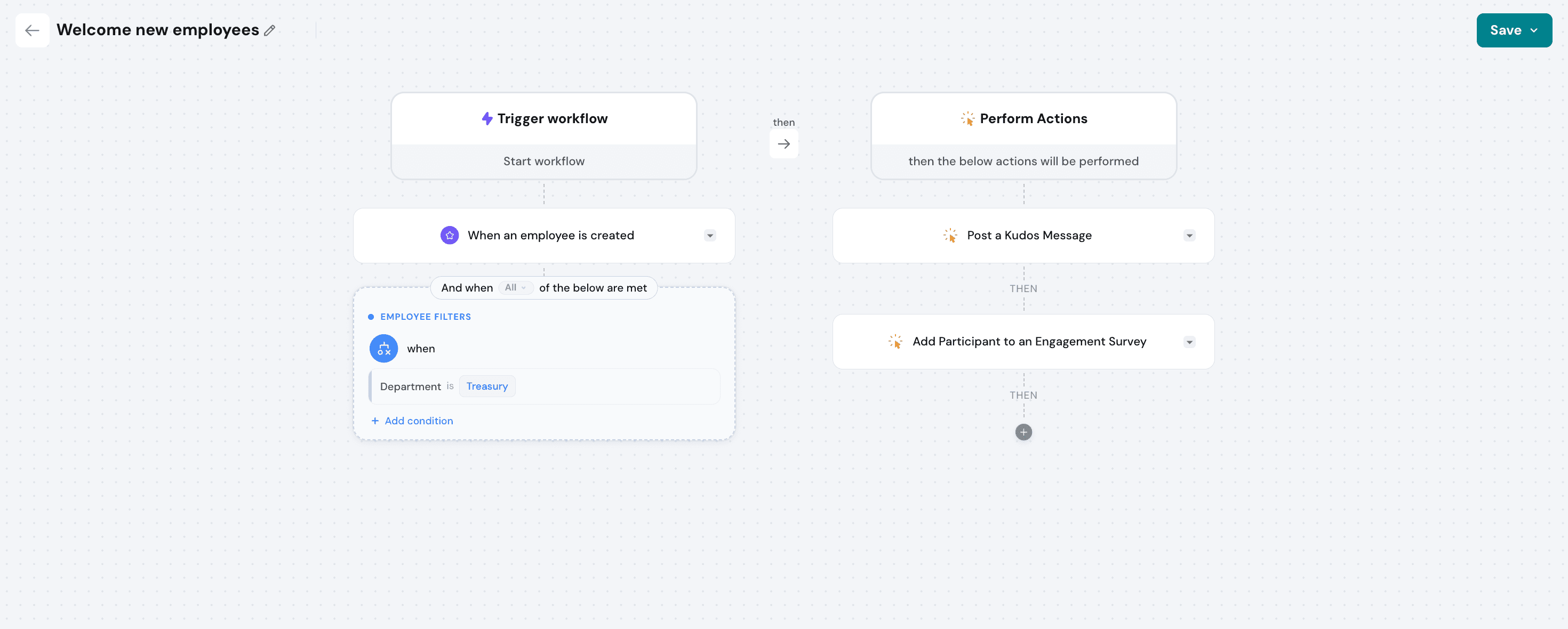
You can narrow when an action runs by adding conditions to a trigger. For example, running a workflow only if an employee's Department equals Treasury. This lets you target specific segments of employees, goals, or surveys instead of applying a workflow to everyone matched by the trigger.
Supported actions
Once a trigger fires, you can configure one or more of the following actions to run:
General
- Call Webhook
- Send Email Notification
- Post a Slack Message
Kudos
- Post a General Post
- Post a Kudos Message
Performance
- Add Subject to a Performance Survey
Engage
- Add Participant to an Engagement Survey
- Add Participant to a Pulse Survey
More actions will be added to this list in future releases.
A single workflow can chain multiple actions in sequence — for example, adding a new employee to an engagement survey, then posting a Kudos welcome message, then sending a Slack notification, all from one trigger.
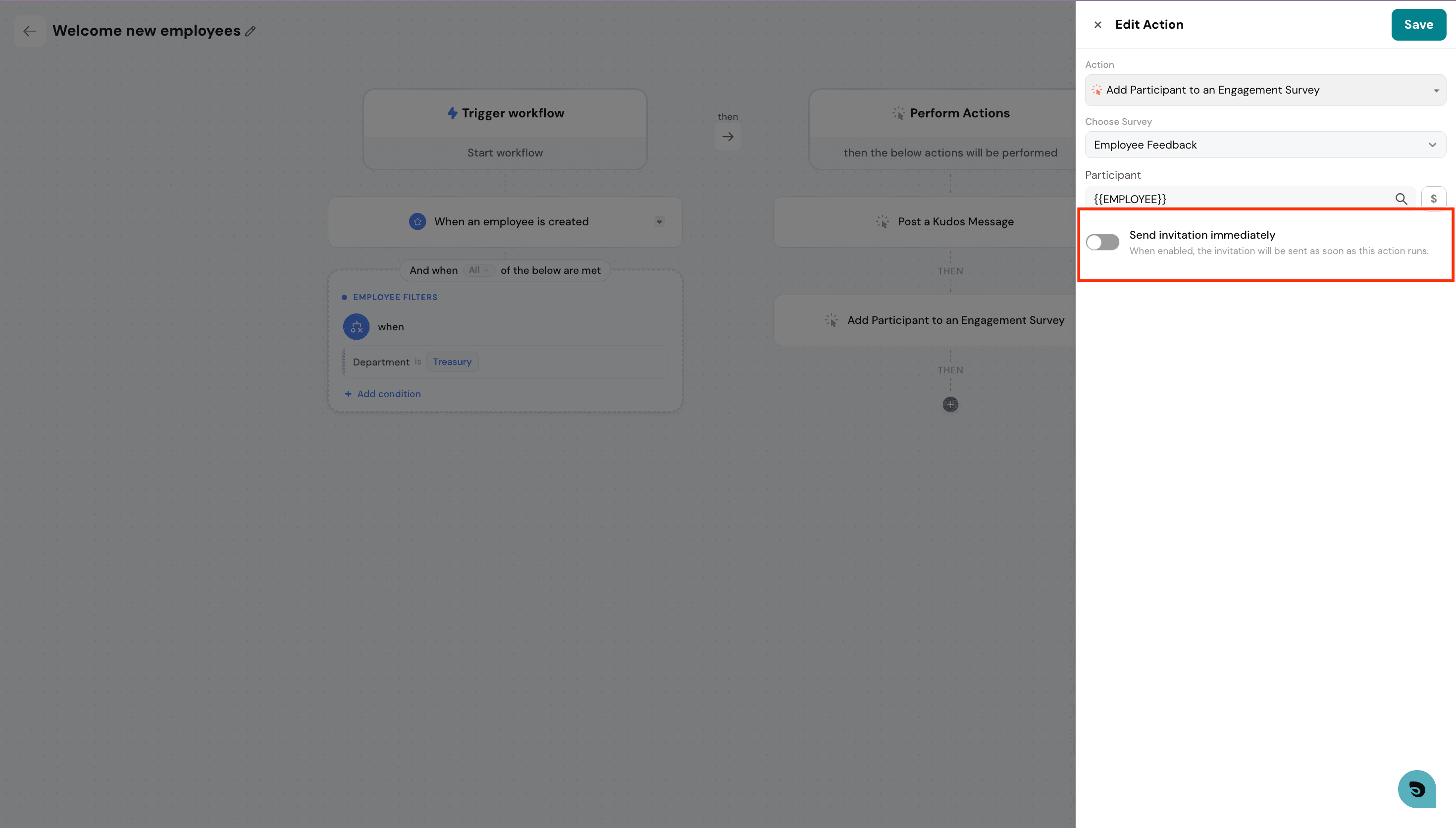
Some actions also include additional configuration options beneath them (for example, a toggle to send a survey invitation immediately or hold it for later). These sub-options vary by action — not every action has the same set of extra settings.
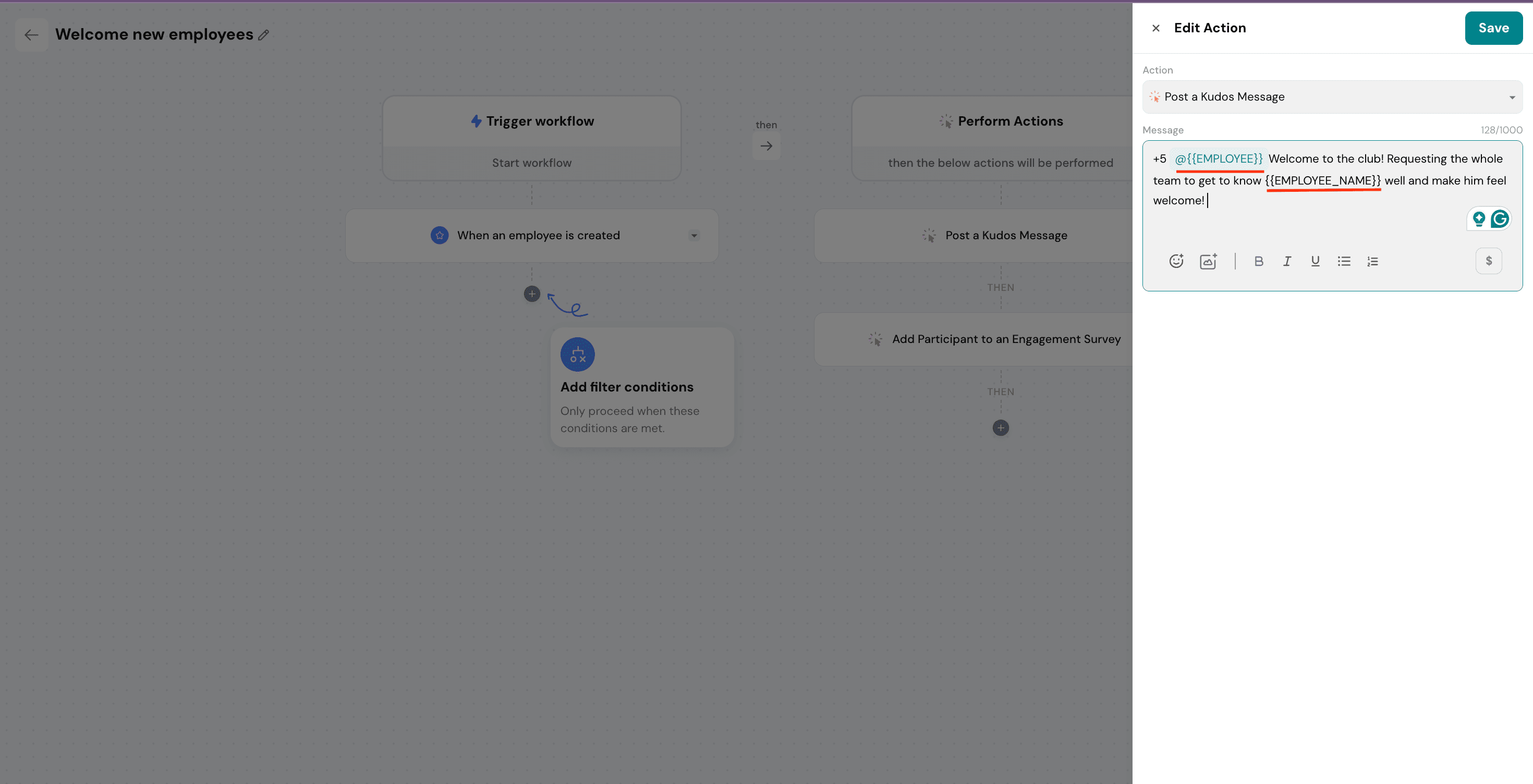
Using variables in messages
When composing an email, Slack message, or Kudos post as part of an action, you can personalize the content using variables:
@Employee— tags/mentions the employee directly, which notifies them. Use this when you want the person to be pinged.- Example: "@Joe +5 for an amazing job!"
Employee_name— inserts the employee's name as plain text, without tagging or notifying them.- Example: "Joe was of great assistance in this project."
Choose @Employee when you want to tag the person, and Employee_name when you just want to reference them in the text.
Saving, publishing, and managing workflows
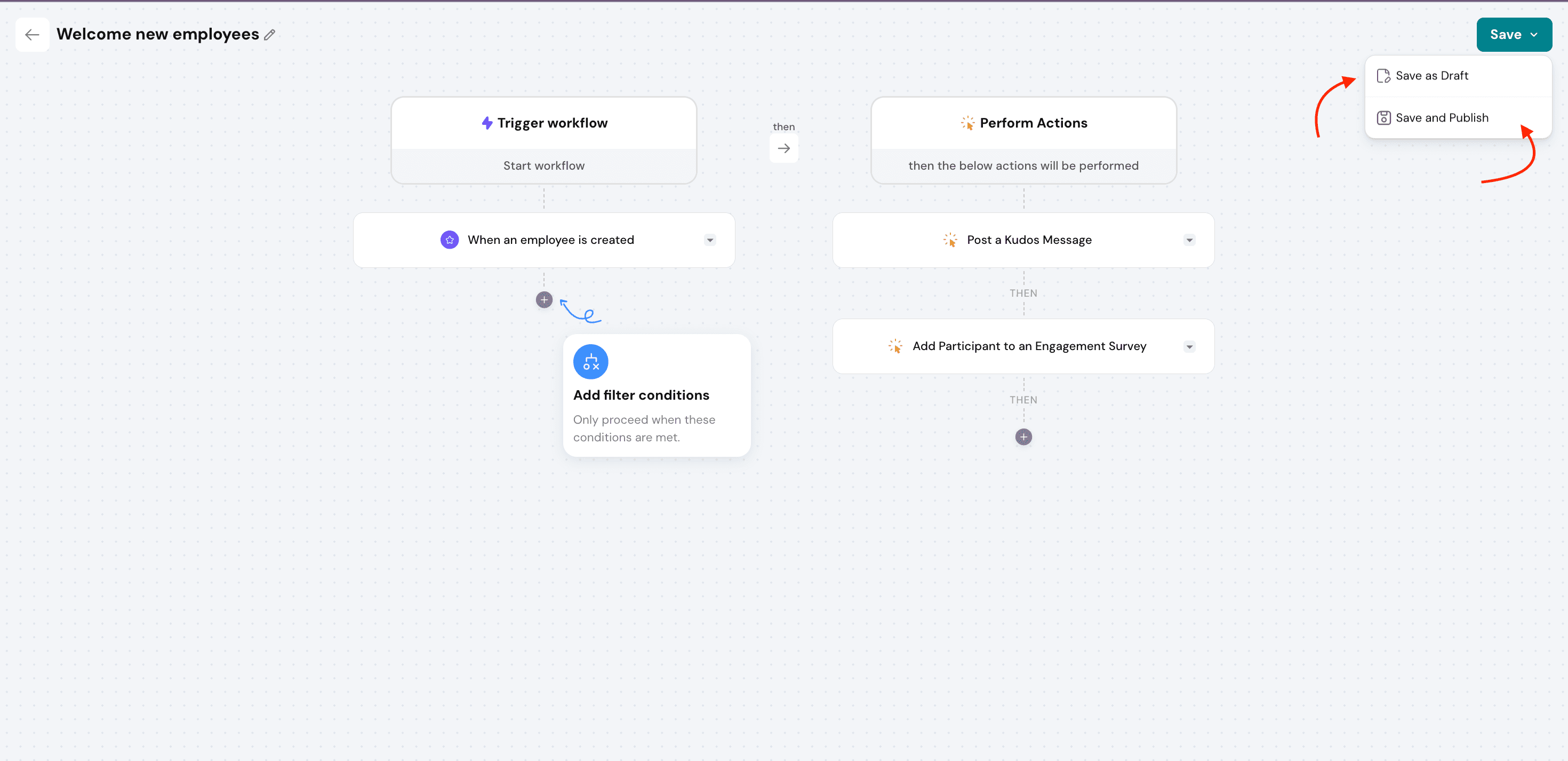
When you're done building a workflow, you can:
- Save as Draft keeps the workflow inactive until you're ready to publish it
- Save and Publish activates the workflow immediately
From the Workflows tab, you can also see:
- Published workflows currently running
- Drafts that haven't been published yet
- Archived workflows that have been turned off but kept for reference
Viewing workflow activity
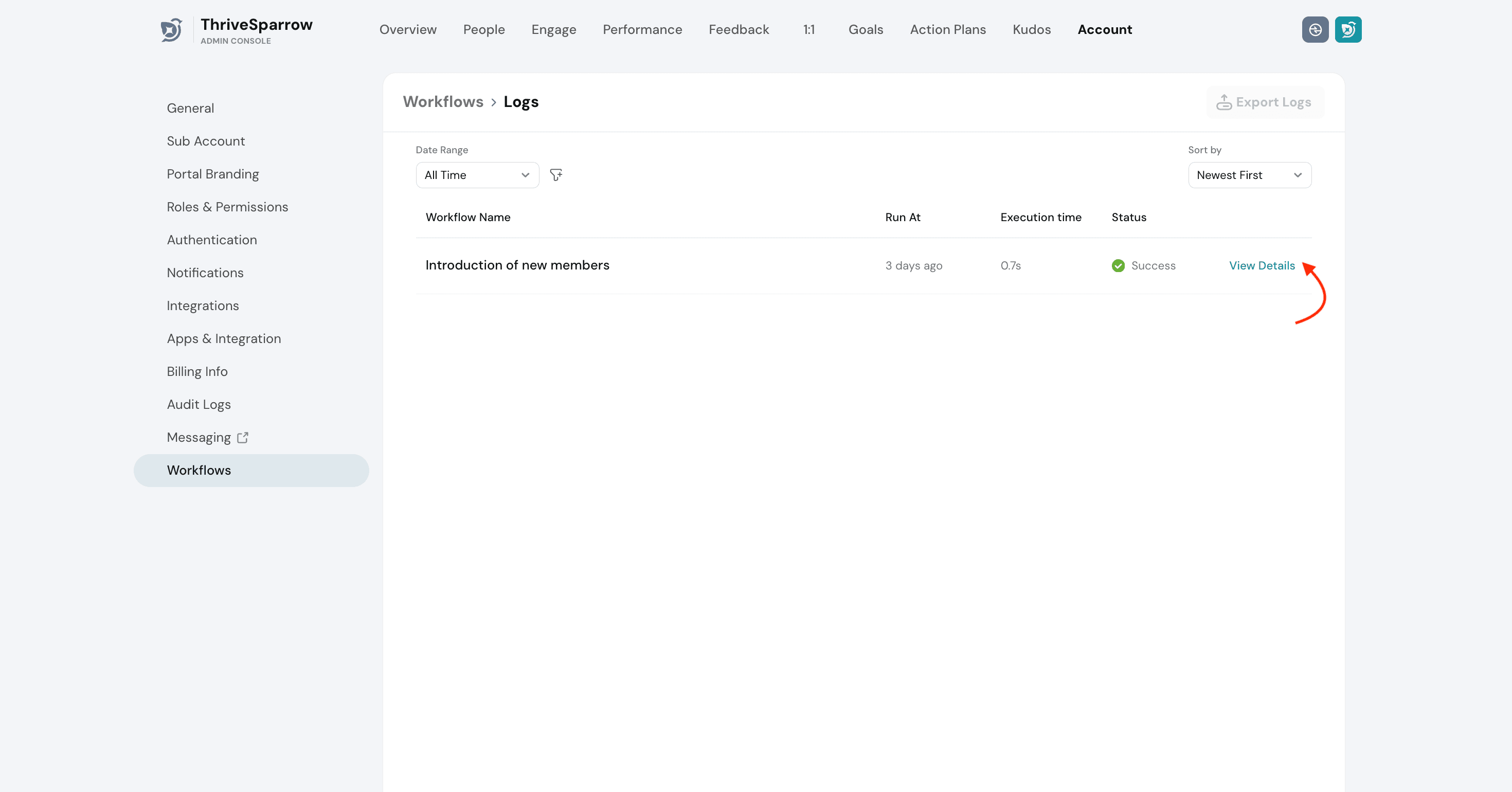
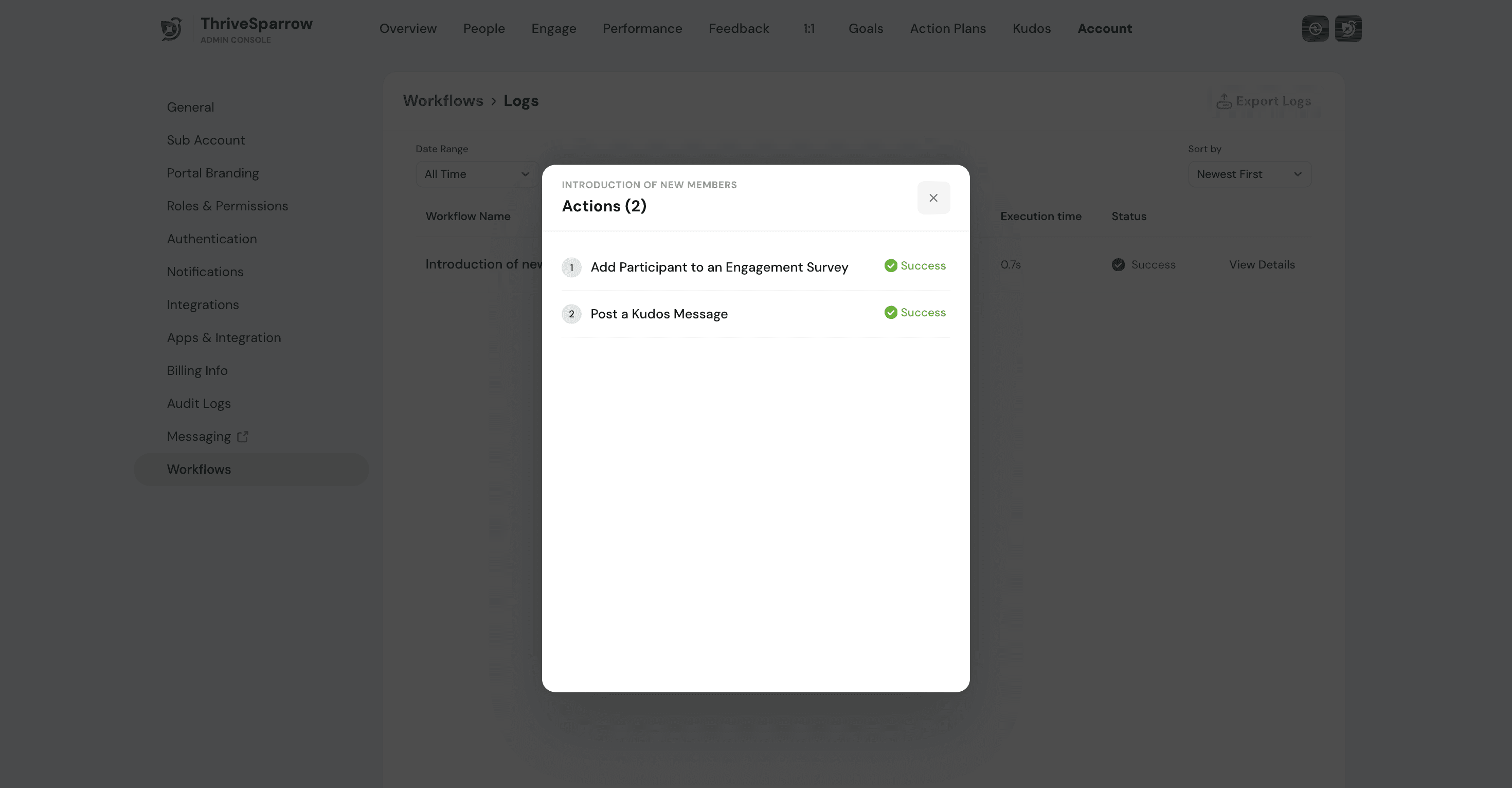
Once a workflow is live, you can track what it's done from its activity log:
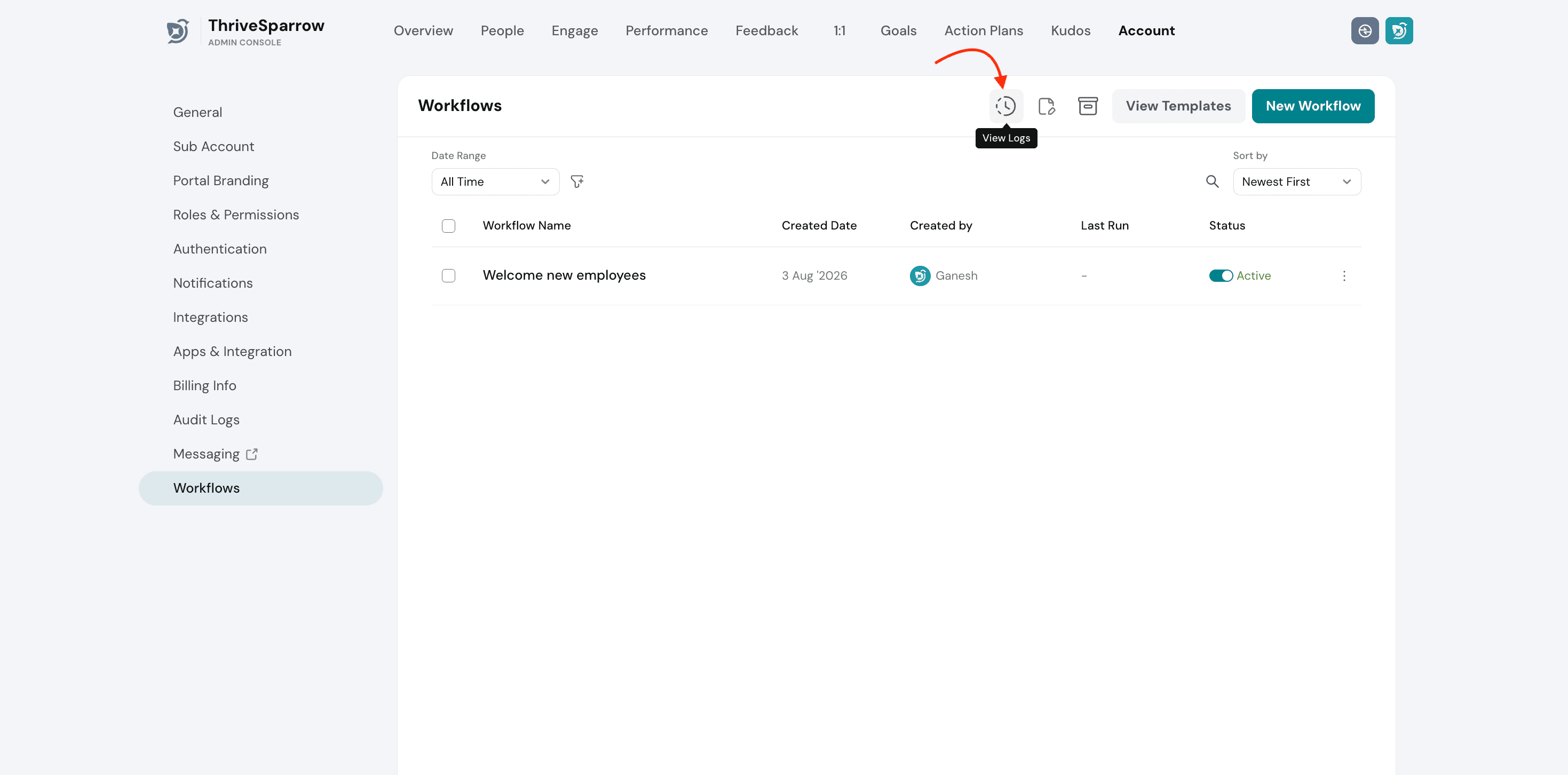
- See a run-by-run history of when the workflow was triggered
- Drill into each step of a run to see what action was performed and its result
- If you have multiple workflows, each one has its own separate log, so you can review them independently
Permissions
Access to Workflows is given to anyone with the Manage Workflows permission. Once you have that permission, to access module-specific triggers and actions, you must also have permissions pertaining to it.
Eg., if you want to create a workflow that sends an onboarding survey to anyone who has been shifted to a new department, you need to have a minimum of "View Employees" and "Edit Surveys" permissions in order to set up this workflow.
Alternatively, if you have access to the particular onboarding survey as a collaborator or survey admin, you will still be able to set up the workflow as intended.
Have a workflow use case you'd like to see supported? Let us know — we'd love to hear about it.
Was this helpful?