
Export your Engagement Reports as PPT

Introducing the new PPT Export option in the Engagement module, which allows you to quickly download survey insights in a presentation-ready format. This makes it easy to share results with leadership, managers, or teams.
How to Download a PPT Report
- Navigate to the Engage module.
- Open Surveys and select the survey you want to generate a report for.
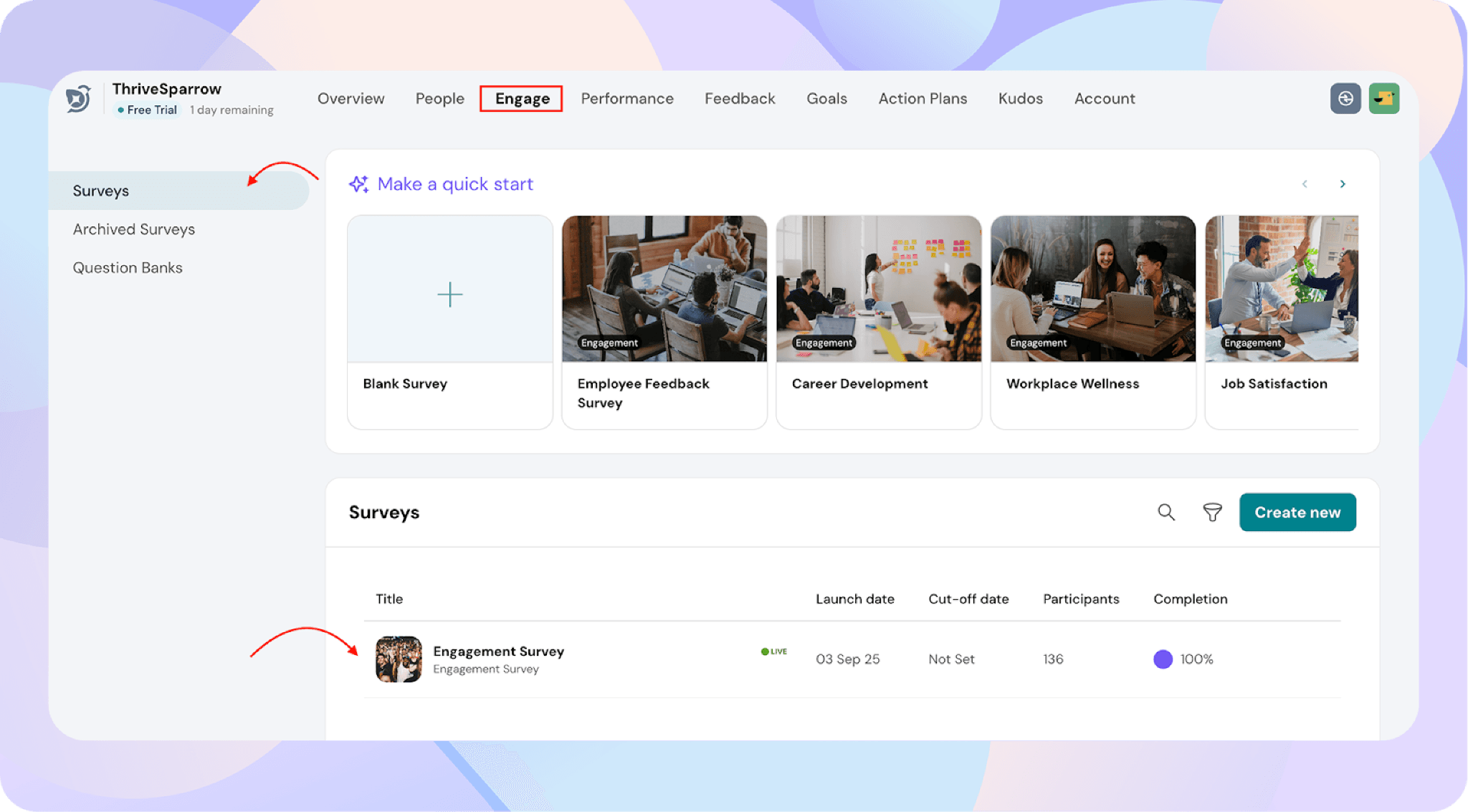
- Go to Reports → Overview.
- Click Download PPT
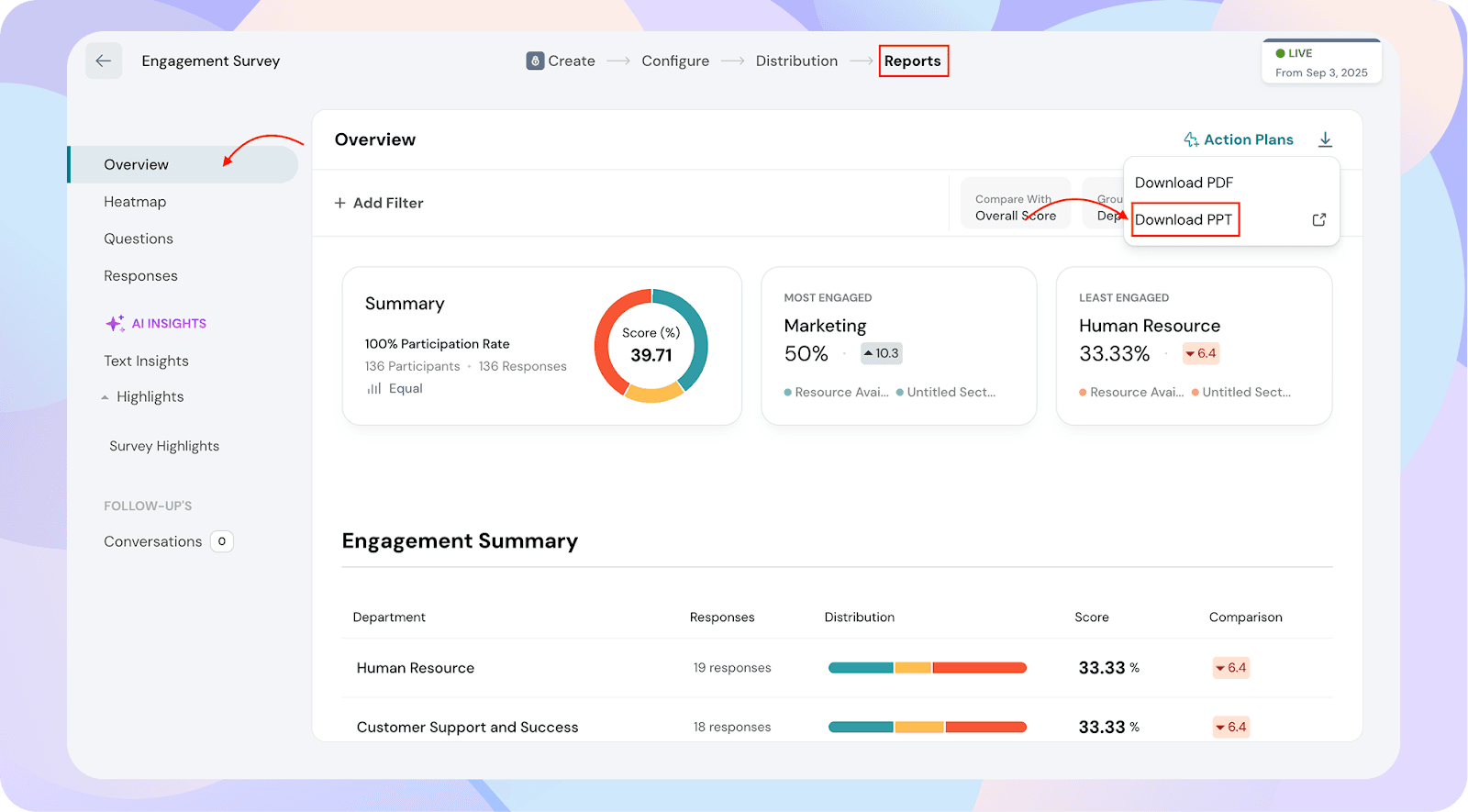
You can now download the pre-generated report or configure it to match your needs. You can also save the PPT and access it later if needed.
Customizing the Report
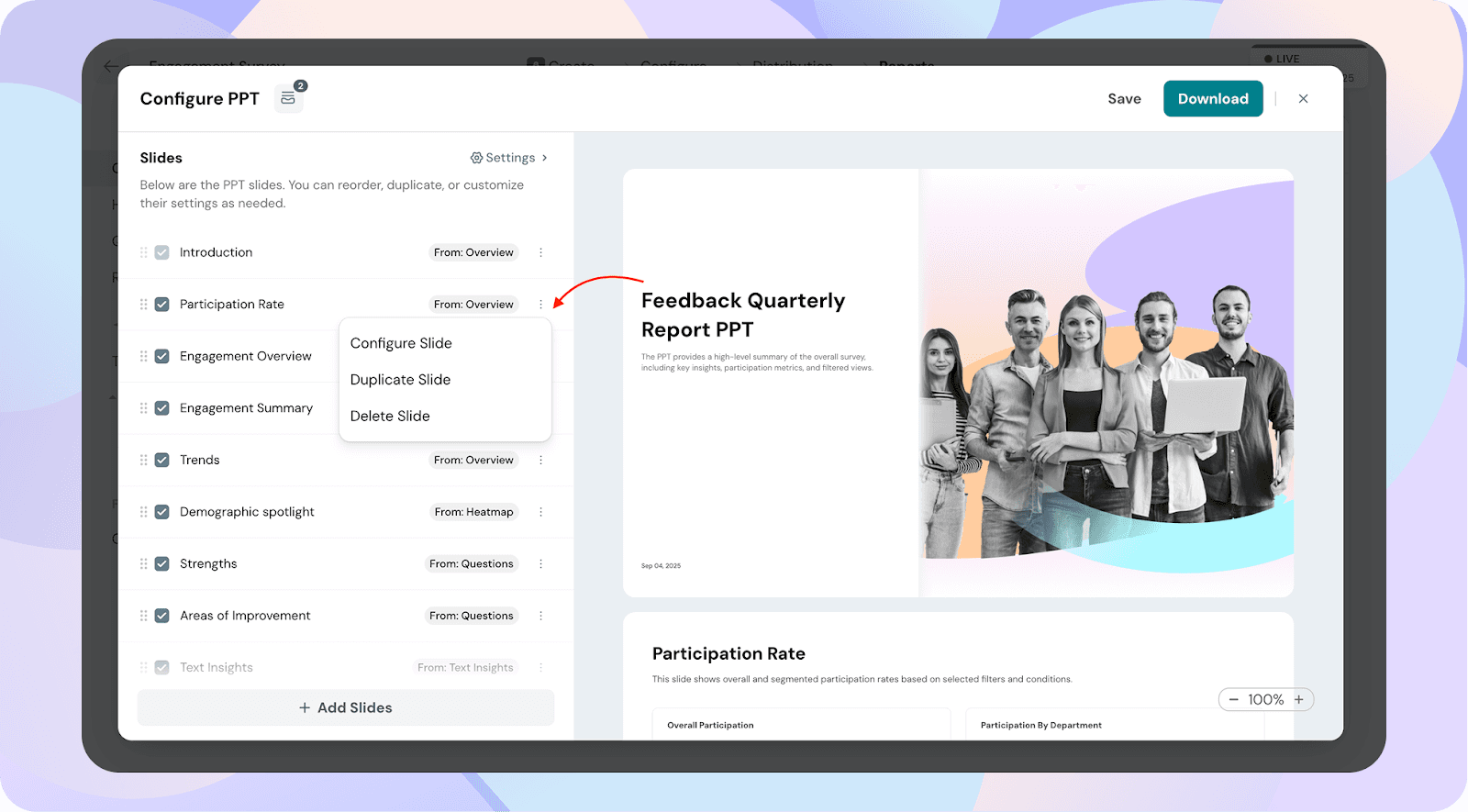
- Click the three dots on any slide to:
- Configure → Adjust the data such as filters, groups etc.
- Duplicate → Create a copy of the slide.
- Delete → Remove the slide from the report.
This flexibility lets you create a PPT tailored to your audience.
Slides in the PPT Report
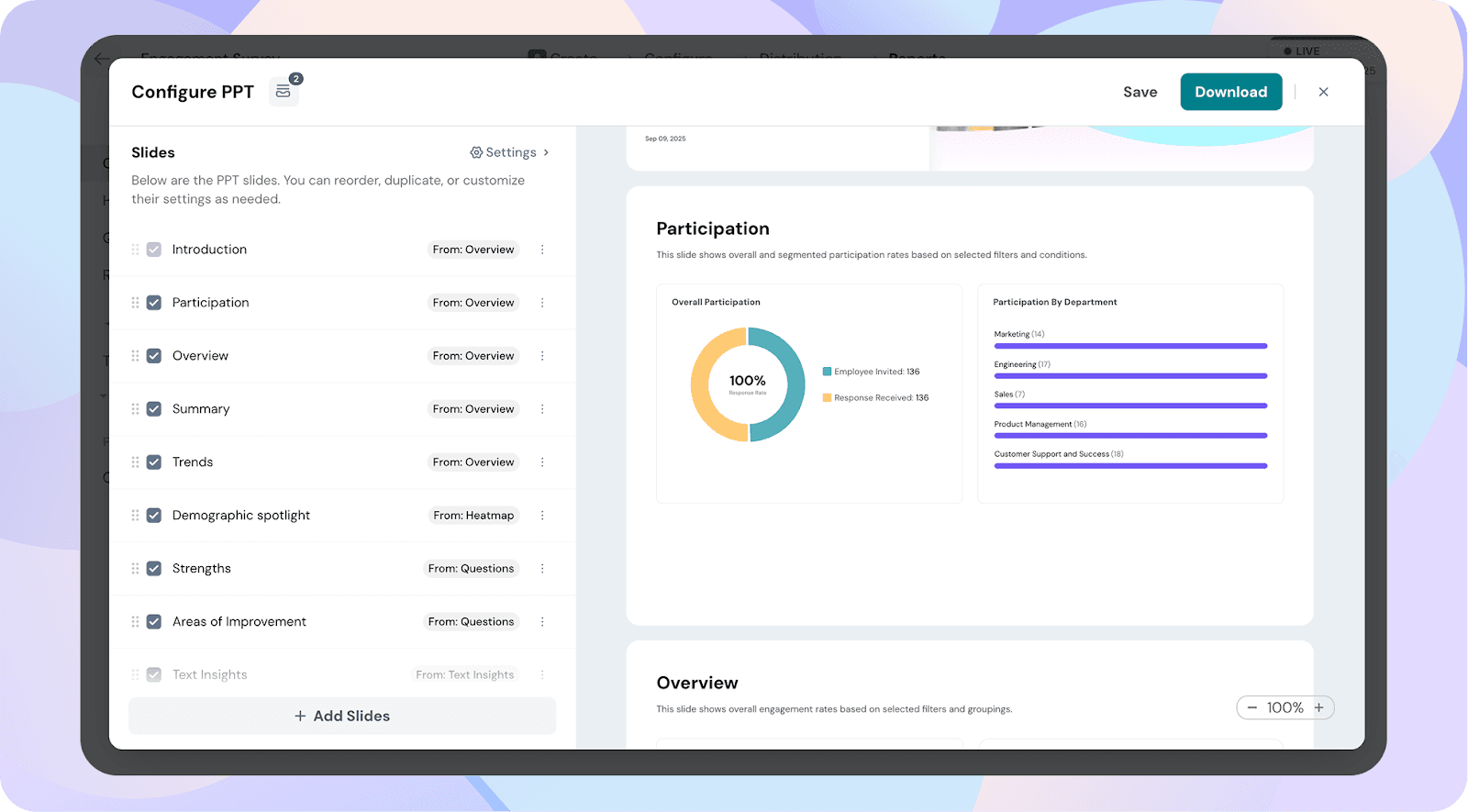
Participation
The Participation slide gives you a clear view of who actually took part in the survey. It shows the overall participation rate (invited vs. responded) and breaks it down by demographics such as department or role. This helps leaders quickly identify which groups are highly engaged in giving feedback and which groups may need a reminder or nudge to participate.
Overview
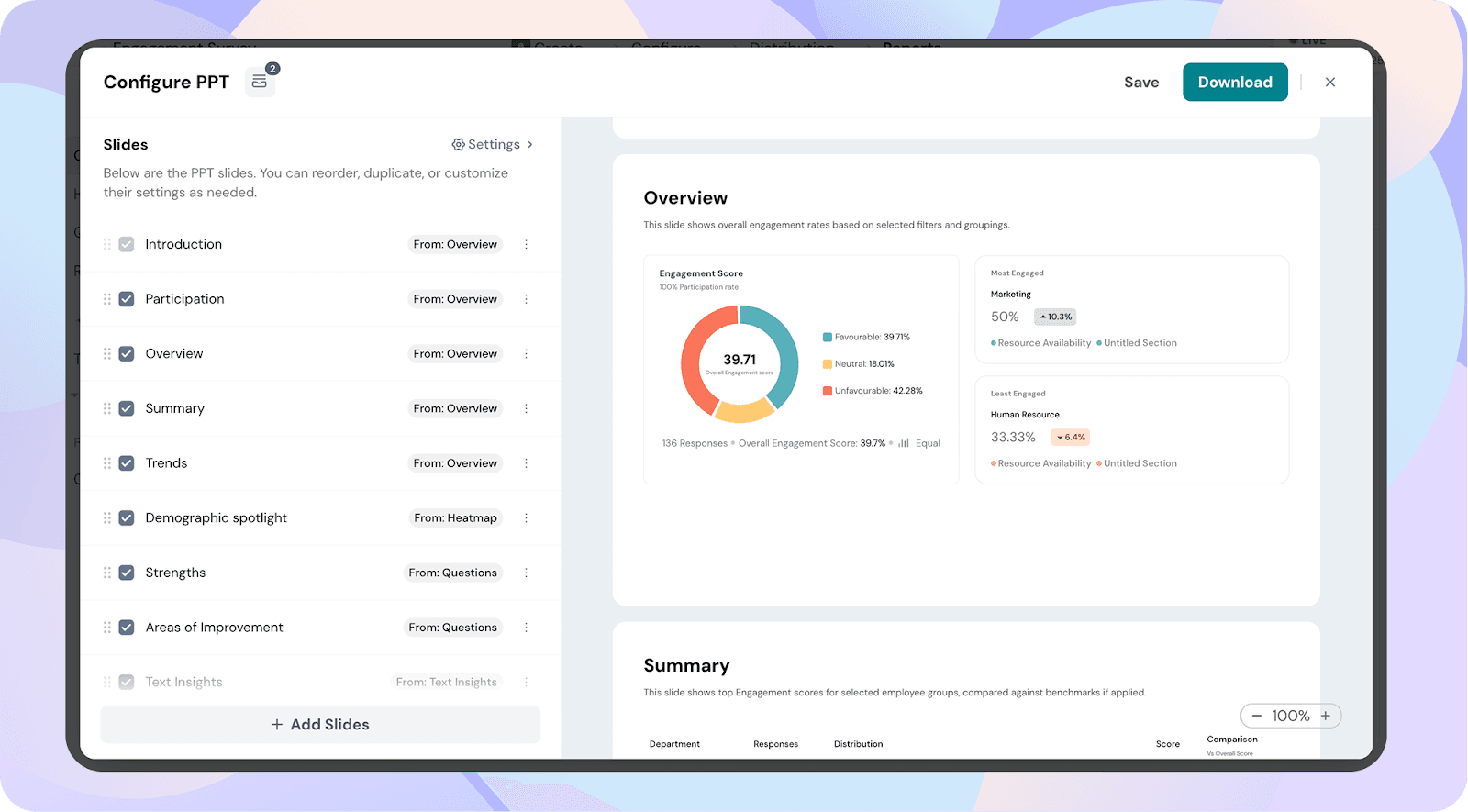
The Overview slide captures the overall health of employee engagement in your organization. It displays the company-wide engagement score, splits responses into favourable, neutral, and unfavourable, and spotlights the most and least engaged groups. It’s designed to provide a snapshot of where your culture currently stands.
Summary
The Summary slide drills deeper into engagement scores by your chosen demographic view (like department or role). It provides response counts, favourable/neutral/unfavourable breakdowns, and compares each group’s score against the overall benchmark. This makes it easier to see how individual teams stack up against the bigger picture.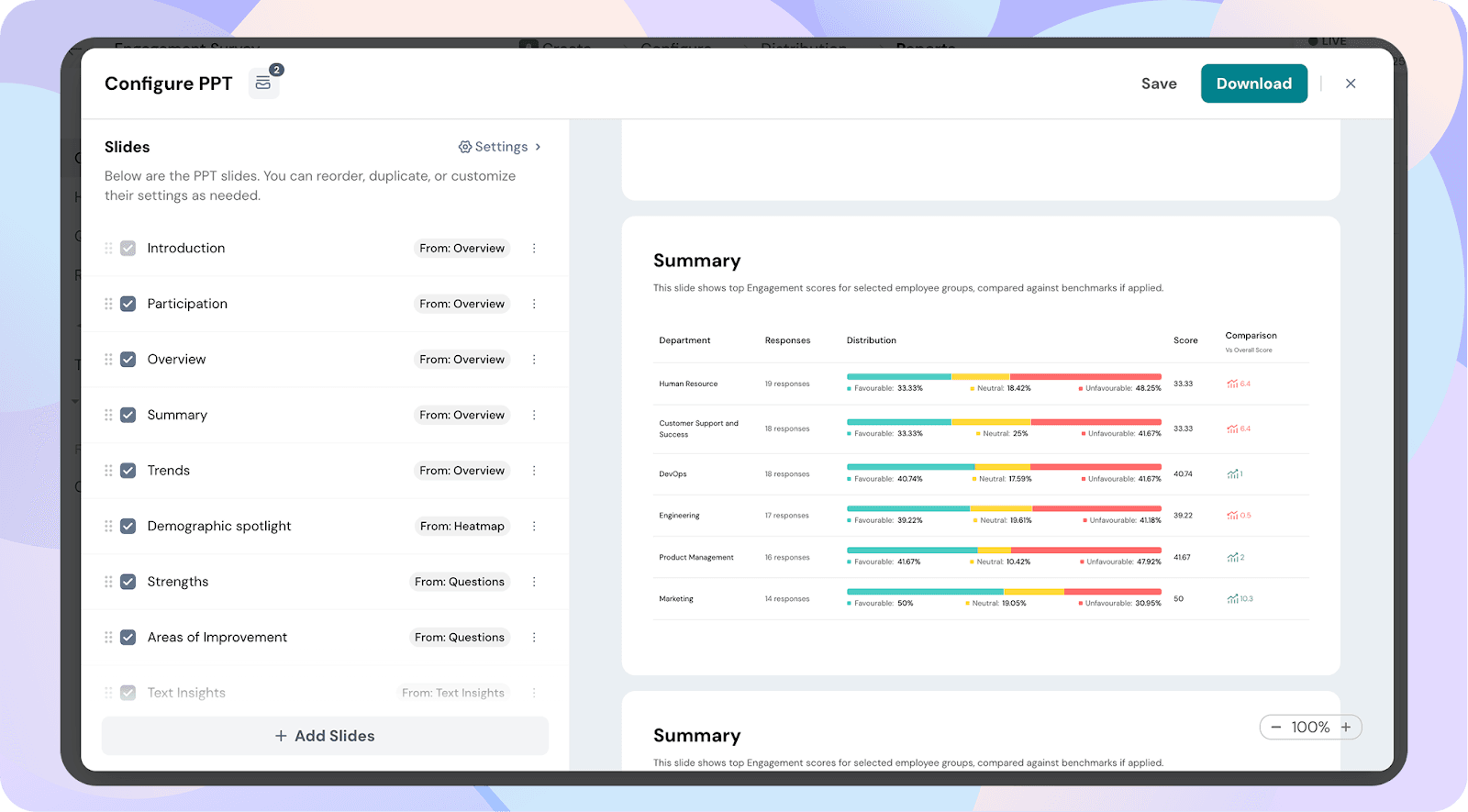
Trends
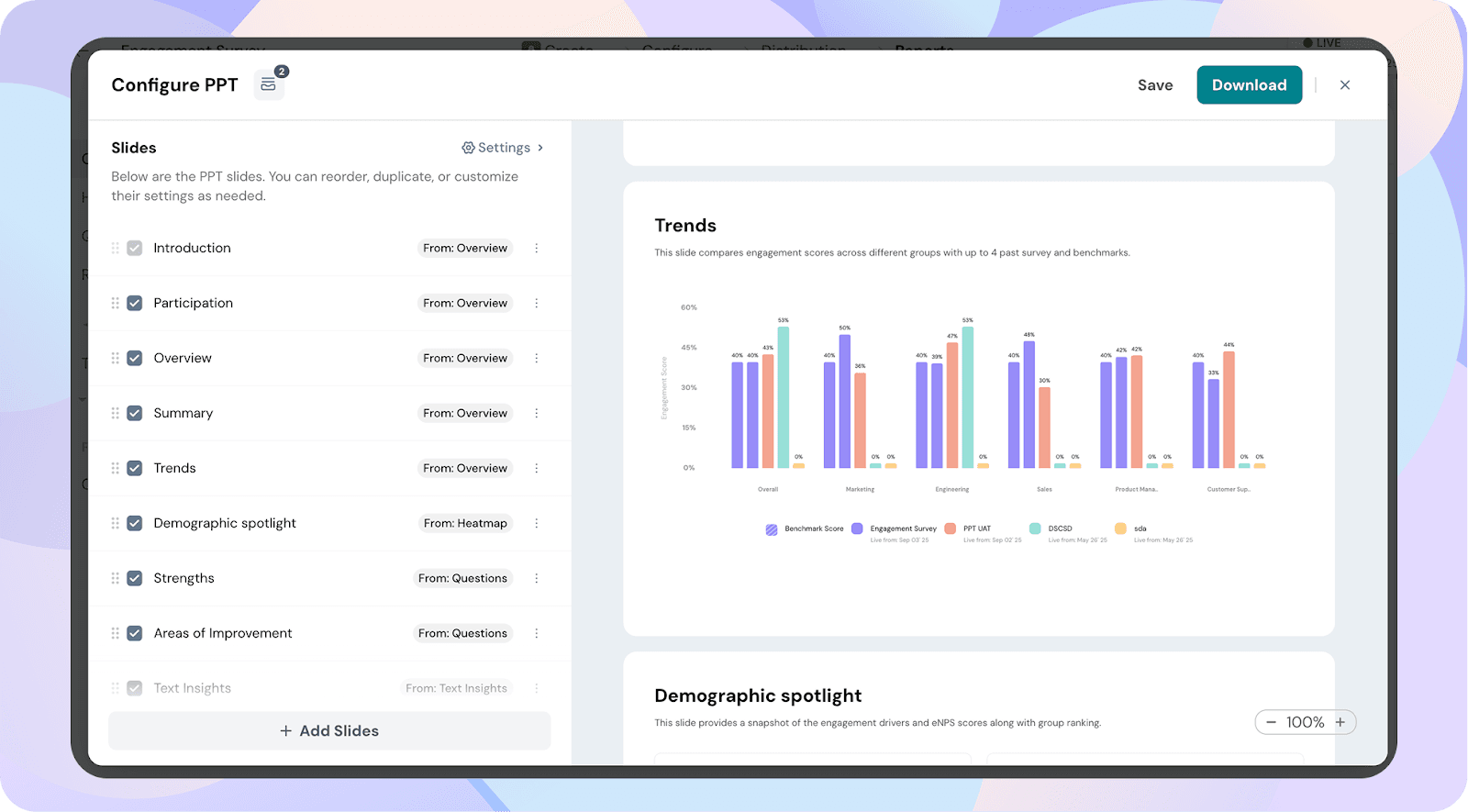
The Trends slide tracks how engagement shifts over time. By comparing results from up to four past surveys alongside benchmarks, you can see whether your engagement efforts are improving, holding steady, or declining. It’s particularly useful for measuring the impact of initiatives or leadership changes.
Demographic Spotlight
The Demographic Spotlight shines a light on engagement across key demographics. It shows which groups are thriving, which are struggling, and the top- and bottom-scoring questions within each group. This helps leaders pinpoint specific teams or roles that need more support and attention.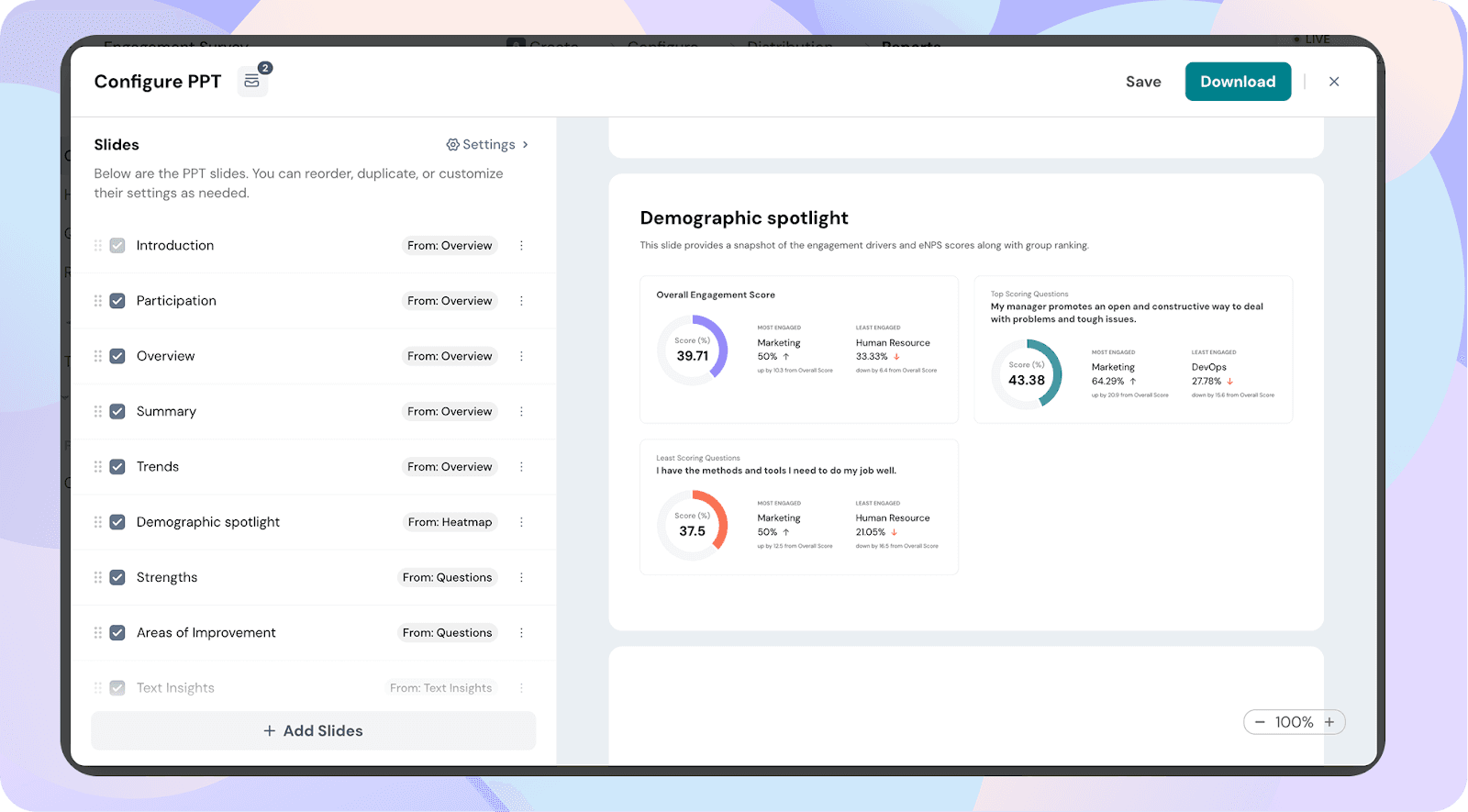
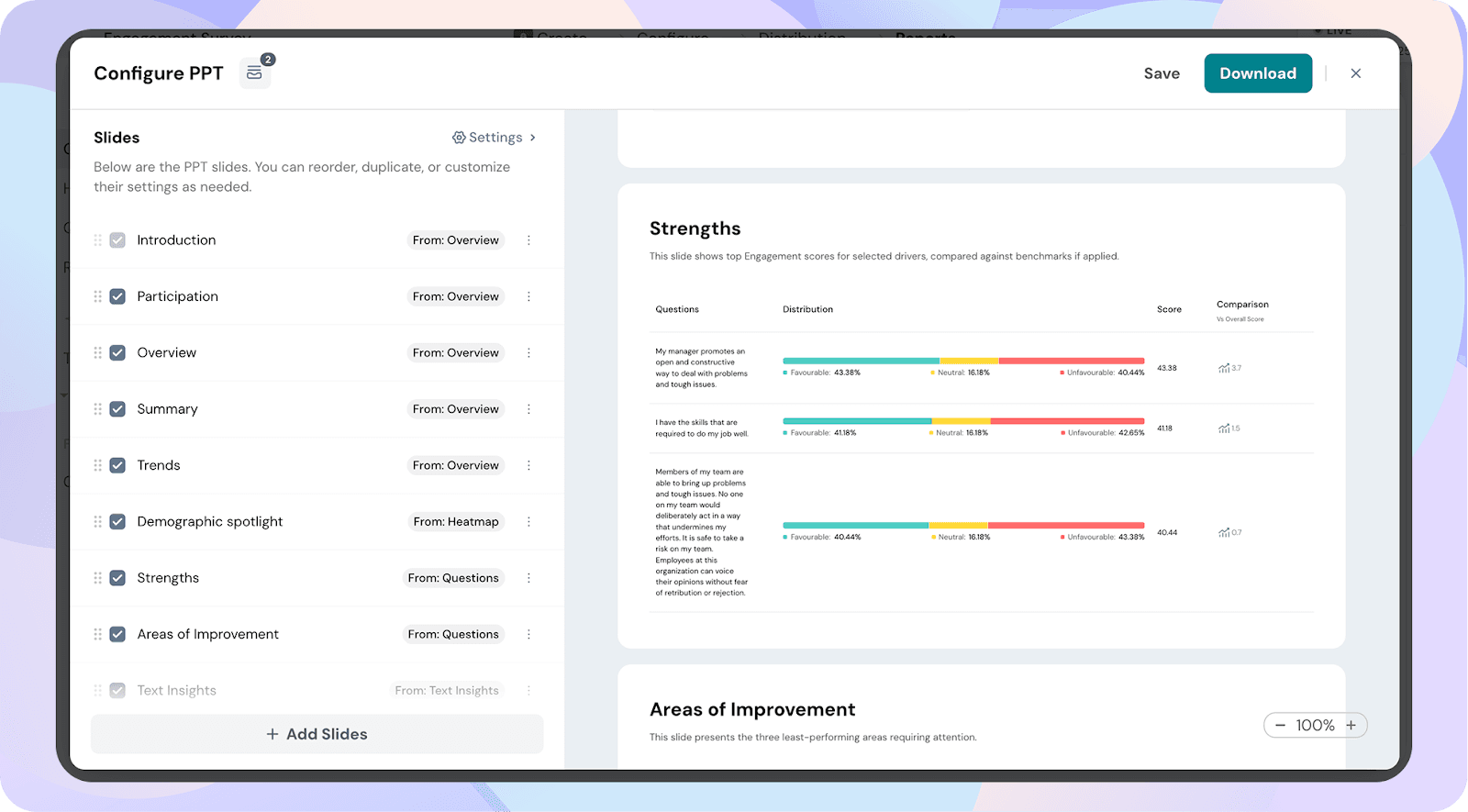
Strengths
The Strengths slide highlights the survey drivers (questions or topics) with the highest scores. It displays favourable, neutral, and unfavourable percentages and benchmarks them against overall company scores. This reinforces what’s working well in your culture so those practices can be celebrated and scaled.
Areas of Improvement
The Areas of Improvement slide identifies the lowest-performing drivers from the survey. It shows distribution, overall comparisons, and highlights critical areas where leadership should take action. This slide makes it clear where change is most urgently needed.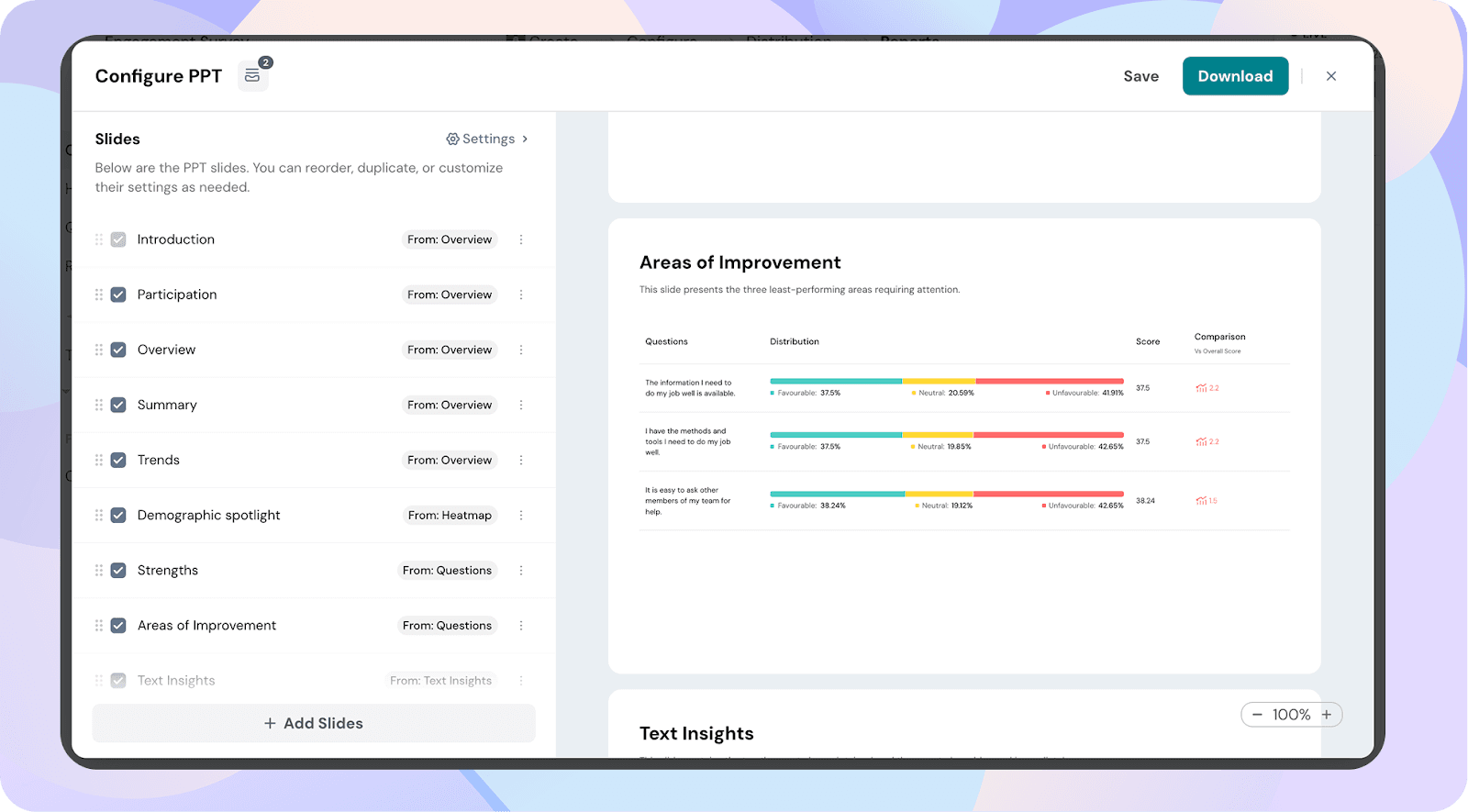
Text Insights
The Text Insights slide takes employee comments and transforms them into themes that provide context behind the numbers. This helps leaders understand not just scores, but employee sentiment.
Categorized into four buckets:
- Maintain & Monitor – Areas that are currently strong and should be preserved. Example: If many employees mention “team collaboration” positively, the system places it here, signaling it’s a strength to preserve.
- Address Immediately – Urgent pain points that require swift intervention.
Example: If “work-life balance” frequently appears in negative responses, it is flagged here, indicating leadership must act quickly. - Minimize & Reassess - Emerging risks that are not yet critical but could escalate if left unaddressed.
Example: If “career growth” is mentioned with both positive and negative tones, the system places it here, suggesting leaders should reassess before it becomes a bigger issue. - Focus & Leverage – Positive aspects of the employee experience that can be amplified.
Example: If “employee recognition” is repeatedly mentioned in favorable contexts, it is highlighted here, showing leaders an opportunity to expand or replicate those practices.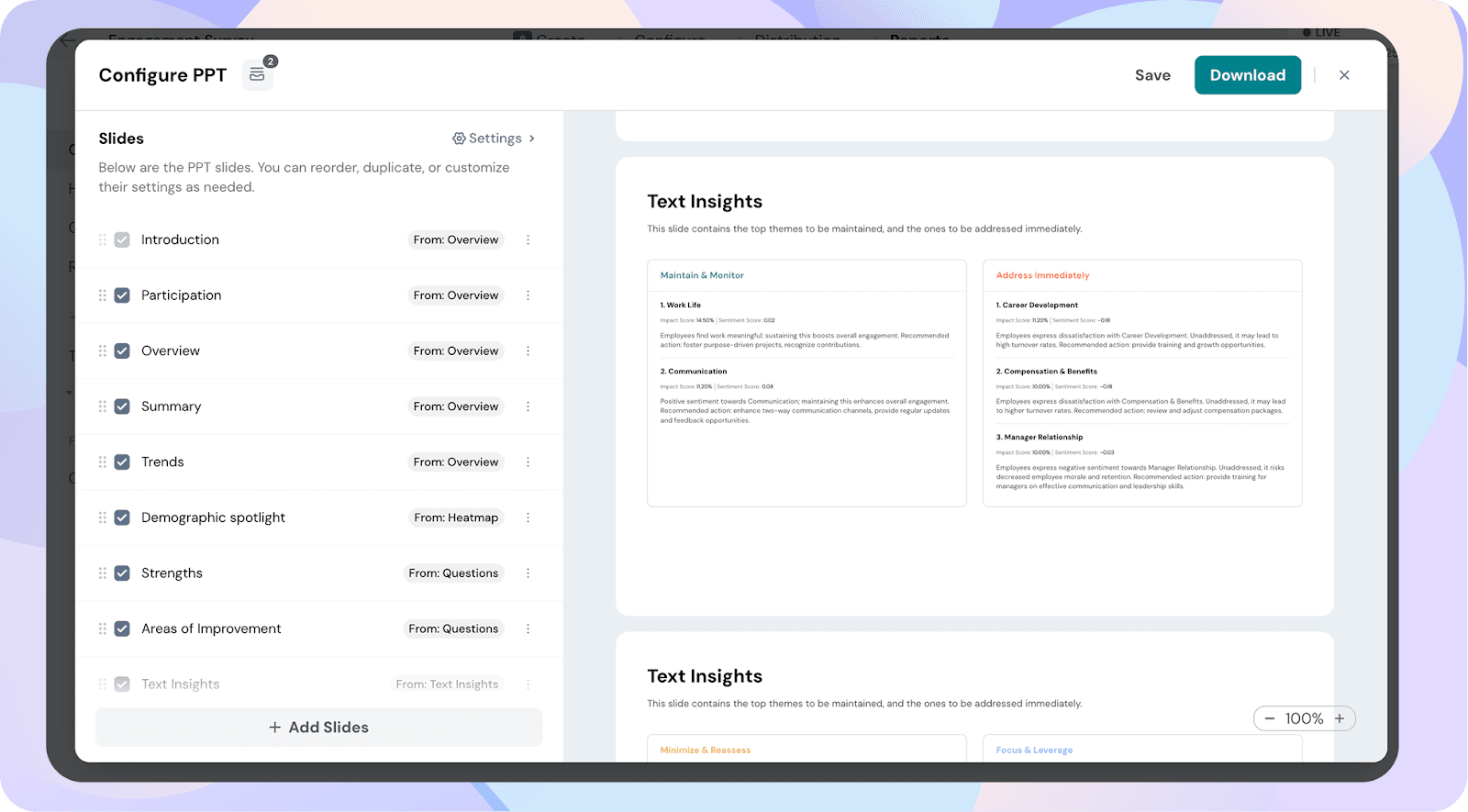
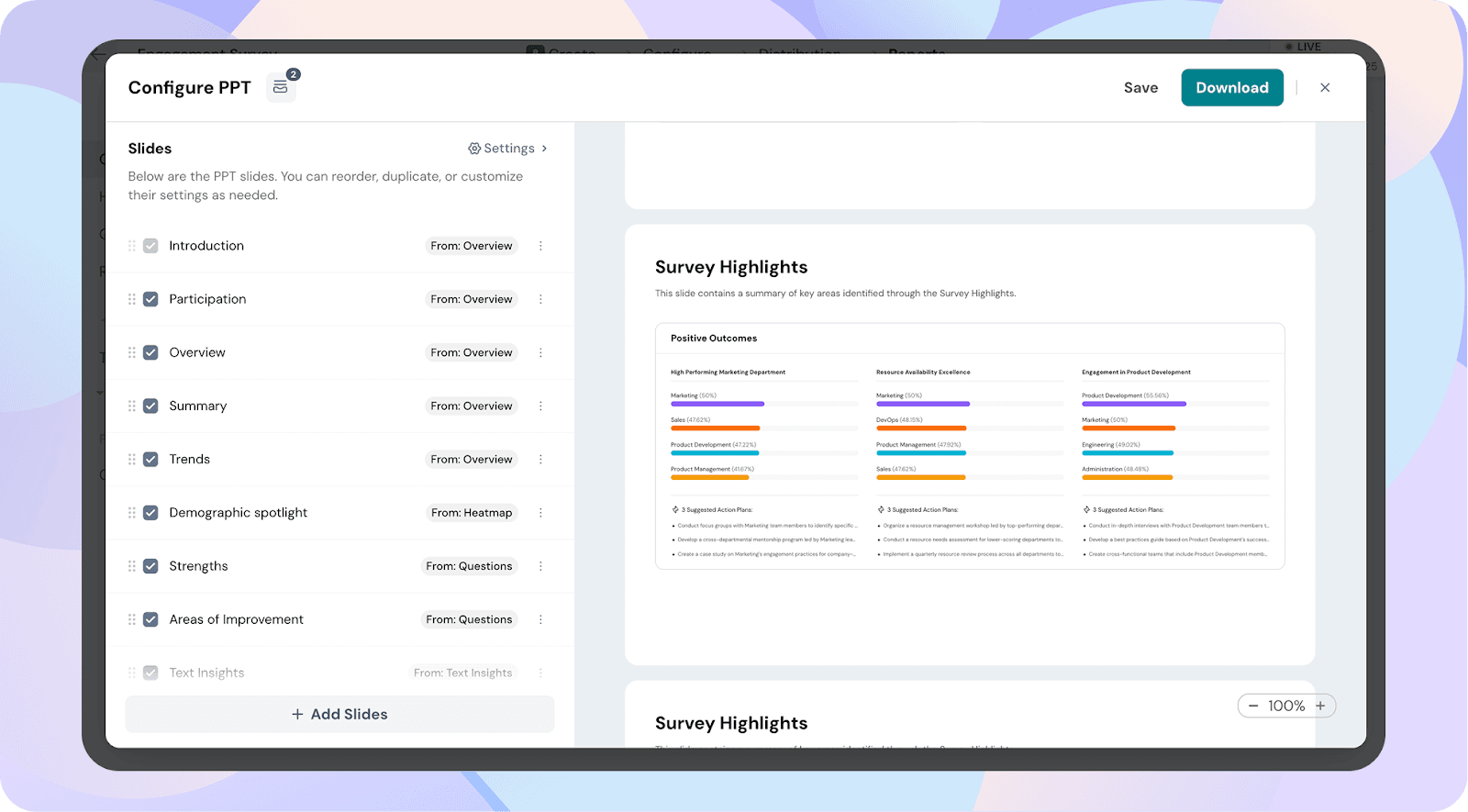
Survey Highlights
The Survey Highlights slide pulls everything together into a clear summary of key outcomes. It clusters results into themes like high-performing departments, resource strengths, and functional engagement wins. Each highlight is paired with suggested action plans, giving leaders ready-to-use direction for next steps.
Configuring PPT Slides in Engagement Reports
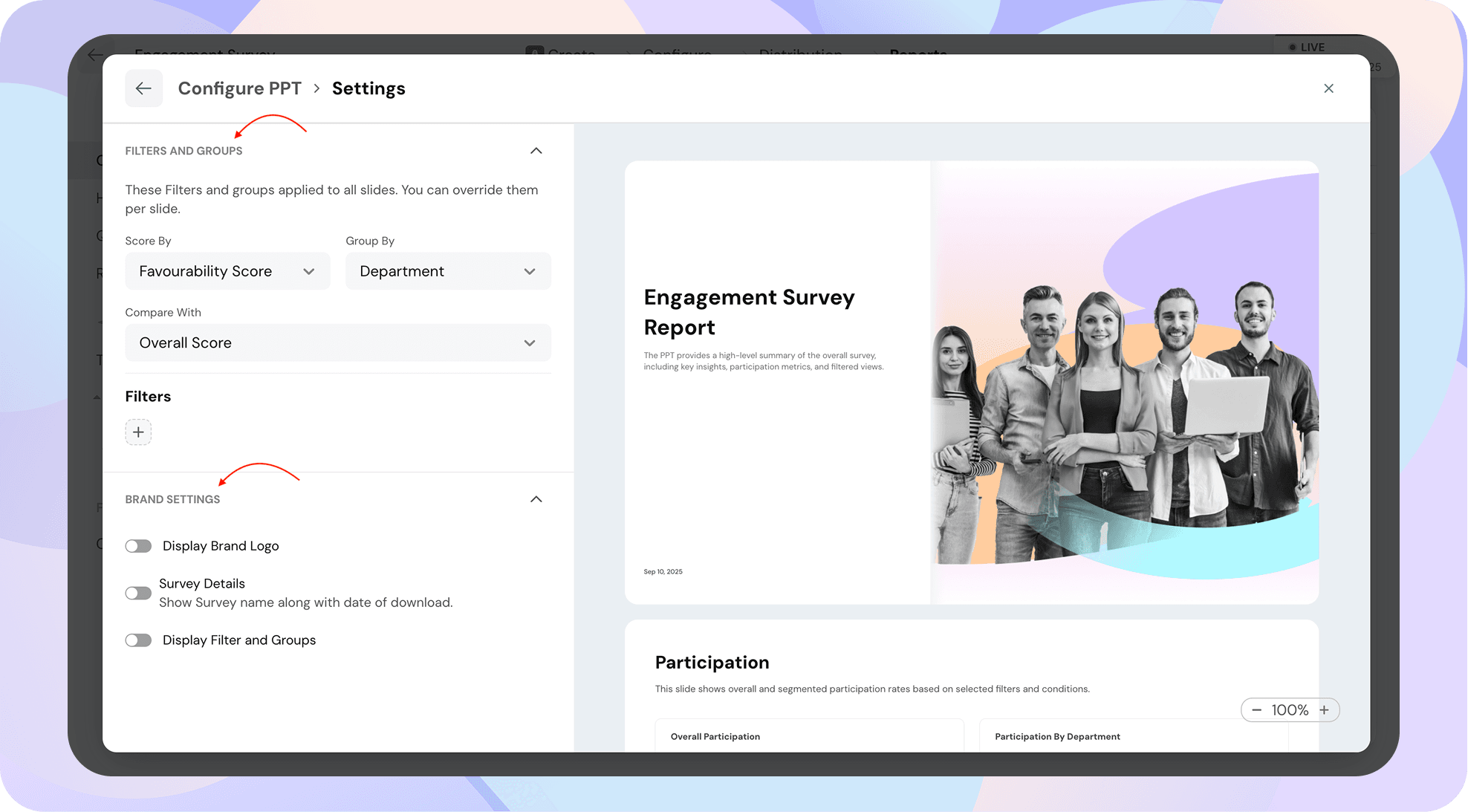
The Settings page lets you configure filters, groups, and branding options for your PPT report. These settings apply across all slides, but you can override them for individual slides if needed.
Filters and Groups
- Score By: Choose how scores are calculated (e.g., Favourability Score or Percentage Score).
- Group By: Decide how results are grouped (e.g., Department, Location, Team).
- Compare With: Compare results against another metric (e.g., Overall Score).
- Filters: Add custom filters to refine the data shown in your report.
Brand Settings
- Display Brand Logo: Add your organization’s logo to the report.
- Survey Details: Show the survey name and download date on the report.
- Display Filter and Groups: Display the applied filters and groupings directly in the report for better context.
Slide-Specific Configuration Notes
While most slides follow the common settings (Score By, Group By, Compare With, Filters), a few slides have unique options worth noting:
- Introduction
Add a custom title, description, and logo/image to personalize your report cover. - Trends
Allows you to select up to 4 past surveys for comparison alongside benchmarks. - Demographic Spotlight
Offers a Drive By option — you can choose whether to spotlight results by Questions or by Reporting Factors. - Strengths
Includes a Threshold setting: the top 5 factors with scores above the threshold will be shown. - Areas of Improvement
Also uses a Threshold setting: the bottom-performing factors with scores below the threshold will be displayed. - Text Insights
Lets you configure Impact By (Mentions Count, Sentiment, or AI Impact Score) to decide how open-text feedback themes are prioritized. - Survey Highlights
Provides an Include Topics toggle where you can choose which insights to display (Positive Outcomes, Areas of Improvement, Potential Risks, Critical Insights).