
How to Search for Goals

ThriveSparrow gives you two powerful ways to find goals and tasks — Global Search and In-page Search.
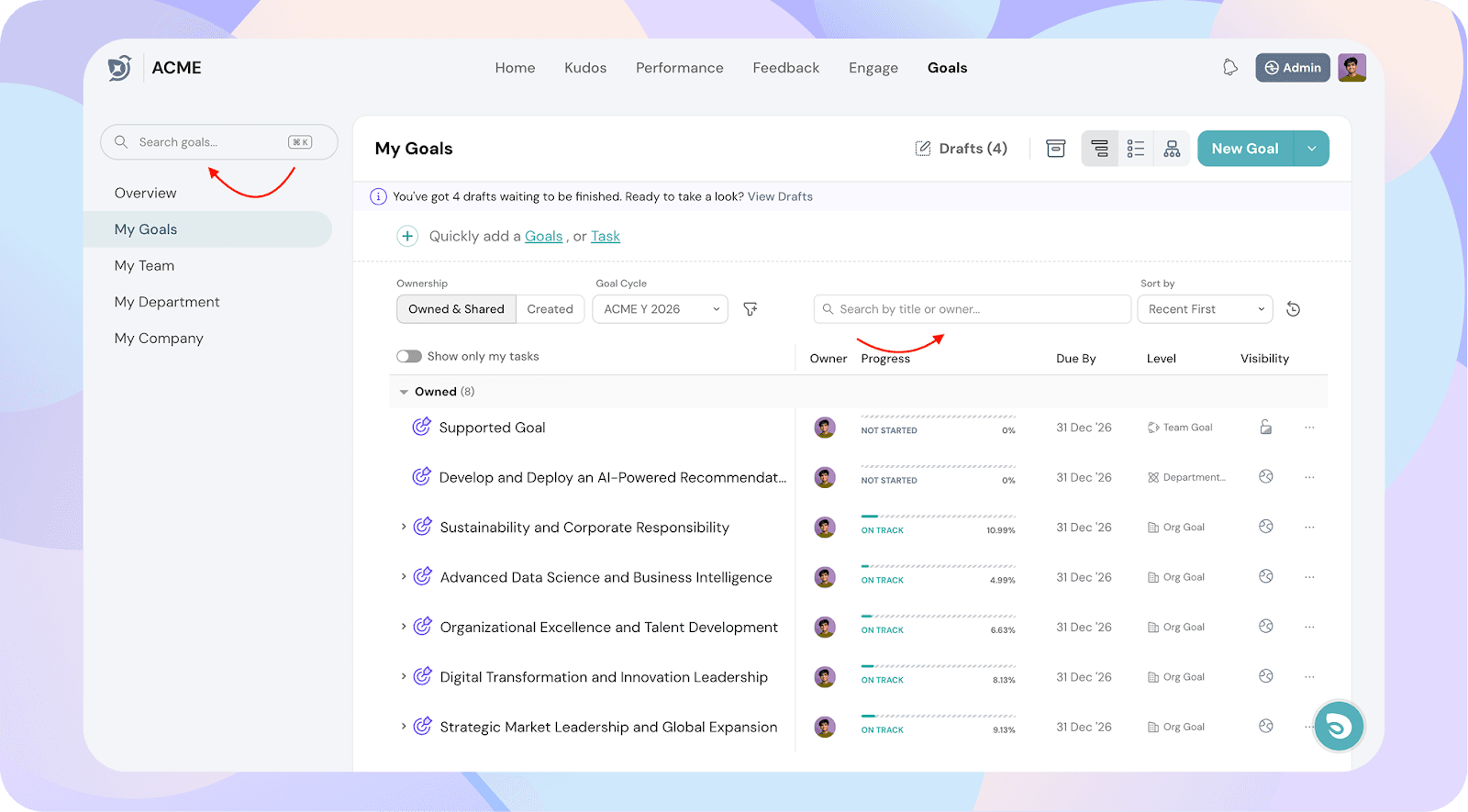
1. Global Search
The Global Search in ThriveSparrow helps you quickly find any goal or task across the platform without manually navigating through pages.
Shortcut
- Mac: Cmd + K
- Windows: Ctrl + K
Or simply click on the search bar in the top-left corner.
Where It Works
You can access Global Search from any page in ThriveSparrow.
What You Can Search For
- Goal or Task title
- Owner
- Department
- Team
- Participant
Smart Search Options
- Department/Team names → If you type a department or team name, ThriveSparrow will automatically apply the filter and show you all goals linked to that department or team.
- Least Progressed → Type “least progressed” to quickly view goals with the lowest progress.
- At Risk → Type “at risk” to see all goals flagged as projected delays.


Results
Once you search, results open in the respective Goals page, where you can view details or take further actions.
2. In-page Search
Where it works:
- Only searches within the tab you’re currently on (e.g., My Goals, My Team, My Department).
You can search by:
- Goal Title
- Goal Owner
- Task title
How it works:
- Respects current filters — meaning it only searches what’s already being displayed.
- Results stay grouped according to the default grouping in that tab.
Key Difference
Feature
Global Search
In-page Search
Scope
Searches everywhere across all tabs
Searches only within the current tab
Search By
Multiple fields including owner, department, etc.
Goal Title and Owner only
Filters
Goal Level + Quick Filters
Respects current filters already applied
Results View
Opens in My Company tab with applied filters
Keeps grouping of the current tab