Crafting an engaging Employee Net Promoter Score (eNPS) survey doesn't have to be daunting. Let's break it down into simple steps!
Accessing the Surveys Module:
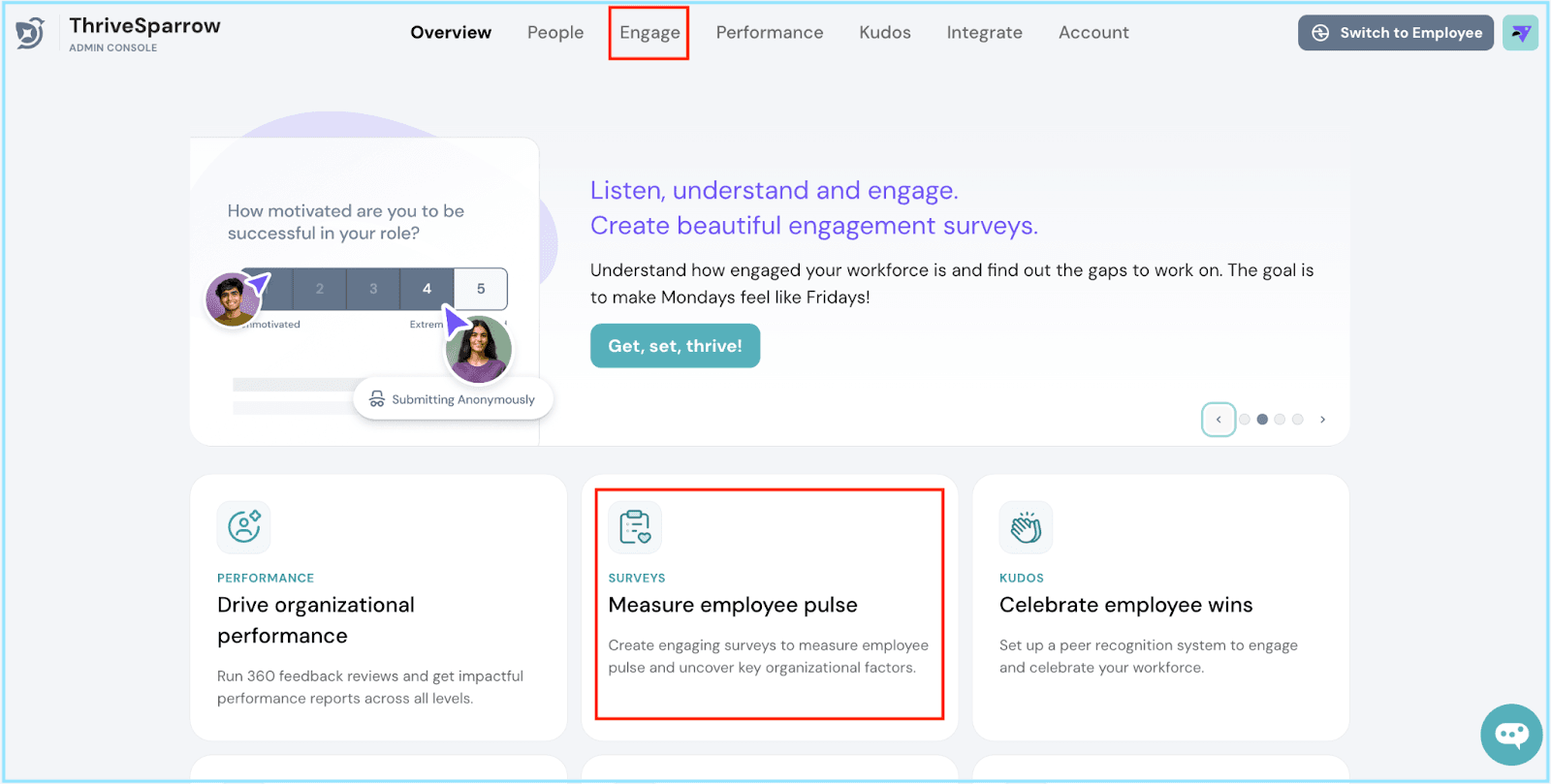
To begin, navigate to the Surveys Module by starting on the Homepage - Overview page.
From the navigation bar, click on Engage or select Measure employee pulse card on the Overview page.
Let’s Start an eNPS survey:
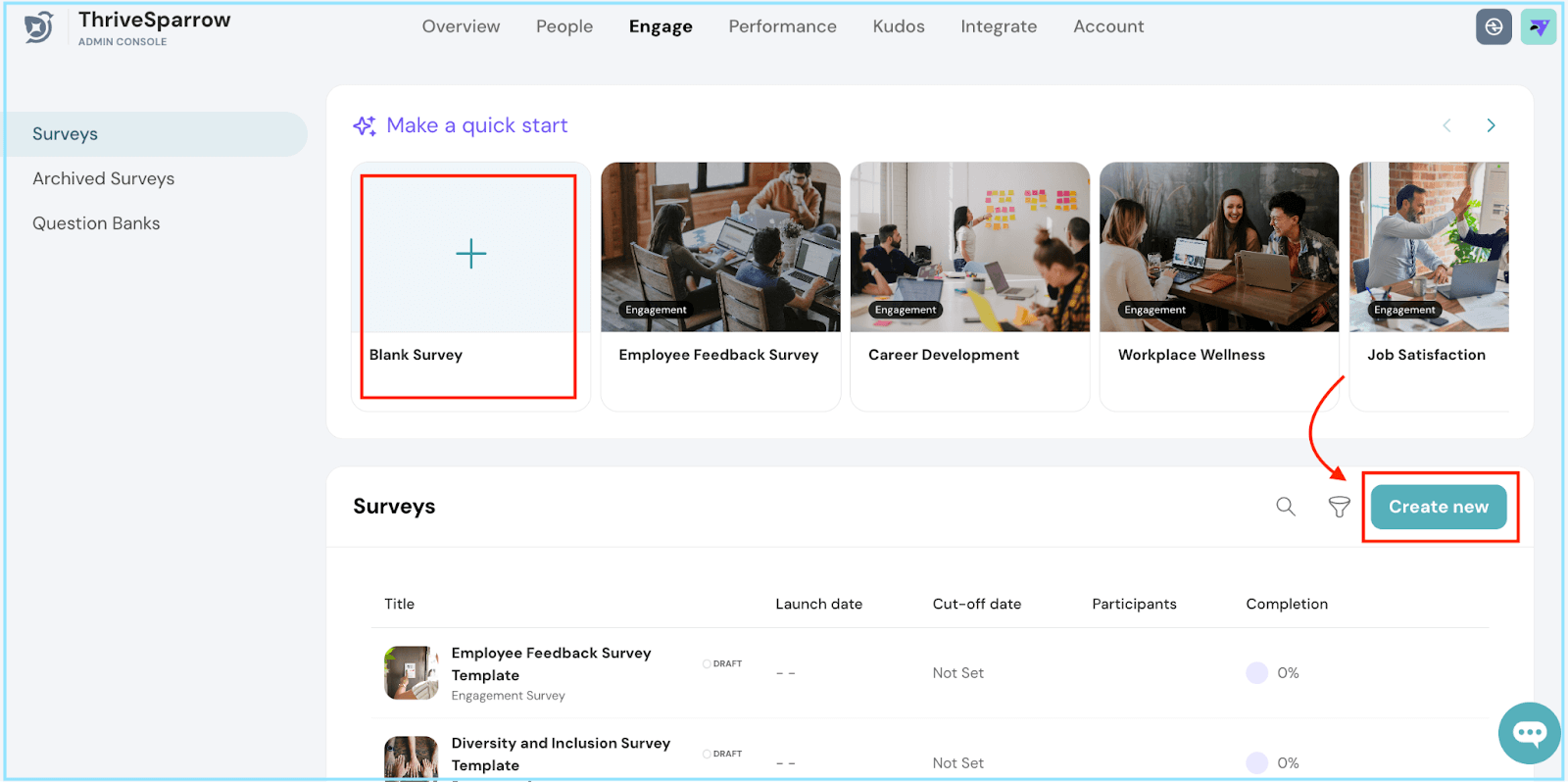
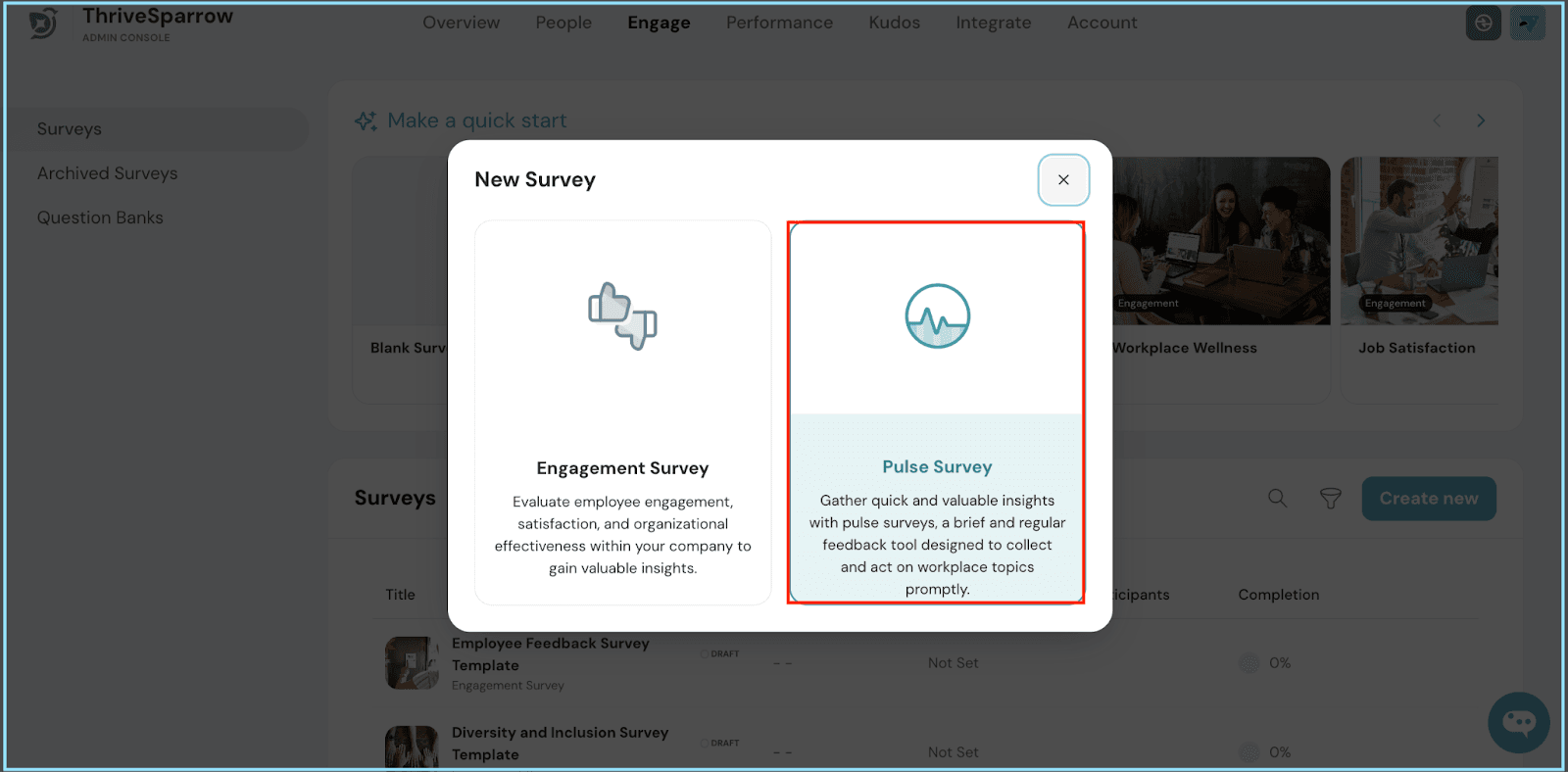
You have two options: click the "Create New" button or select the "Blank Survey" card featuring a plus sign. A friendly pop-up will then prompt you to make your choice.
Choose Pulse Survey to kickstart your brand new eNPS Survey in Pulse Survey.
Survey Title and Setup:
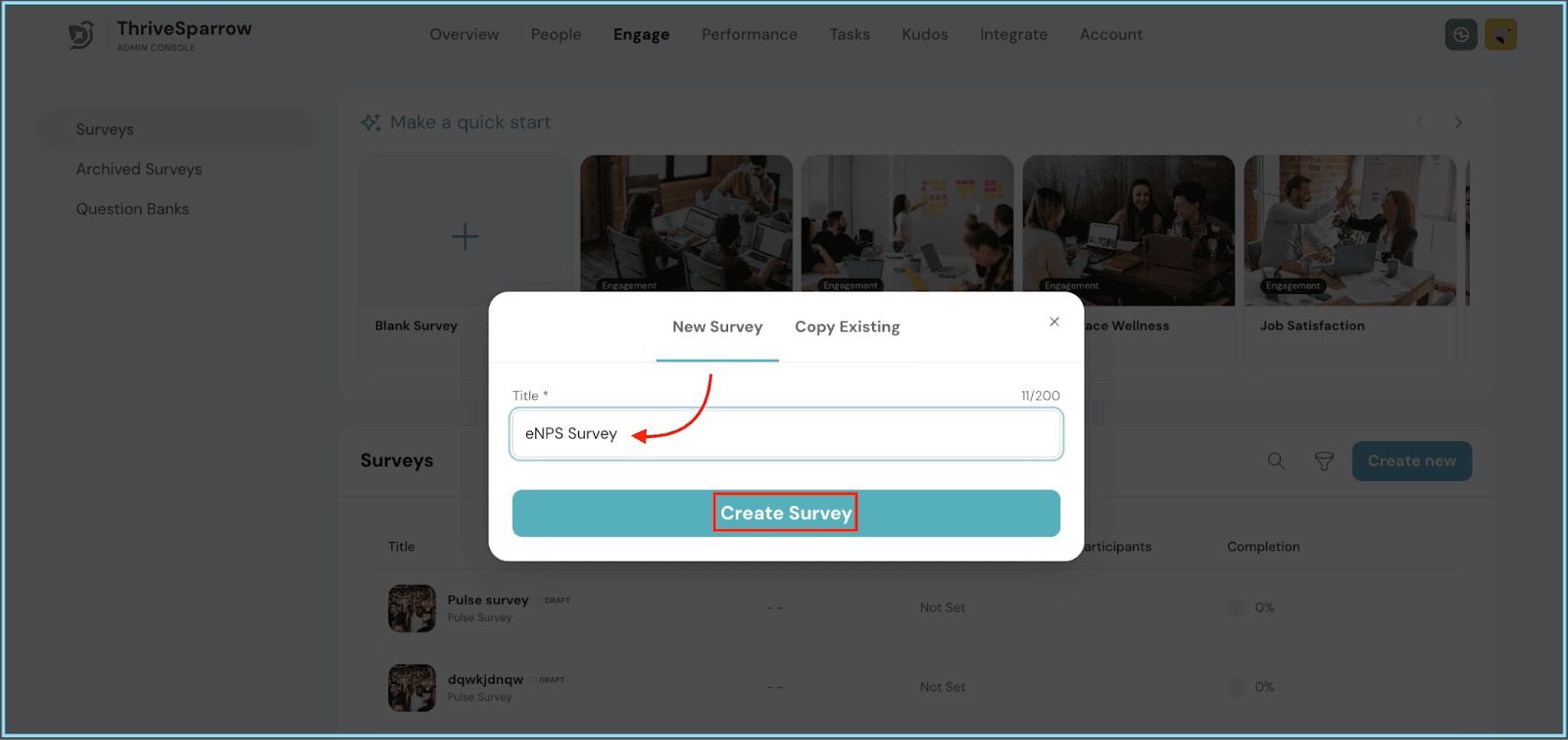
A tiny pop-up will show up, awaiting the title of your survey.
Once you've given your eNPS survey a name, hit "Create Survey" to kick things off!
Building Your Survey:
You're in the survey builder zone - the Create section!
Hit the "Add Section" button, give it a name, and voilà, your section is ready to be filled with questions!
Or, if you're all about speed, tap on the "Question Bank" button to import sections and questions in a flash!
Designing Your Survey:
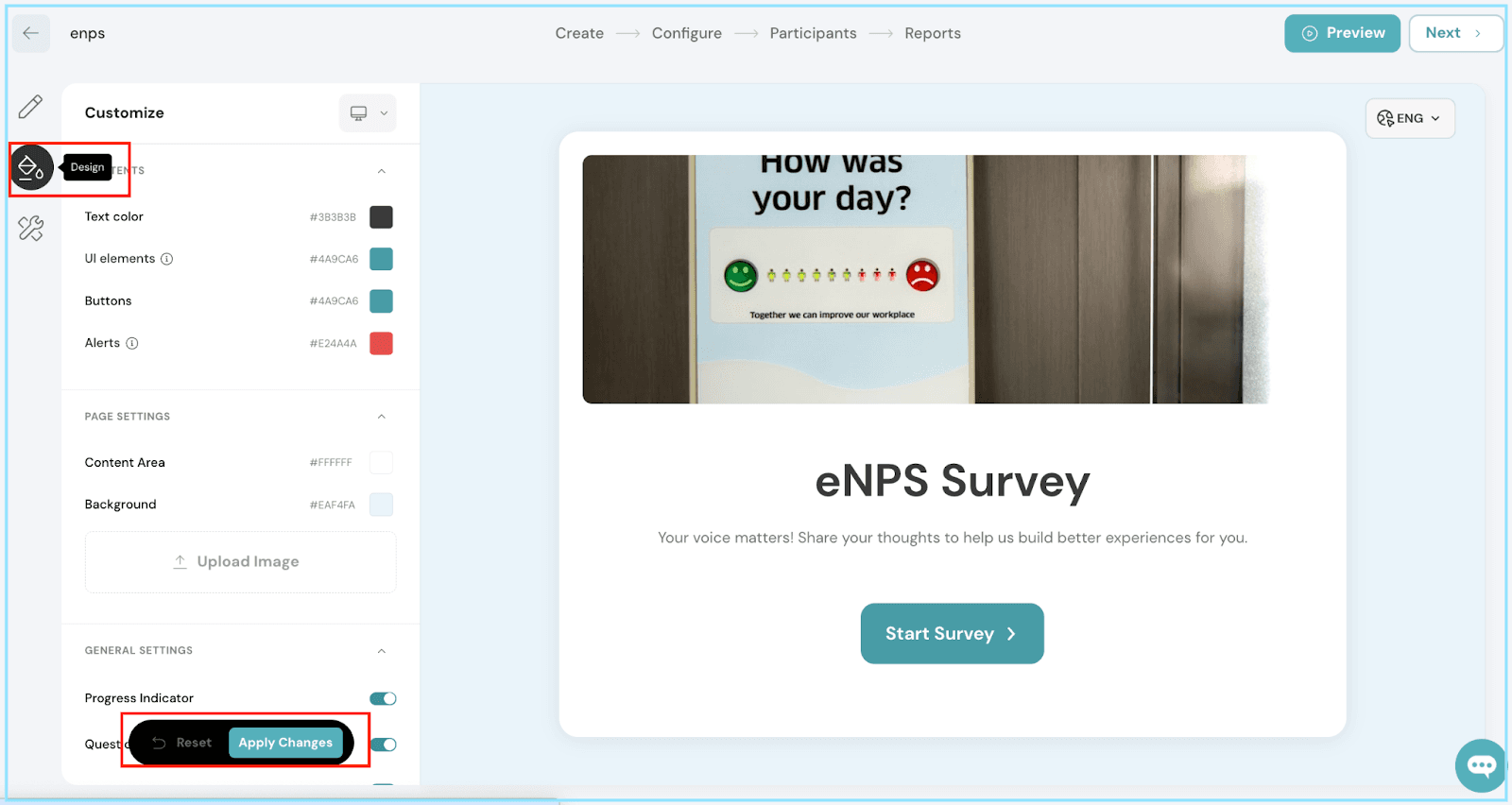
Welcome to the Design step. Customize your survey's look and feel, tweak the content, and adjust page settings to make it unique.
Once you’re done, just hit Apply Changes.
Time to set up those rating scale defaults:
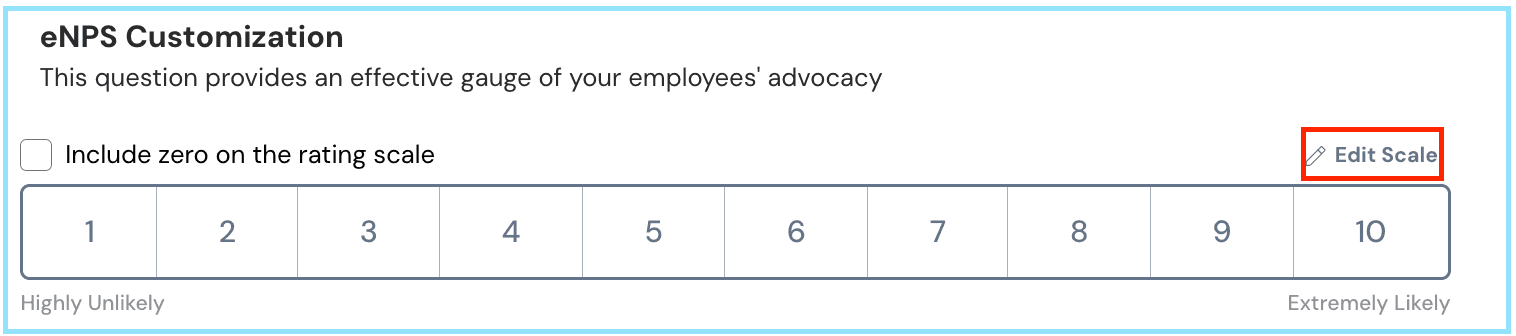
Head over to the Set Up Defaults section to configure the rating scale for your survey.
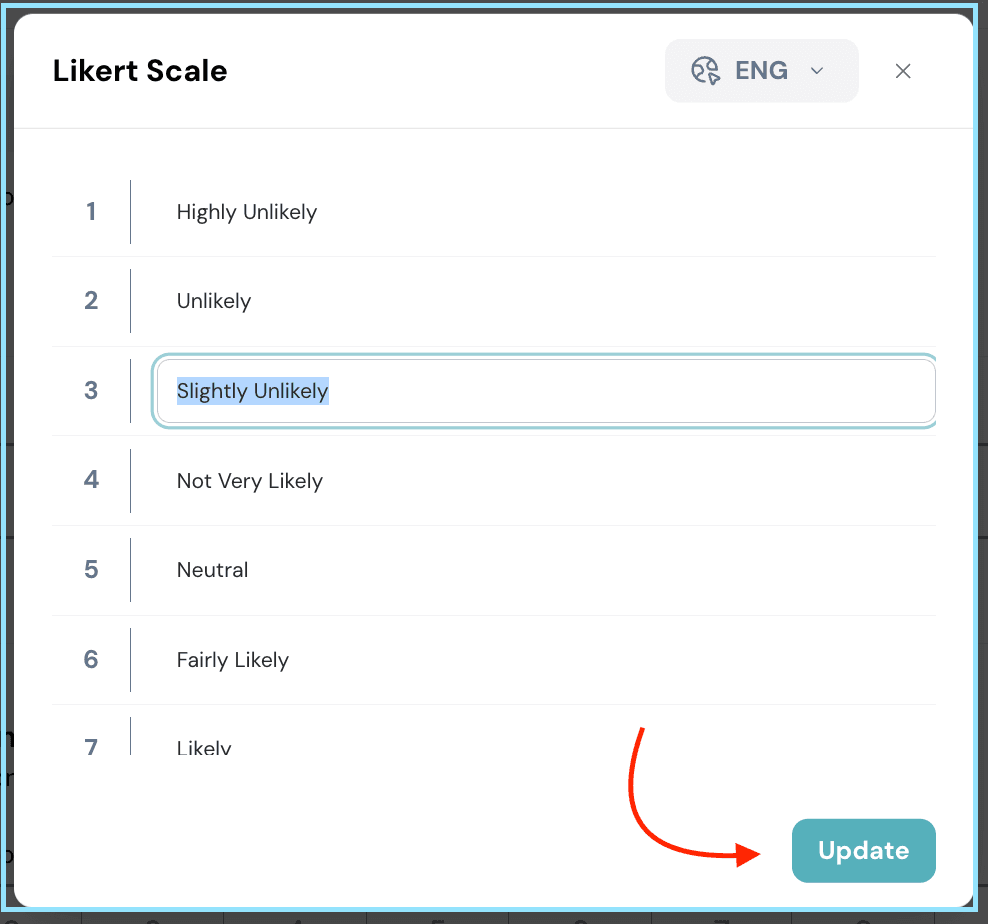
Modifying the Likert scale
Click on the pencil icon to customize the namings to your liking
Remember to hit "Update" once you're happy with the changes.
Congratulations on mastering the art of creating eNPS Surveys on ThriveSparrow! Let’s unlock a treasure trove of insights, know your company’s advocates and take your organization's success to the next level!
And hey, if you ever find yourself in a pickle, our support team is just a call away. Happy thriving!