
Importing Employee Data from Slack Integration

Note: You can set up Employee Imports from Slack or any other integration if you have the Edit Company Settings/Edit Employees permission enabled for you. Typically, Admins and Super Admins have this by default.
Step 1: Connect your Slack Integration
Start by navigating to the Account --> Integrations --> Slack. Click on the Connect button.
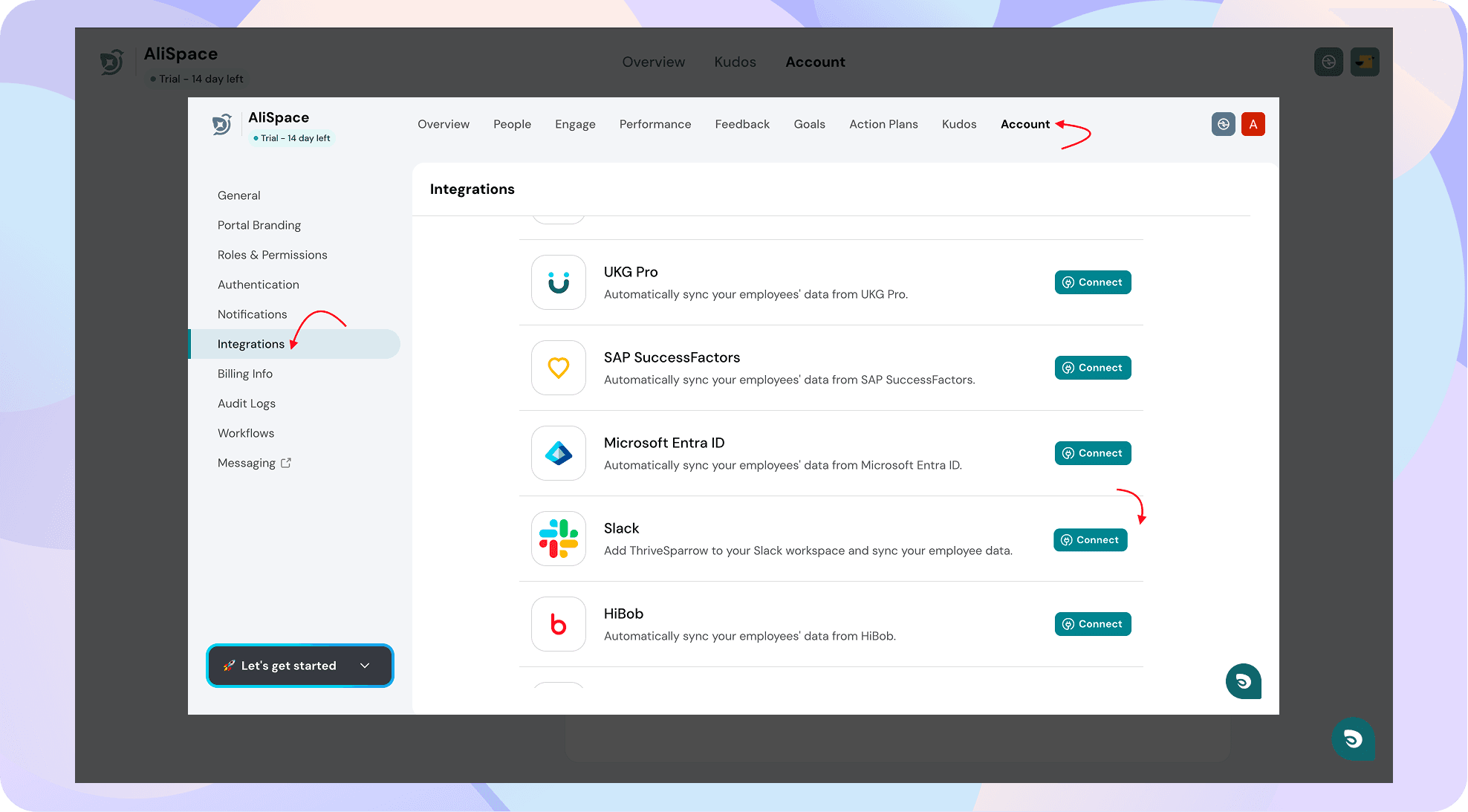
Verify Slack Admin Authorization. Confirm that you have the necessary Slack admin privileges. If you're not authorized, kindly contact your organization's Slack admin for assistance.
You'll be directed to an OAuth verification page. Review the details and click Allow to proceed.
You are now integrated with Slack.
Step 2: Import Employees from Slack
As soon as you integrate with Slack, you will be shown the import modal. Please note that importing your employees is optional; you can skip this step if required.
You may also go into the Slack integration page and toggle ON the "Import Employees" toggle.
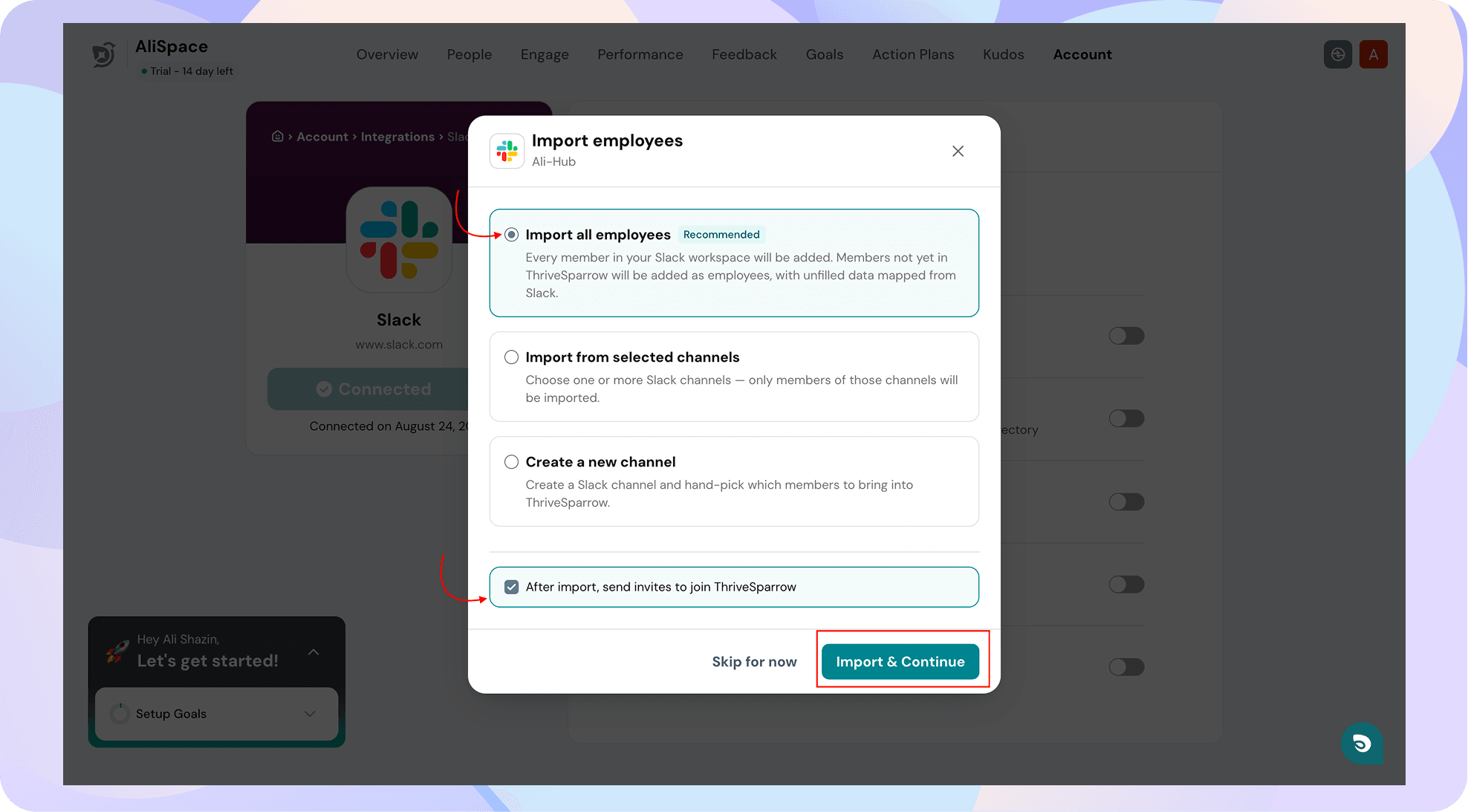
You will have three options as shown below.
Option 1: Import all employees: All employees from your Slack workspace will be added into ThriveSparrow as employees and paid users of your plan.
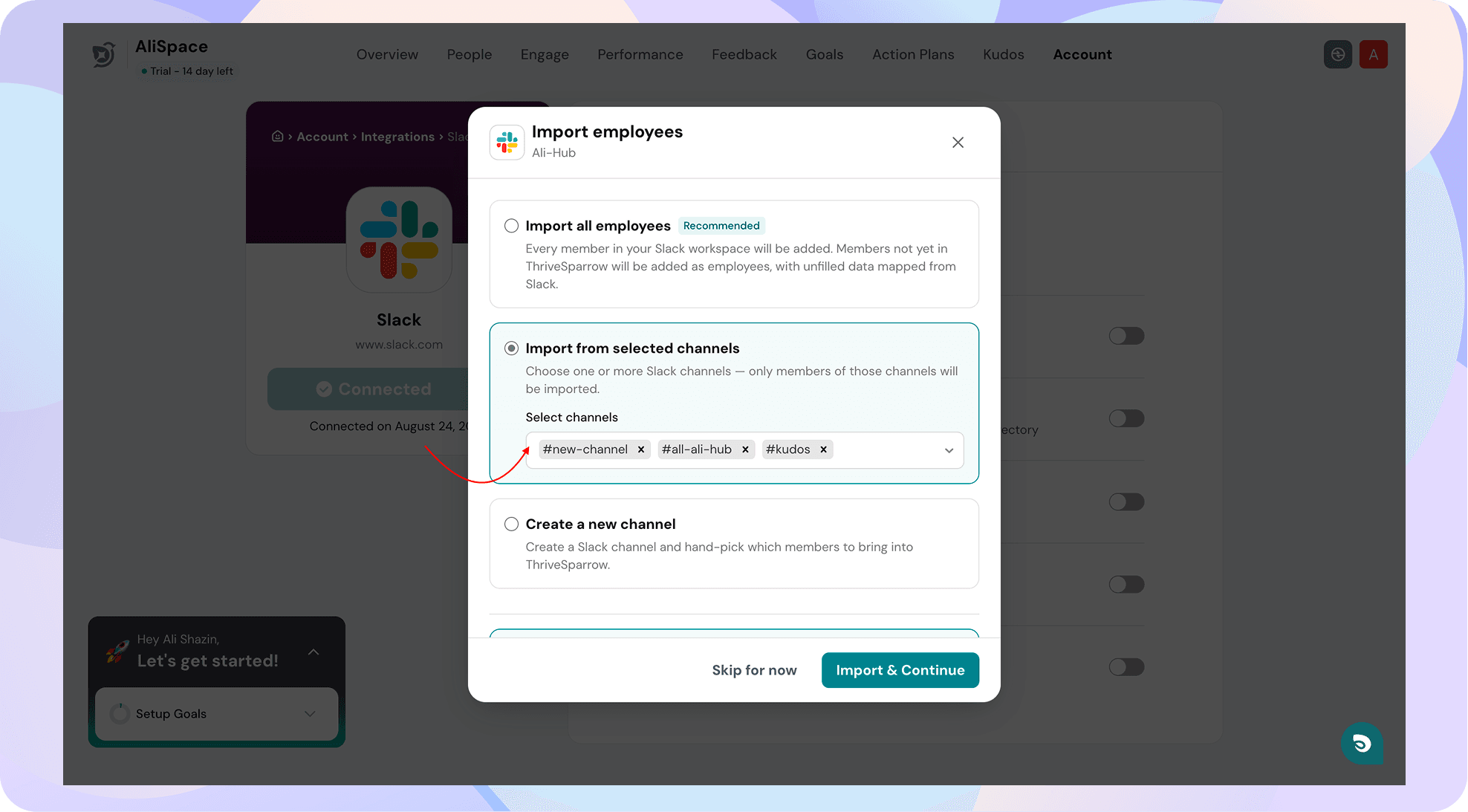
Option 2: Import from selected channels: You can import only the members of the selected channels.
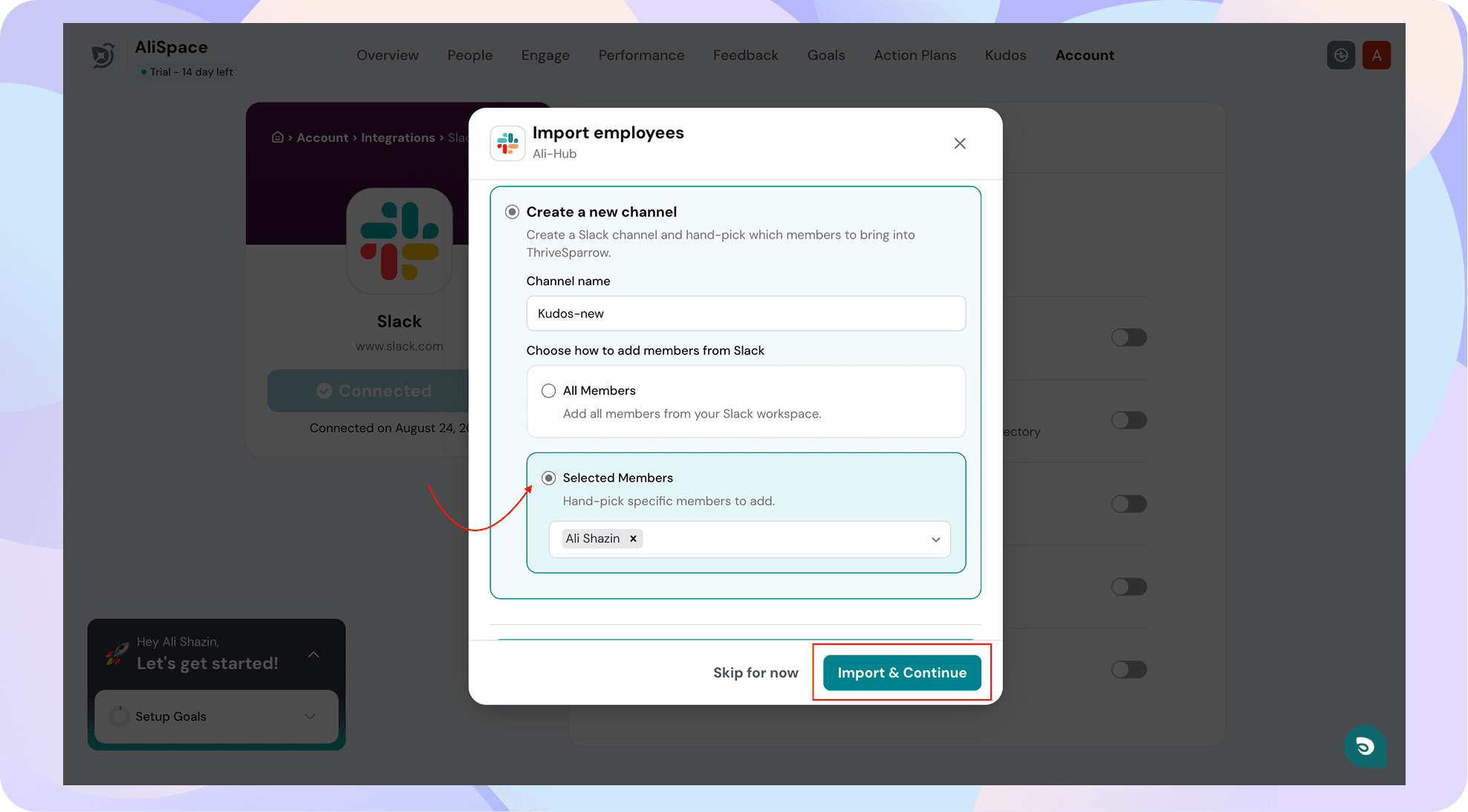
Option 3: Create a new channel with selected members from your Slack workspace and import them into ThriveSparrow.
Check "After import, send invites to join ThriveSparrow." to send invites to imported employees immediately.
Click on Import & continue. As per your selection, the imported employees will be added to the employee directory.
That's it! You've successfully imported your employees from Slack to ThriveSparrow. Should you need any help, don't hesitate to contact our support team. Happy thriving!