
Managing Roles and Permissions

In this guide, we'll show you how to assign members to different roles within ThriveSparrow, empowering your team with specific permissions tailored to their responsibilities.
Accessing Roles and Permissions:
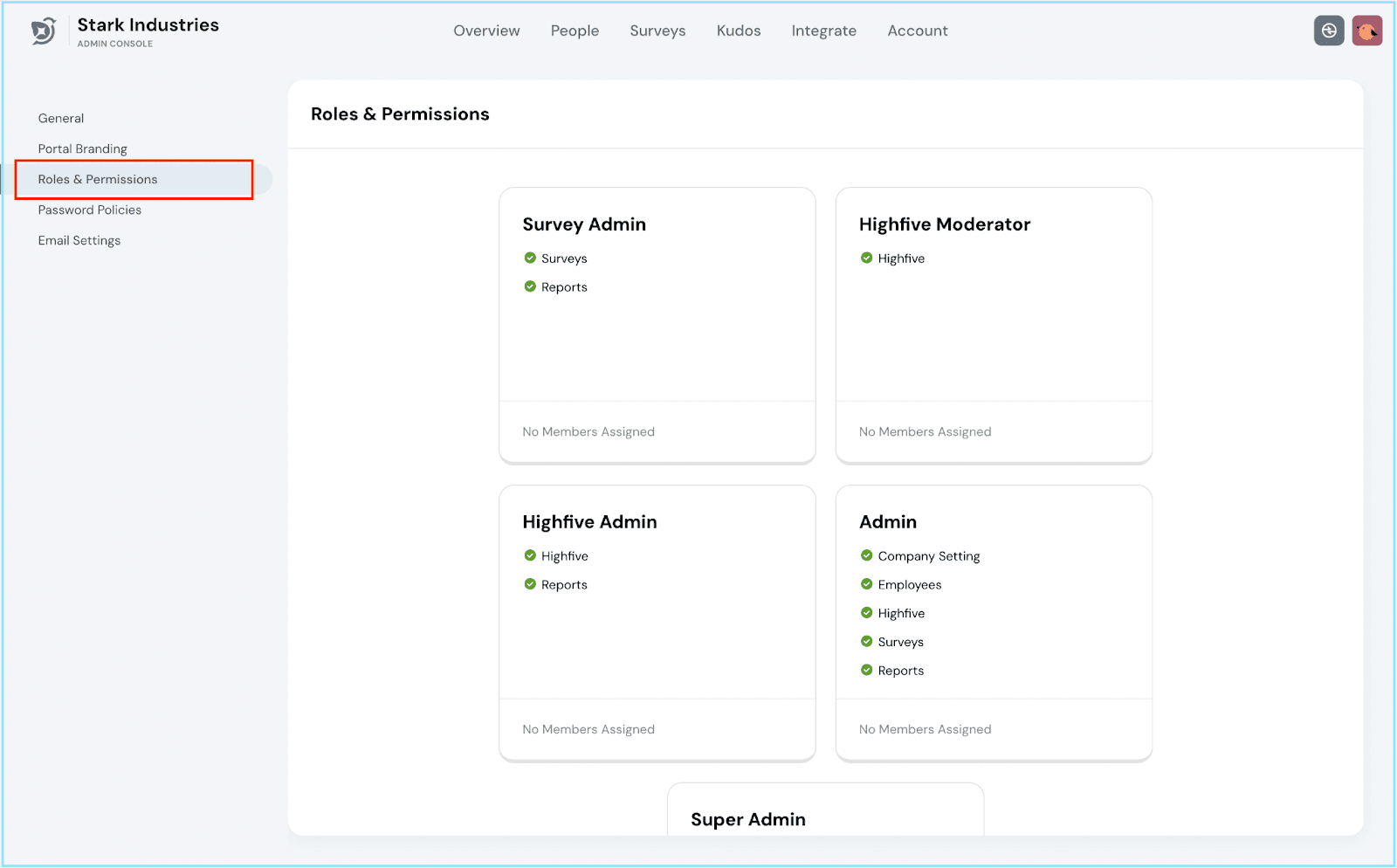
To begin, navigate to the Roles and Permissions tab found on the side navigation bar in the Accounts module.
Exploring Role Permissions:
Click on each Role tile to gain insight into the permissions associated with it.
Roles and Permissions Overview:
Here's a quick overview of ThriveSparrow's roles and their respective permissions:
Survey Admin:
- Full privileges for managing surveys, including viewing, deleting, and editing.
- Full privileges for managing and viewing reports.
Kudos Moderator:
- Full privileges for managing Kudos approval and Rewards approval.
Kudos Admin:
- Full privileges for Kudos settings, viewing, and editing.
- Full privileges for managing Kudos approval, deleting Kudos, and approving Rewards.
- Full privileges for managing and viewing reports.
Admin:
- Full privileges for managing and viewing reports.
- Full privileges for editing, deleting, and viewing employees.
- Full privileges for managing surveys.
- Full privileges for Kudos settings, approval, and Rewards.
- Full privileges for company setting.
Super Admin:
- Full privileges for managing and viewing reports.
- Full privileges for editing, deleting, and viewing employees.
- Full privileges for managing surveys.
- Full privileges for Kudos settings, approval, and Rewards.
- Full privileges for company setting, including Billing management.
Adding Members to Roles
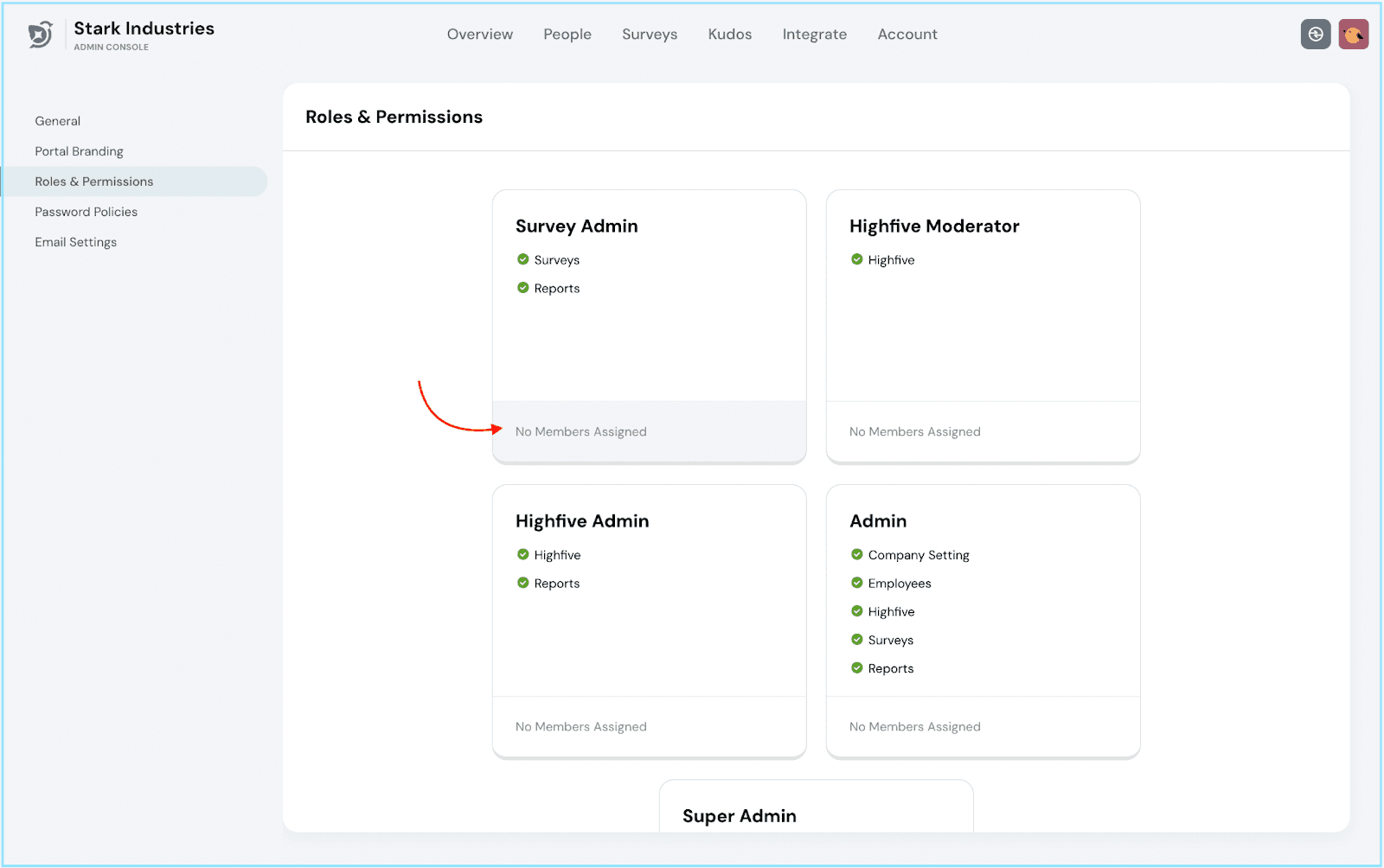
To assign team members to specific roles, click on the marked tab corresponding to the role you want to assign.
Adding Team Members
- A pop-up will appear, allowing you to search for employees by name or email.
- Select the desired employees and click the Confirm button to add them to the specified role.
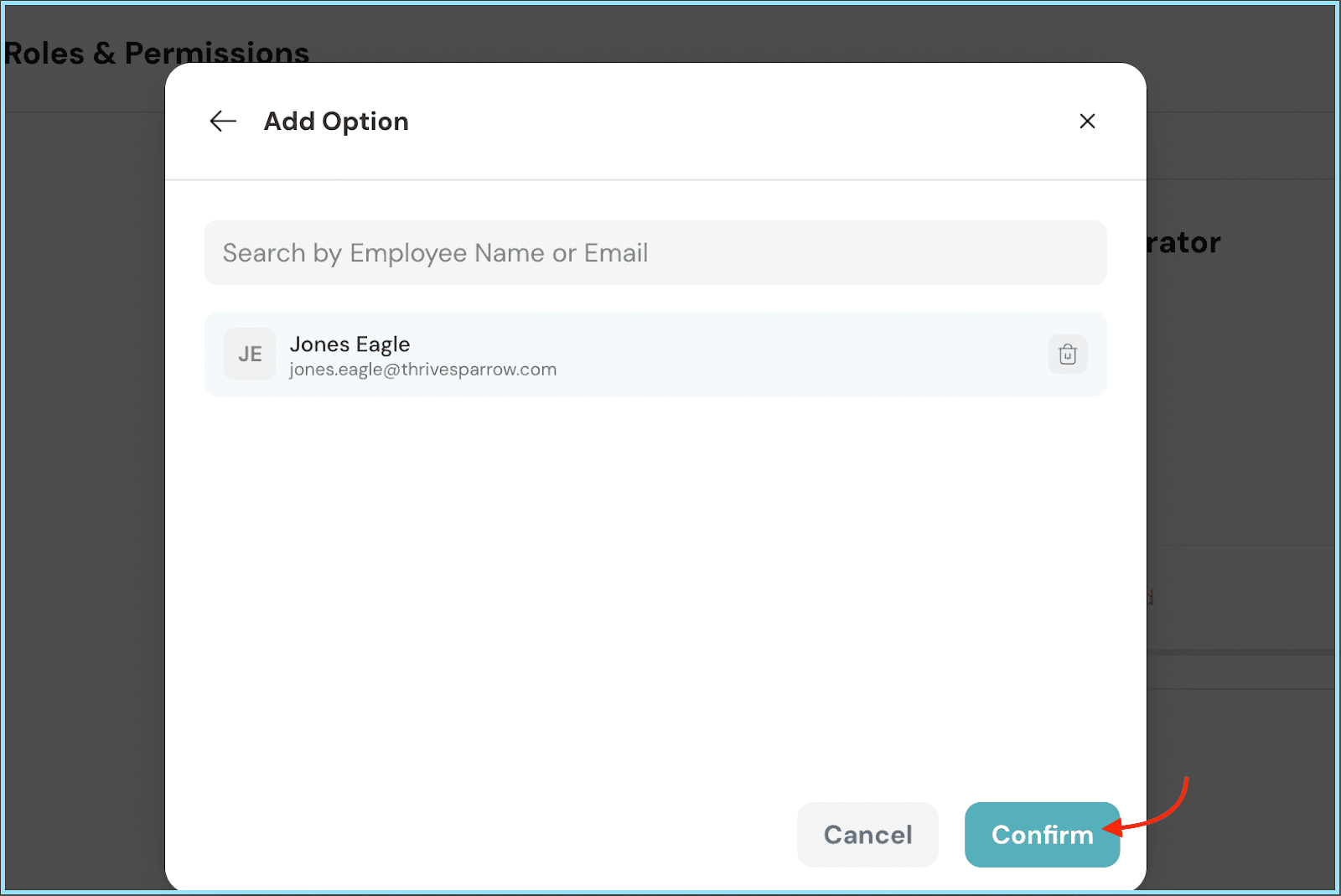
And the role is assigned!
Customize your ThriveSparrow experience by granting tailored permissions to your team members, enhancing collaboration, and ensuring smooth operations. Enjoy the benefits of a well-structured team with ThriveSparrow's role management!
Should you need any help, don't hesitate to contact our support team. Happy thriving!