Bulk Importing Goals via CSV

If you're working with multiple goals or managing goals for a large team, bulk uploading via CSV is the fastest way to get started. Here's how to ensure a smooth upload process:
- Navigate to Goals → My Goals.
- Click on the ➕ New Goal icon.
- You’ll see three options:
- Goal – Create a new individual goal.
- Task – Create a task linked to a goal.
- Import CSV – Bulk upload multiple goals using a CSV file.
To bulk upload goals:
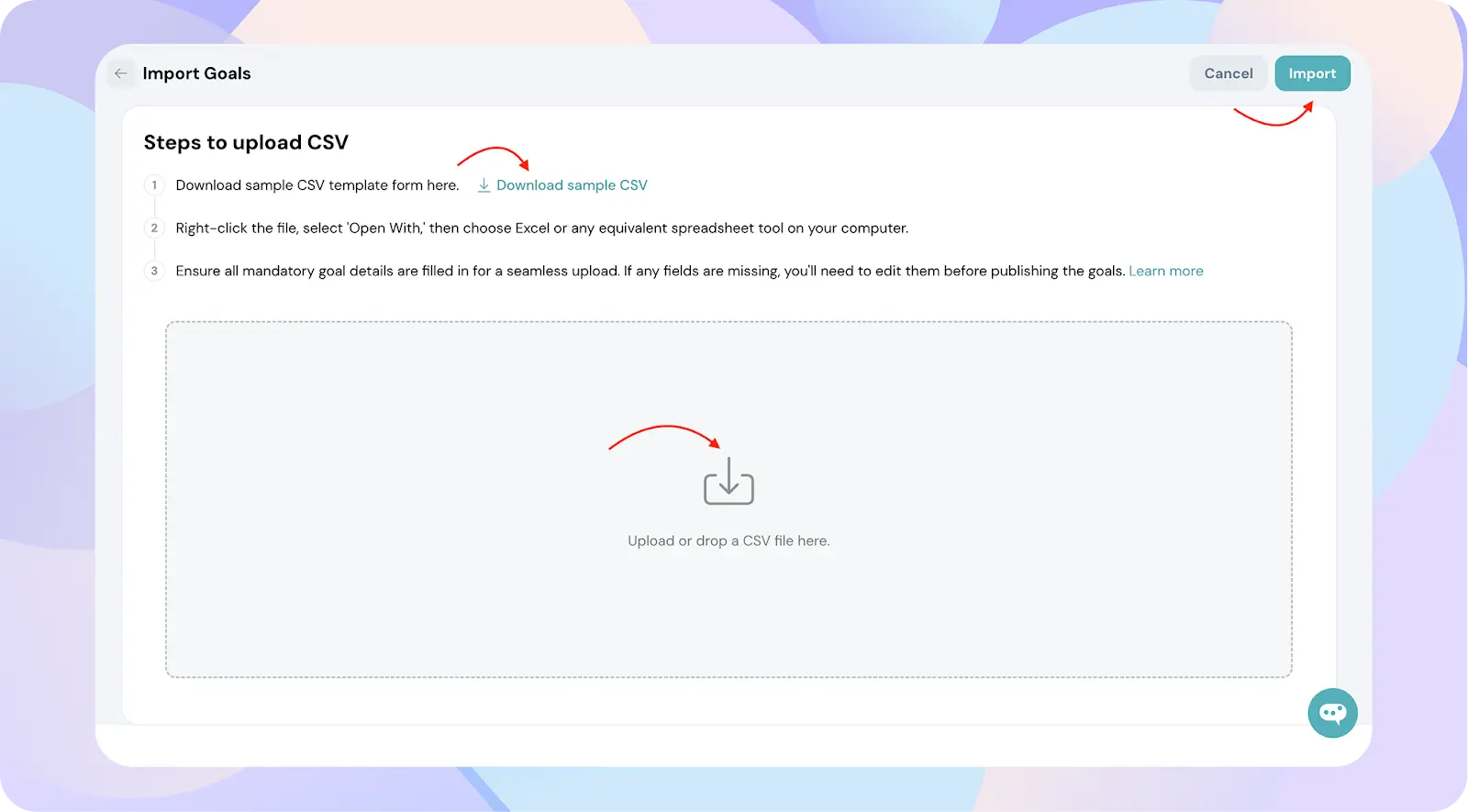
- Click Import CSV.
- Download the sample template.
- Fill in your goals and upload the CSV.
Mapping Fields
After uploading your CSV:
- Map all the required fields during the upload process.
- Optional fields can be skipped, but all mandatory fields must be mapped correctly.
- Once mapping is complete, click Import.

Review and Handle Errors
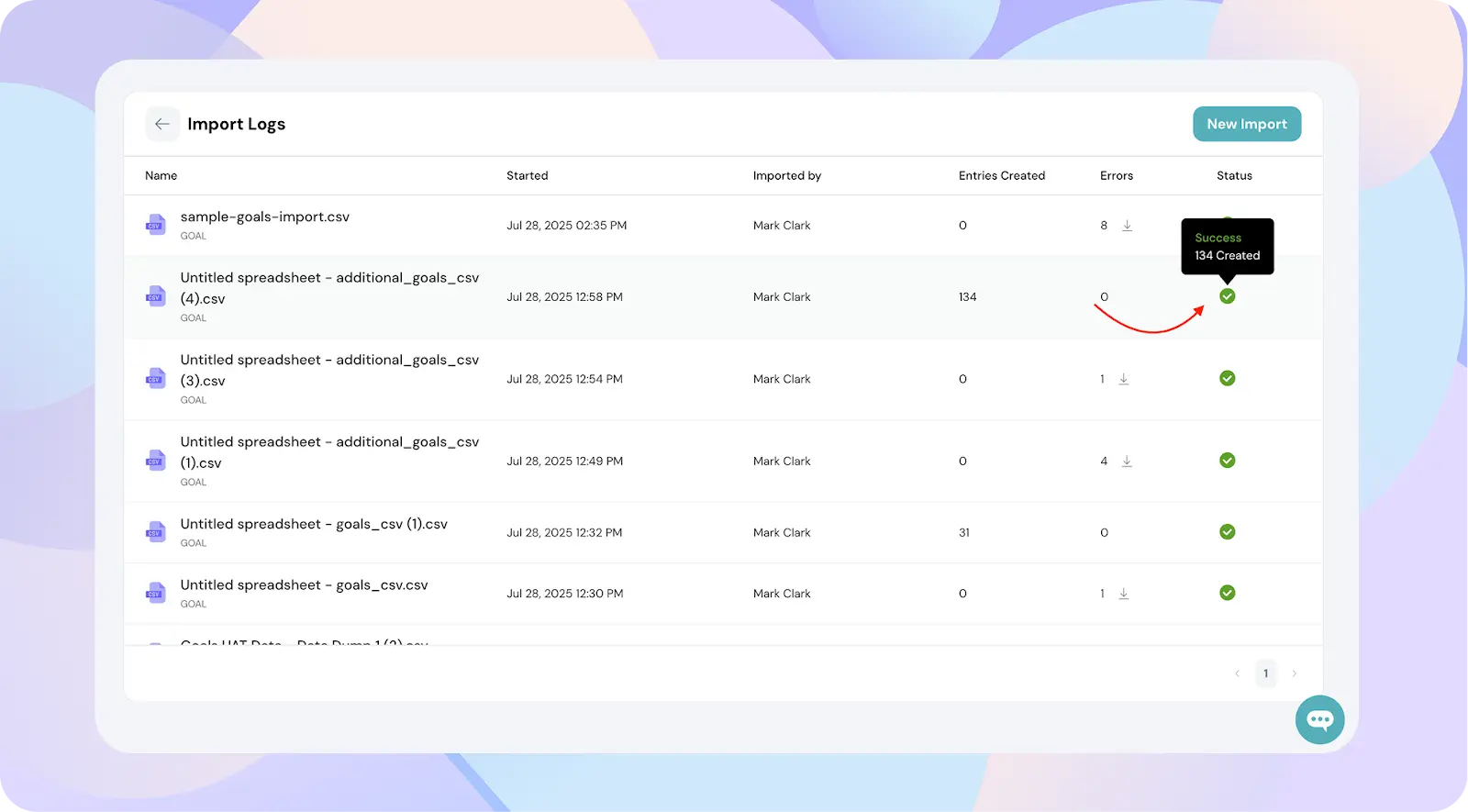
- If the upload is successful, you’ll see a green checkmark and a success message next to each goal.
- If there are errors:
- Click on the errors and the error sheet will be downloaded
- ThriveSparrow will show you exactly which row and cell has the issue.
- Fix the errors in your original CSV file.
- Re-upload the corrected file and complete the mapping again.
This error preview ensures you're not guessing what's wrong—making the process faster and cleaner.